|
n
|
Preparing to Install Pervasive AuditMaster for needed information, including system requirements and platform-specific notes relevant to your operation.
|
|
n
|
If you are installing an AuditMaster Viewer client to access a Pervasive PSQL system in which security is enabled and security policy is set to either Mixed or Database, see Running AuditMaster under Pervasive PSQL Security. Prepare to set up AuditMaster in a Pervasive Security environment by first familiarizing yourself with the security chapter in Pervasive PSQL Advanced Operations Guide. Note that for successful installation when database security is enabled, the Prompt for Client Credentials setting must be selected in Pervasive PSQL Control Center (PCC) in the Properties Access window for the Pervasive PSQL engine.
|
|
n
|
When installed on a Pervasive PSQL server, the standard AuditMaster installation creates a hidden administrative share. When AuditMaster Viewer is installed as a remote client, access to that share is required. Before installing in either case, we recommend registering the share with any firewall system you may be running. By default, the share name is PVSWAUDIT$ for the path C:\<installation directory>\Audit, but both the name and path can be set to other values at installation time. Also, the share need not be hidden. To meet security requirements, the share can be replaced with an explicit local path name. For instructions, see Removing the Network Share.
|
|
n
|
The upgrade from version 6.x to 6.4 can replace the existing AuditMaster installation without loss of audit records, server settings, users and passwords, saved queries, reports, or alerts.
|
|
n
|
If you are upgrading from version 6.x to 6.4, to ensure a complete audit log, we recommend that you open the AuditMaster Viewer client on the server, update the current view file, and then archive it before installing the upgrade.
|
A Pervasive AuditMaster license authorizes one server installation, but you may install as many viewer clients as needed across your network environment. For details, see Installing AuditMaster Viewer as Client Only.
|
Insert the AuditMaster CD-ROM and allow it to start. If it does not do so automatically, open the file drive:\setup.exe (where drive is the drive letter of your CD-ROM).
|
|
|
3
|
|
4
|
Note Without a license, you can audit for the trial evaluation period. After that, auditing ends, but any logged audit records can be queried. For more information, see Authorization License.
Click Next.
|
7
|
|
w
|
Click Back to change the installation folder.
|
|
w
|
Click Next to continue installing.
|
When you continue, setup installs needed files, then displays the AuditMaster Setup Complete window.
|
w
|
To restart the machine on which you are installing AuditMaster, select Yes, I want to restart my computer now.
|
|
w
|
|
10
|
Click Finish.
|
The next task is to set up data monitoring, as described in Chapter 6: Working with Audit Configurations.
|
Copy the client installation folder (e.g., default location C:\<installation directory>\Audit\Client) from the server to the client machine and open the file \Client\setup.exe.
|
|
|
4
|
|
6
|
If needed, change the default installation location C:\<installation directory>\Audit to suit your local environment, and click Next.
|
|
8
|
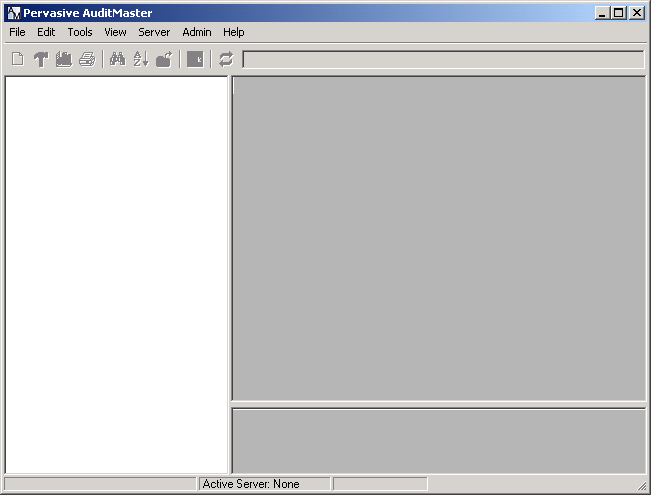
To connect the new client to an AuditMaster server, open AuditMaster Viewer from the operating system Start menu or Start screen.
|
|
9
|
|
10
|
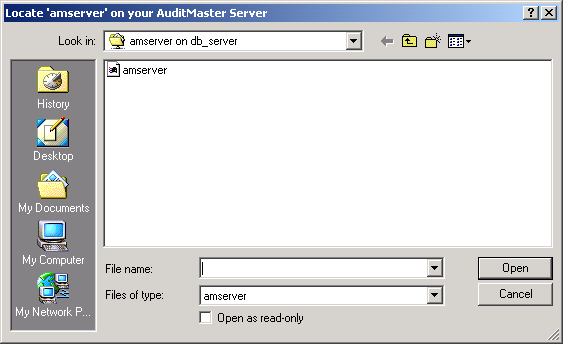
Enter the path to the file amserver to read the settings for the AuditMaster server to which you want to a client connection.
|
|
w
|
Windows default \\server\PVSWAUDIT$\DATA\amserver, where server is the name of the Pervasive PSQL machine with the database to be audited. Note that a share name other than PVSWAUDIT$ may have been chosen.
|
|
11
|
Click Open.
|
|
12
|
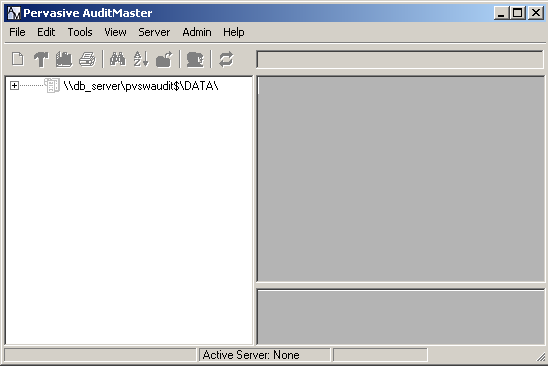
Right-click a server configuration and select Login. You may also double-click the configuration.
|

|
13
|
Enter a valid user name and password, and click OK to activate the command menus.
|
Note AuditMaster has a built-in user ID admin, for which the installation sets the default password MASTER. Passwords are case-sensitive, but user names are not. For security reasons, you will want to consider changing this password. Note that AuditMaster user accounts are unrelated to network, local, or database user logins. For remote client access to a Pervasive PSQL system with security policy is set to either Mixed or Database, follow the instructions under Running AuditMaster under Pervasive PSQL Security.
|
n
|
|
n
|
|
n
|
Uninstalling AuditMaster removes its components under the folder <installation directory>\Audit. Files in other locations are untouched.
|
2
|
Select Pervasive AuditMaster in the list and remove it.
|
Removing AuditMaster from a Windows client is the same as for a Windows server, except that you select Pervasive AuditMaster Viewer for removal.