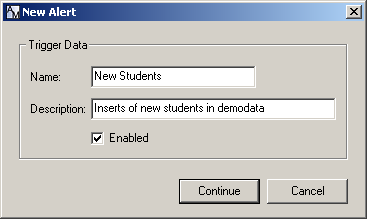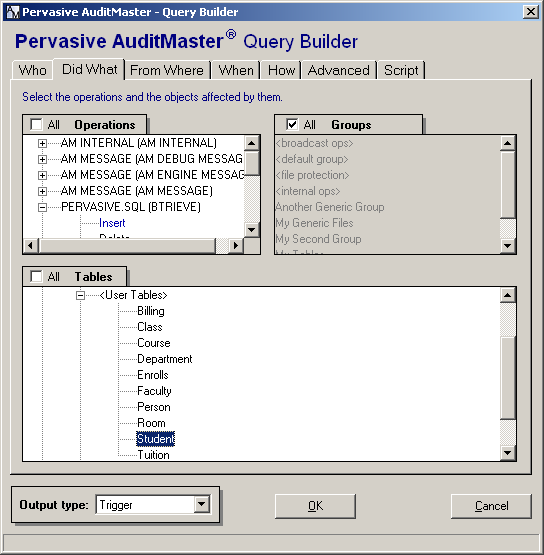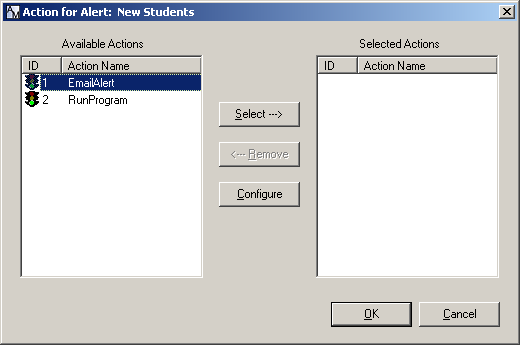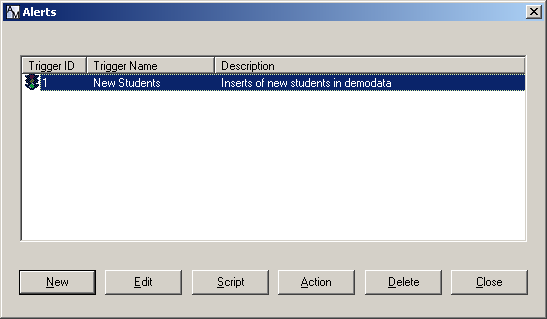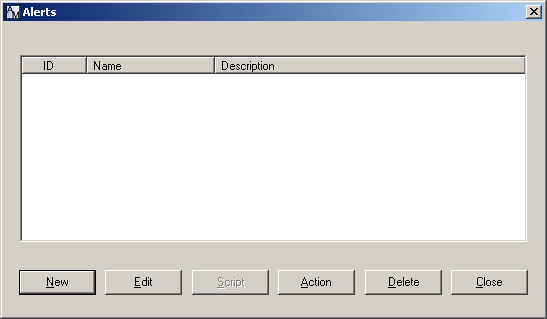
Adding a New Alert ‰ To create an alert 1 In AuditMaster Viewer, run a query to display the type of audit records for which you would like to create an alert condition. 2 Select File Alerts. The Alerts window appears. 3 Click New. The New Alert window appears. 4 Enter a name for this alert using letters, numbers, or spaces. In this example, we create an alert for new students in the Pervasive PSQL demonstration database. 5 Enter a description for the alert using letters, numbers, or spaces. We suggest you describe the event for which the alert is to watch. 6 Click Continue. The Query Builder window appears. 7 Define the criteria for this alert using the tabs in the Query Builder. For details on using these tabs, see Running Queries. 8 When you are finished, click OK. The Action for Alert window appears. 9 At this point, you may select and configure an alert action to set for this alert, but for now simply click OK and continue with the tutorial steps. The Alerts window shows the alert that was just added. 10 You can now choose from one of the following tasks: w Setting an Action for an Alert. w Editing an Existing Alert. w Stopping an Alert.