Iceberg
Tables hosted in Hive Metastore
Note: Feature only supported for GCP deployments & GCS metastore.
- Navigate to the Iceberg Configuration Page
- Go to your project's dashboard.
- Under Source Systems, select Iceberg.
- Configure Connection Details
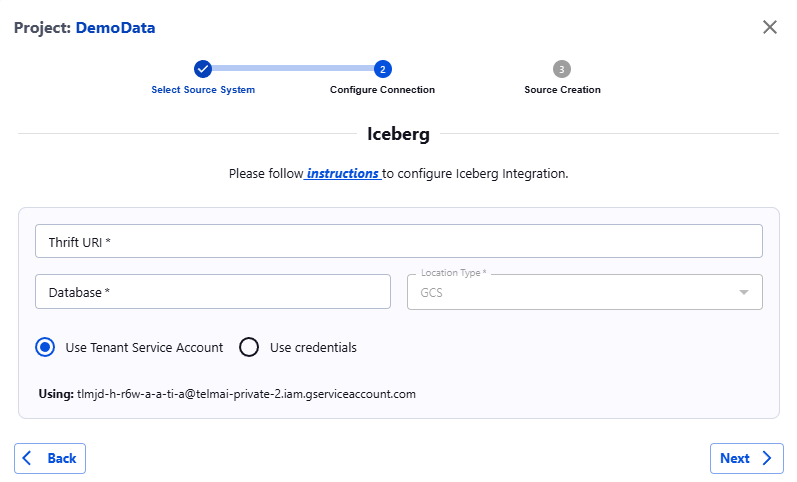
- Fill in the required fields as follows:
- Thrift URI: Enter the Thrift URI to connect to Hive Metastore using thrift protocol.
- Database: Specify the database where Iceberg table resides.
- Location Type: Choose the type of storage, where physical data files are present. (Currently only GCS supported)
- For GCS:
- Project ID: Provide your project identifier.
- Client ID: Enter your client identifier.
- Email: Provide your email for authentication.
- Private Key ID: Enter the private key ID.
- Private Key: Enter the private key.
- For Azure:
- Not Supported
- For S3:
- Not Supported
Specified GCS service account credentials should have read-access to Hive Metastore warehouse. Additionally in case of private cloud deployment write-access to Actian Data Observability internal storage bucket should be set to this service account. - Validate Connection
- After filling all fields, click Next.
- The system will validate your connection parameters.
- If successful, you will proceed to Table selection.
- Create Source
- After table selection, click Confirm to create the data source.
Last modified date: 03/20/2026