---
description: Connect Databricks to Actian AI Analyst
---
# Databricks
To connect Actian AI Analyst to your Databricks SQL environment, follow the steps below. Actian AI Analyst uses read-only access to query data from your Unity Catalog via SQL Warehouses.
> ✅ Actian AI Analyst supports both Personal Access Tokens and DBX's Service Principals for authentication.
### 1. Choose Your Authentication Method
You can connect Actian AI Analyst using either of the following:
* **Personal Access Token**\
Easiest to set up for individual access.
* **Service Principal (OAuth)**\
Better for automated access, access control, and secret rotation.
***
### (Option A) Use a Personal Access Token
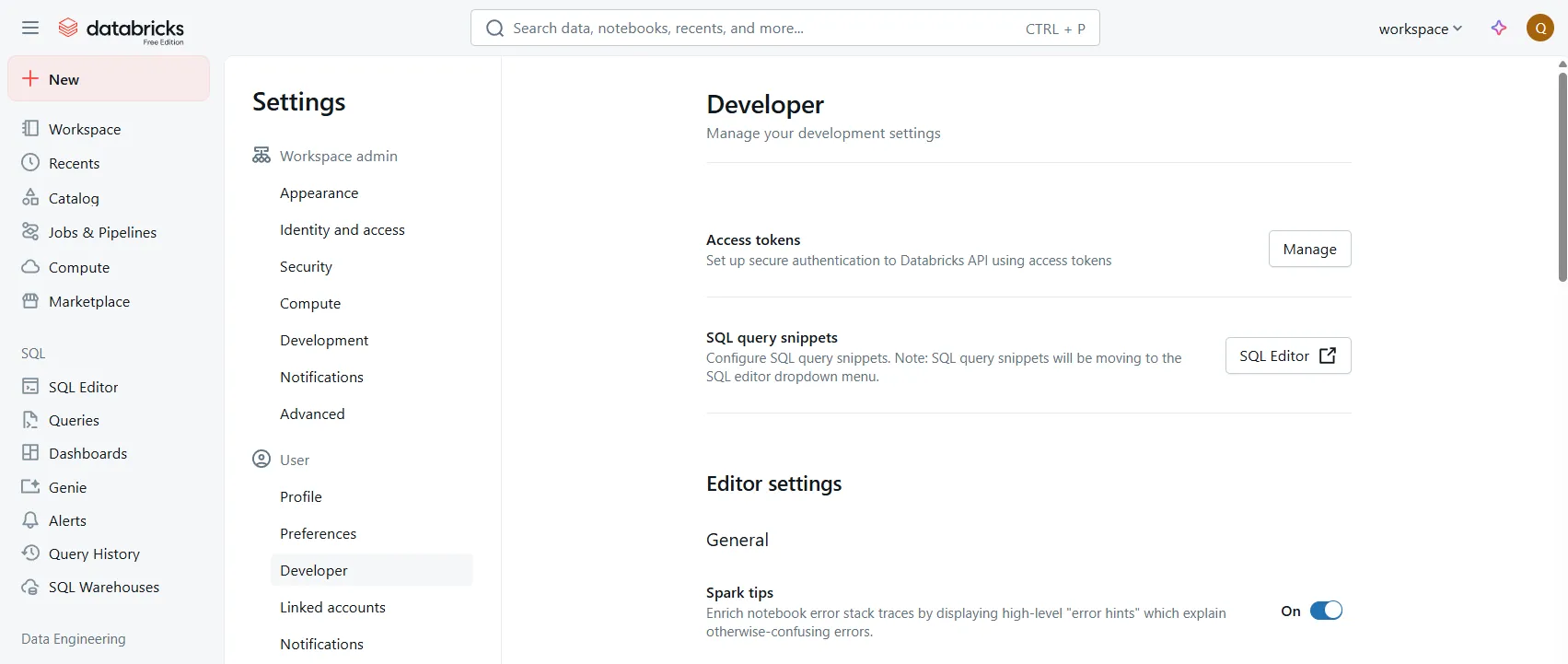
1. In the Databricks UI, go to:\
**Top right avatar → User Settings → Developer → Access Tokens**
2. Click **Generate new token**
* Add a descriptive comment
* Set a reasonable lifetime
3. **Copy the token value immediately** — it can't be viewed again.
***
### (Option B) Use a Service Principal (OAuth)
1. Create a new **Service Principal** in Azure AD
* Note the **Application (Client) ID** and **Tenant ID**
2. Generate a **Client Secret**
* Go to: Certificates & Secrets → **New client secret**
* **Copy the secret value** (can't retrieve later)
3. In Databricks:
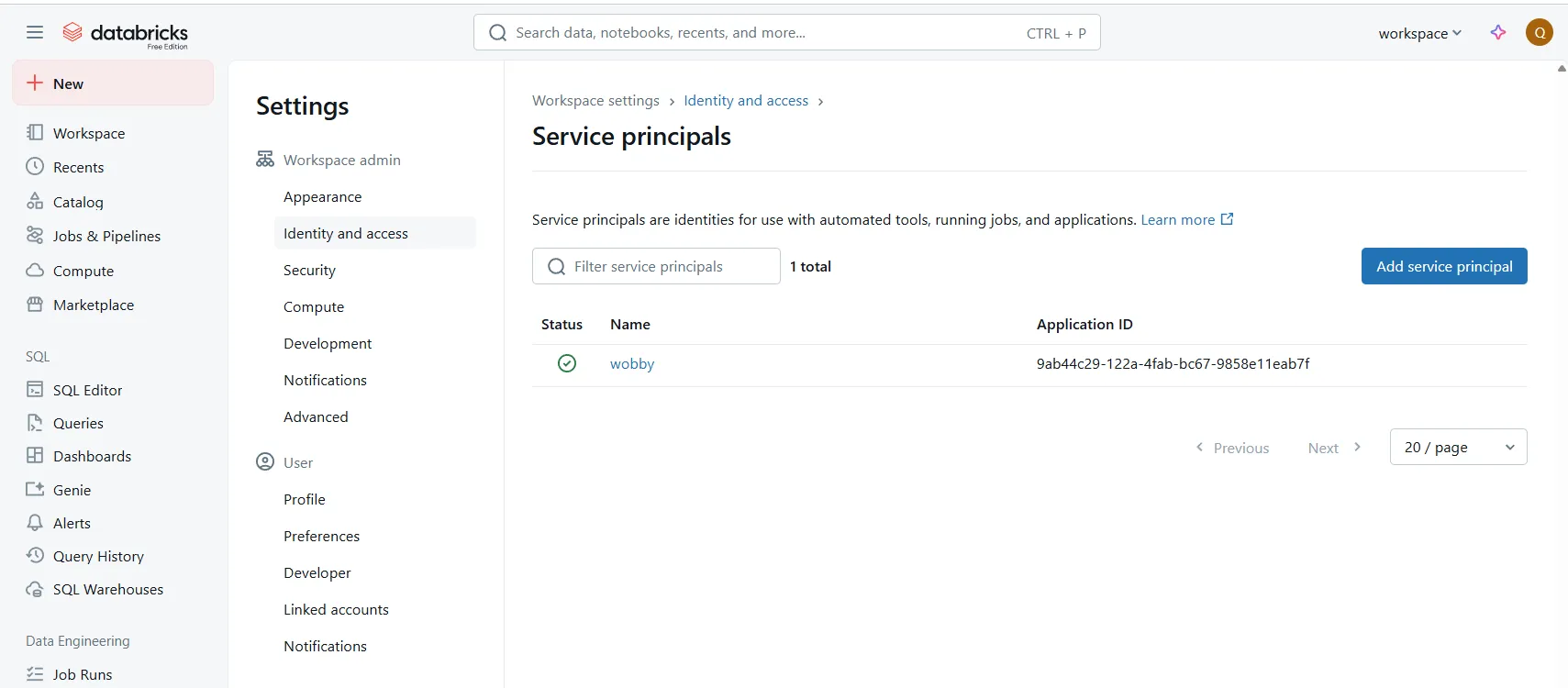
* Open **Account Console** or **Workspace Admin → Service principals**
* Add the app (Service Principal) by its client ID
4. Assign workspace entitlements:
* ✅ Must have **Access to SQL**
* (Optional) Grant **Workspace access** if needed
5. Grant access to data:
* Add the Service Principal to a group **or** grant access directly in SQL Warehouse and Unity Catalog
***
### 2. Grant Required Permissions in Databricks
To allow Actian AI Analyst to read metadata and query tables, the identity (user or service principal) must have:
* **SQL Warehouse**:
`CAN USE` on the target warehouse
&#xNAN;_Databricks → SQL Warehouses → Select warehouse → Permissions_
* **Unity Catalog**:
* `USAGE` on each **catalog** you want Actian AI Analyst to scan
* `USAGE` on **schemas** inside those catalogs
* `SELECT` on **tables** or **views** you want Actian AI Analyst to query
> ℹ️ Missing privileges will result in empty catalog/schema/table lists during metadata sync.
***
### 3. Collect Connection Details
You'll need the following values from your Databricks SQL Warehouse:
| Field | Where to find it |
| ------------- | ------------------------------------------------------------------------------------ |
| **Host** | SQL Warehouse connection dialog (e.g. `adb-1234567890123456.17.azuredatabricks.net`) |
| **Port** | Usually `443` (default) |
| **HTTP Path** | SQL Warehouse → Connection Details (e.g. `/sql/1.0/warehouses/abcd1234efgh5678`) |
| **Catalogs** | Unity Catalog catalogs Actian AI Analyst should scan (start with `main` or `default` if unsure) |
***
### 🚧 Troubleshooting Tips
| Issue | Possible Cause |
| -------------------------------- | ------------------------------------------------------------------------------- |
| **Empty catalog list** | Missing `USAGE` on catalogs or pointing to legacy Hive instead of Unity Catalog |
| **Cannot see schemas or tables** | Missing `USAGE` or `SELECT` at schema/table level |
| **Connection test fails** | Incorrect token/secret, wrong HTTP path, or firewall/network issue |