How You Safely Uninstall Analytics Engine
Removing Analytics Engine is an irreversible event with pervasive effects. Any products or applications that share the removed DBMS Server are affected, as follows:
• Any future attempt to connect to this database will fail.
• If you re-install Analytics Engine, you may not be able to reference the data.
Removing the RPMs does not remove data by default. For an installation installed from a TAR file, however, if the data is under II_SYSTEM, it will be removed.
If you know you want to remove a Analytics Engine instance, follow this process:
1. If you want to keep data for later use or you want to move your data to another hardware/operating system configuration, you must run unloaddb against each database before removing Analytics Engine. Doing so will allow you to reload the data easily if you re-install Analytics Engine later on a different machine.
2. If you do not want to keep the data files, you can run destroydb against each database before removing Analytics Engine. The destroydb command locates and deletes all data files.
3. Uninstall Analytics Engine.
Uninstall Analytics Engine for Linux
For Linux distributions that have RPM or DEB package manager, you can uninstall Analytics Engine using an uninstall command.
For Linux distributions without RPM or DEB package manager, you can uninstall Analytics Engine by using the script described in the article Uninstalling Ingres on UNIX (https://communities.actian.com/s/article/Uninstalling-Ingres-on-Unix).
uninstall Command--Uninstall AnalyticsEngine for Linux
The uninstall command removes any or all instances of Analytics Engine for Linux on a machine.
The uninstall command is in the extracted distribution archive in the bin subfolder.
This command invokes the appropriate package manager for the installation. If this command is run without any parameters, it generates a list of standard (non-renamed) installed packages and prompts for confirmation before removing them.
This command has the following format:
uninstall {[instance ID] | [-a (--all)]} [-y (--yes)] [-c (--clean)]
instance ID
Identifies the instance ID embedded in the renamed package names to be removed.
-a
Removes all Analytics Engine packages for all Analytics Engine instances. This parameter cannot be used if specifying an instance ID.
-y
Answers yes to all prompts (that is, does not prompt).
-c
Removes the $II_SYSTEM/ingres directory after the uninstall operation is complete.
Uninstall Analytics Engine for Windows
The Analytics Engine uninstall program removes all binary files.
To uninstall Analytics Engine for Windows
1. Click Start, (Windows) Settings, Apps. Select the Actian Analytics Engine entry and choose Uninstall.
The Uninstall or change a program window appears.
2. Select the Analytics Engine instance or component you want to remove.
Note: If multiple instances installed, be sure to select the one you want to remove. Each instance is identified by a unique instance name.
Note: The .NET Data Provider and Director, if installed, are separately installed products and must be individually selected for removal.
3. Double-click the instance or component.
The installation wizard is started.
4. Follow the installation wizard instructions to remove the product.
Binary files and any data files residing in II_SYSTEM are removed.
Uninstall Analytics Engine Containers
The uninstall scripts for Debian and RPM installers:
• stop running containers of the instance
• delete leftover containers of the instance
• remove the instance tag from the container images
The scripts retain the original images tagged with version numbers. These images are kept because there may be other instances using them. If there is only one instance on the machine, the images may be removed using the docker rmi command.
Note: For Linux distributions without RPM or DEB package manager, the above steps will need to be done manually.
For example, before the uninstall script runs, the docker images show as: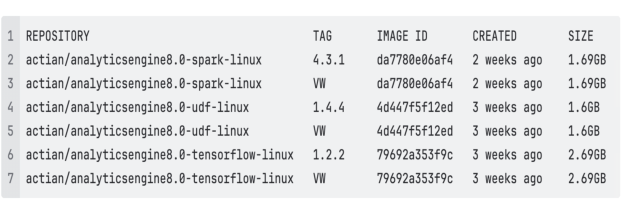
After the uninstall script runs, the docker images show as:
Last modified date: 09/11/2026