Adding an Actian Informix Connection
Prerequisites
- The current Scanner version requires Java 11. Either OpenJDK or Oracle JDK can be installed.
- It is assumed that the Zeenea Scanner has been successfully downloaded and configured. See Zeenea Scanner Setup.
Installing the Generic JDBC Connector Plugin
- Download the Generic JDBC connector plugin from the Zeenea connectors download links page, or download directly at https://plugins.zeenea.app/jdbc-connector-plugin/jdbc-connector-plugin-74.zip.
- Move the zip file to the
[scanner_install_dir]/pluginsfolder. Do not unzip the archive.
Installing the Informix Driver
- Download an Informix driver for your connector. You can find a driver here: Actian ESD or https://mvnrepository.com/artifact/com.ibm.informix/jdbc.
-
Extract the jar file, if needed, and copy it to the
[scanner_install_dir]/lib-extfolder:jdbc-4.10.16.jar(Version may differ)
Creating the Configuration File
- In the
[scanner_install_dir]/connectionsfolder, create a new file namedinformix.conf. (The file can be named as desired, but the file extension must be.conf.) -
Copy and modify the content below based on your environment configuration, replacing
<HOSTNAME>,<PORT>,<DATABASE>,<USER>and<PASSWORD>with the appropriate values for your environment.# Unique code and name for this connector. # NOTE: code must be unique across all scanners in your organization. code = "actian-informix_connector_code" name = "actian-informix_connector_name" # Connector ID (do not change) connector_id = "generic-jdbc" enabled = true connection { # JDBC URL to connect to the Informix database url = "jdbc:informix-sqli:<HOSTNAME>:<PORT>/<DATABASE>" # Driver name (do not change) jdbc_driver_name = "com.informix.jdbc.IfxDriver" # Authentication details (modify as per environment) # Default password is an empty string username = "<USER>" password = "<PASSWORD>" }
Verifying the Connection
- Restart Zeenea Scanner.
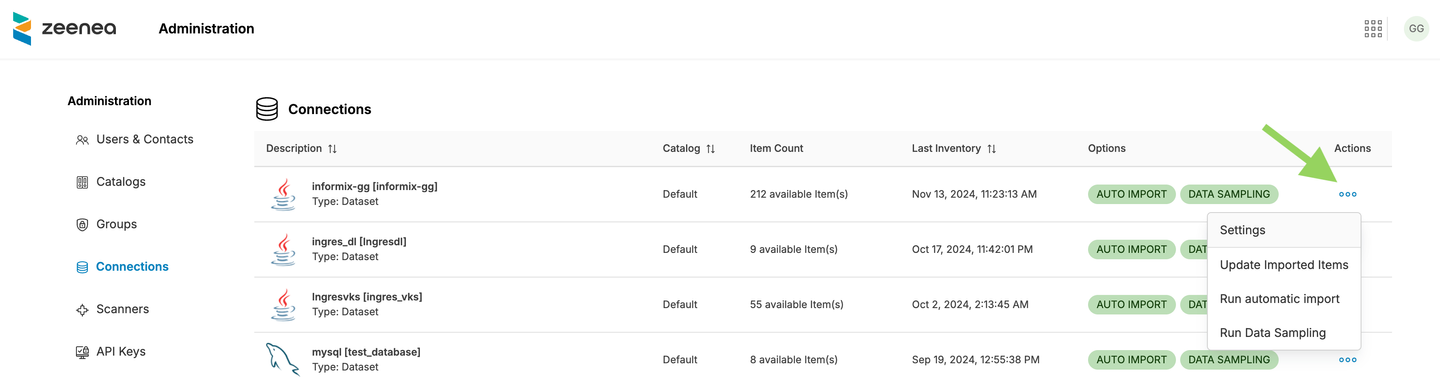
- In Zeenea Administration, click Connections and verify that the new connection is listed:

- If you encounter any issues, review the scanner.log file located in the
[scanner_install_dir]/logsfolder for troubleshooting guidance. Also refer to Troubleshooting for Scanners and Connections.
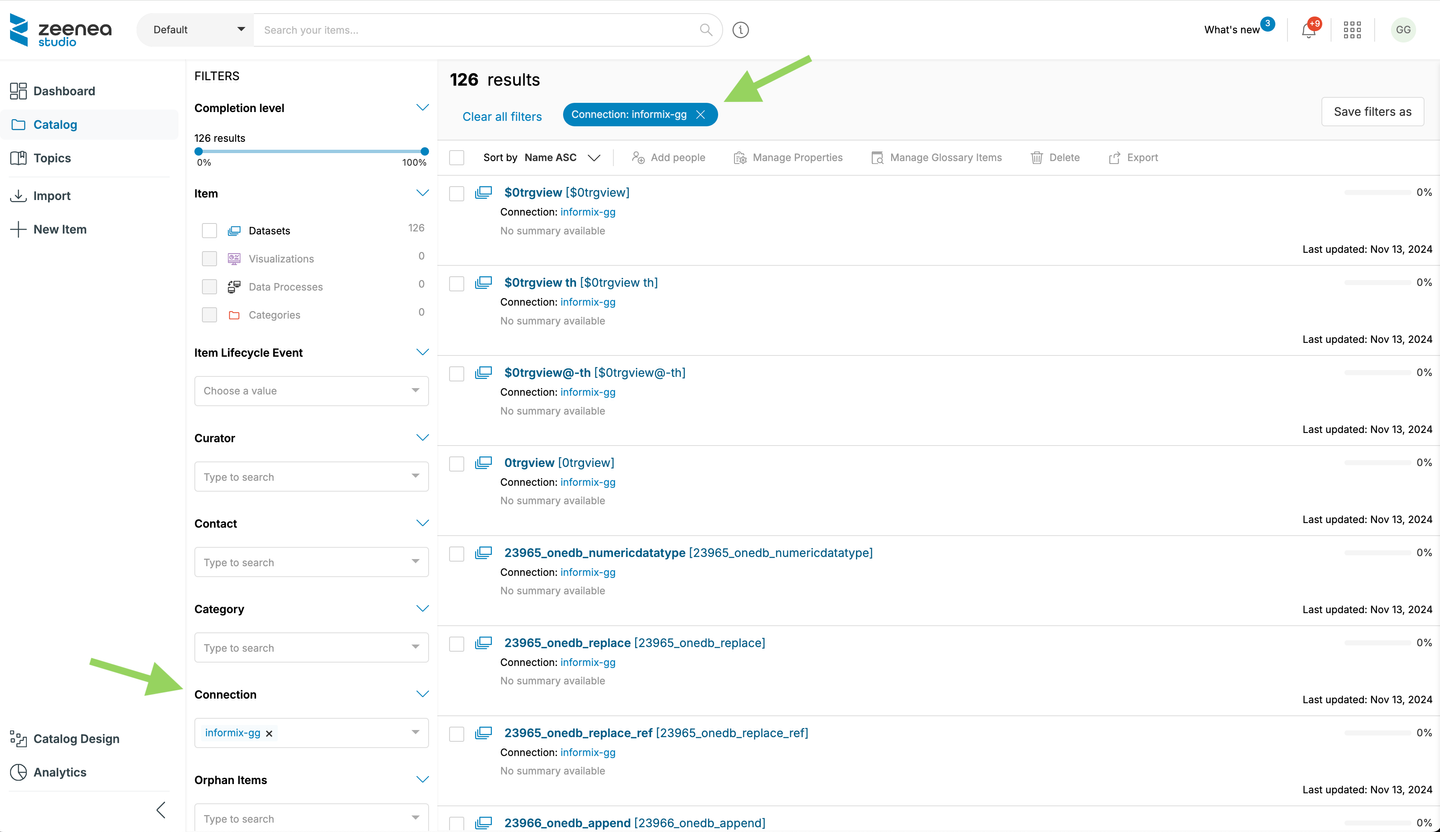
Viewing the Dataset
- Switch to Zeenea Studio by clicking the apps icon in the upper right and selecting Studio:
Configuring the Connection for Automatic Import
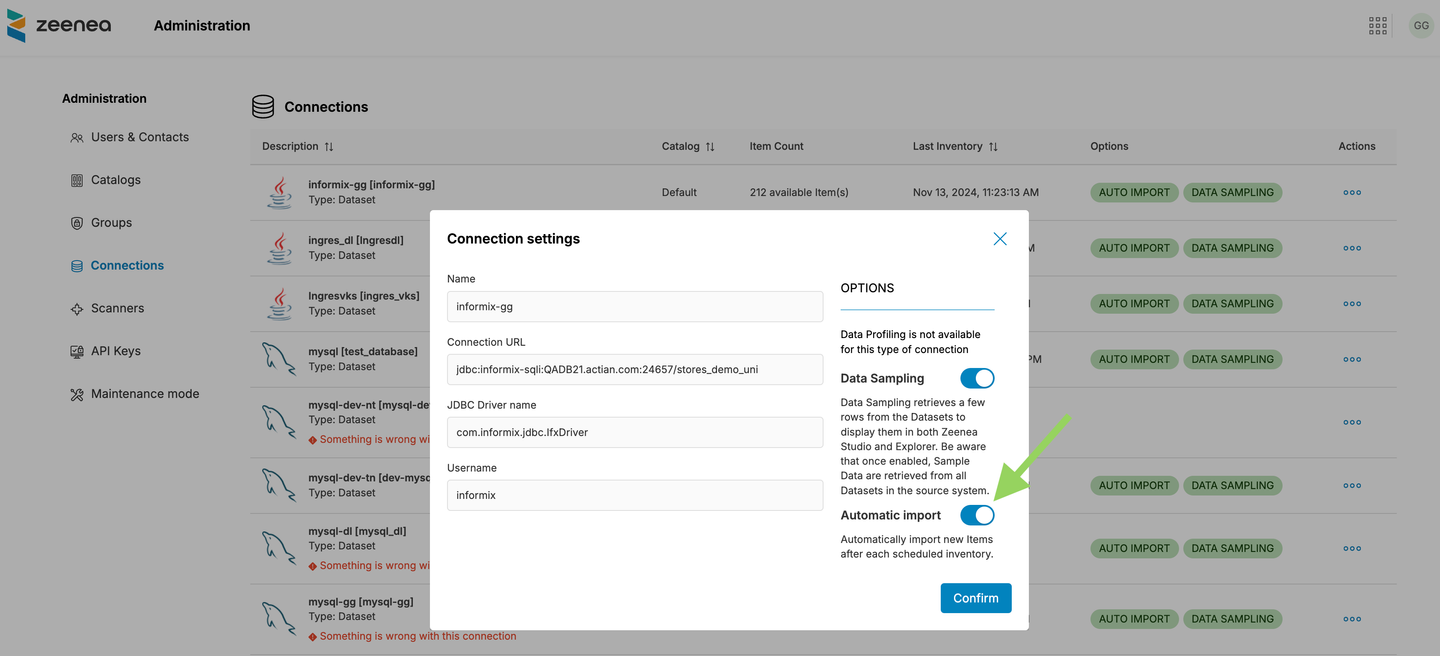
If desired, you can configure a connection to automatically import data as follows:
- In Zeenea Administration, open the Connections page, then click the ellipsis button in the Actions column for your connection:
- Toggle Automatic import on: