Overriding Integration Files
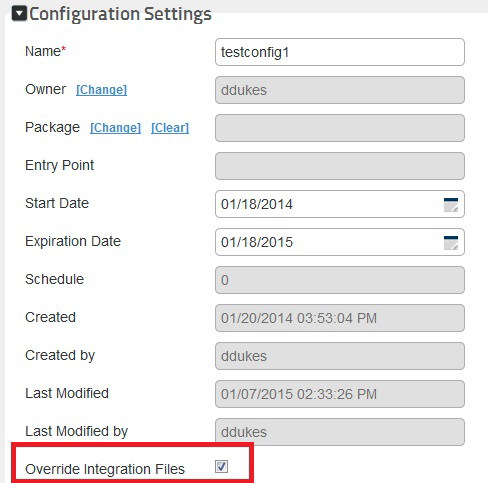
You can upload the project artifacts in Additional Files and have them override the project artifacts that are attached to the parent integration by selecting the Override Integration Files check box under Configuration Settings.
Note: Ensure that the file name of the artifact that you upload in Additional Files is identical to the file name of the artifact in the parent integration.
Overriding Files from Parent Integration with Files from Additional Files
To override project artifacts in the parent integration with the project artifacts from Additional Files
1. In the Integrations page, select the appropriate integration.
2. Expand the Configurations section for the selected integration and click the appropriate configuration.
3. Under Configuration Settings, select the Override Integration Files check box. By default, the check box is not selected.
4. Under Additional Files, upload the project artifacts.
Note: Ensure that the file name of the artifact that you upload in Additional Files is identical to the file name of the artifact in the parent integration.
5. Click Save and then click  to run the configuration.
to run the configuration.The artifacts in the parent integration are replaced with the artifacts uploaded in Additional Files.
Last modified date: 12/17/2021