Salesforce.com Event Notification Service
The Salesforce.com event notification service asynchronously processes outbound messages sent from your Salesforce.com organization. These outbound messages will execute a desired provisioning and can pass Salesforce data to your integration.
To use the event driven Salesforce.com event notification service
1. Log in to Salesforce.com as an administrator.
2. Create a Custom Setting:
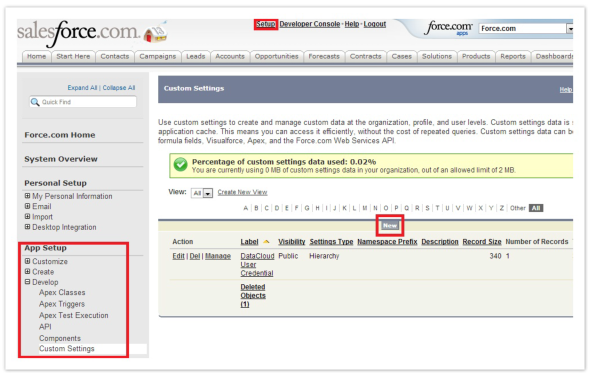
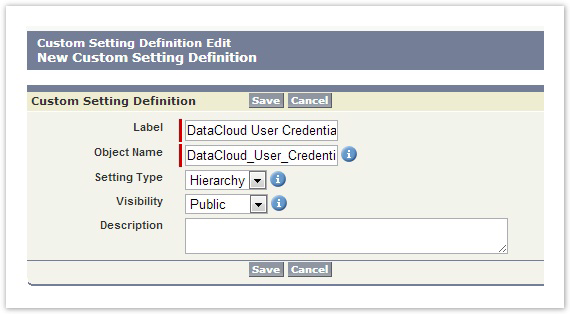
3. Click Setup > App Setup > Develop > Custom Settings > New
• Label = DataCloud User Credential
• Object Name = DataCloud_User_Credential
• Setting Type = Hierarchy
• Visibility = Public
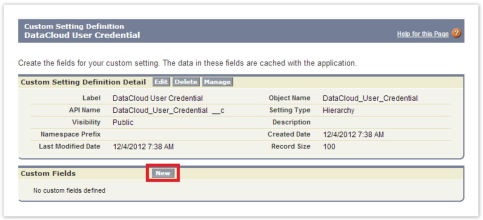
4. Custom Fields > New
• Data Type = Text
• Click Next.
• Field Label = Password
• Length = 120
• Field Name = Password
• Click Next.
• Save
Custom Fields > New
• Data Type = Text
• Click Next
• Field Label = Username
• Length = 120
• Field Name = Username
• Click Next
• Save
5. Create a new DataCloud User Credential.
a. Click Setup > App Setup > Develop > Custom Settings.
b. Click Manage next to the DataCloud User Credential setting.
c. Click New.
d. Add the DataCloud username and password the outbound message will use to log in to DataCloud and click Save.
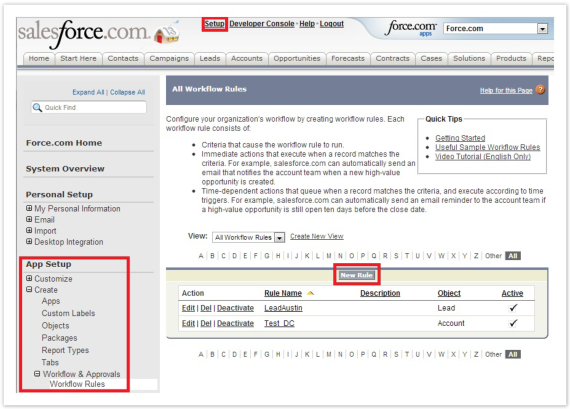
6. Create a workflow by selecting Setup > App Setup > Create > Workflow & Approvals > Workflow Rules > New Rule.
a. Set up your workflow rule as you see fit.
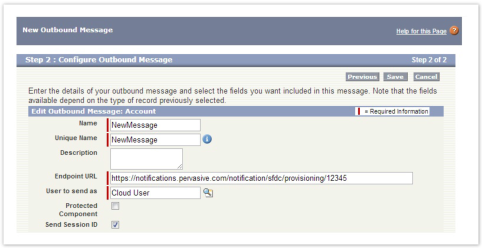
b. When you get to Step 3: Specify Workflow Actions, select Add Workflow Action > New Outbound Message.
c. Configure your outbound message making sure to set your Endpoint URL to the correct provisioning notification point (the provisioningid will be the configuration that you would like to execute upon DataCloud’s receipt of the message). You must check the Send Session ID box.
Sample Endpoint URL:
https://notifications.pervasive.com/notification/sfdc/provisioning/${provisioningid}
d. Save your workflow.
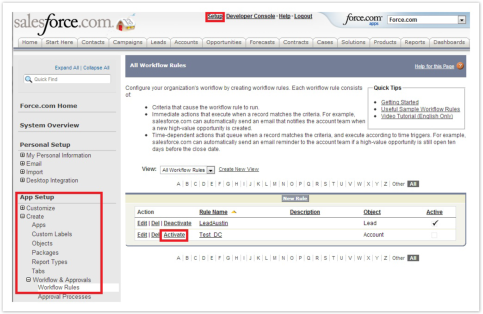
e. Activate your workflow:
1) Setup > App Setup > Create > Workflow & Approvals > Workflow Rules
2) Click Activate in the Action column next to your new workflow rule.
Now, anytime your workflow rule is triggered, an outbound message will be sent to DataCloud and your configuration will execute.
Tip... You can monitor the messages in Salesforce by going to Setup > Administration Setup > Monitoring > Outbound Messages.
Last modified date: 12/17/2021