Creating a Profile Using the Data Profile Wizard
The New Data Profile Wizard, allows you to create a new data profile by defining a source, specifying testing rules, selecting a field to assess, and defining a target where the pass and fail information is stored (only if you want to change the pre-configured target locations). The wizard pages include:
1. New Data profile page – Select a project and name your new data profile file.
2. Define Source page – Provide the source connection details.
3. Create Data Quality Rules page – Specify initial testing rules and select a field to apply these rules. This page offers only a subset of commonly used rules. The full list is available in the Data Profile Editor.
4. Configure Targets – Review the pre-configured targets and optionally change the pass and fail target connection details.
5. Data Profiler Summary page – Provides a summary of information about the new data profile that you are about to create.
Navigation between pages of the wizard is possible by using the Back and Next buttons at the bottom of the page. Navigating between pages will not clear data that has been entered by the user. When navigation to other pages is not possible, the button will fade in color and will not be active. You can exit at any time by clicking Finish and what you have configured is saved. You can later edit the data profile file in the Data Profile Editor. You can also exit the process anytime without saving any information by clicking Cancel.
Note:
- The New Data Profile Wizard provides only a subset of rules that can be used to discover the quality of your source data. Use the Data Profile Editor to explore the full set of rules that you can use. For a complete list of available rules, see Rule and Parameter Reference.
- You can also create a profile without using the New Data Profile wizard. For more information, see Creating a Profile Without Using Wizard.
- The New Data Profile Wizard provides only a subset of rules that can be used to discover the quality of your source data. Use the Data Profile Editor to explore the full set of rules that you can use. For a complete list of available rules, see Rule and Parameter Reference.
- You can also create a profile without using the New Data Profile wizard. For more information, see Creating a Profile Without Using Wizard.
To create a data profile using the New Data Profile Wizard:
1. In the Project Explorer, select the project folder where you want to create the new data profile.
2. Open the New Data Profile Wizard using one of the following methods:
• Go to File > New > Data Profile.
• Click the arrow in 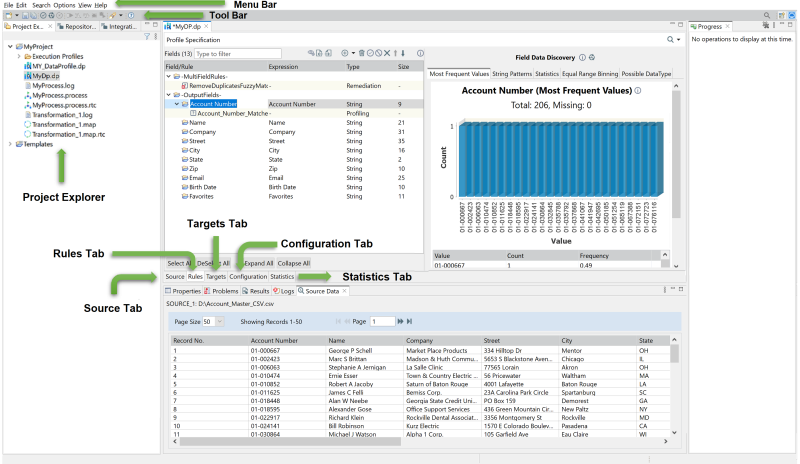 and then click Data Profile.
and then click Data Profile.• Right-click on the project and then click New > Data Profile.
3. In the wizard, verify that the correct project folder is selected — the one where you want to create the new data profile.
4. In the Profile File Name field, type a name for the new data profile, and click Next.
The Define Source page is displayed.
5. In the Source Connection section do one of the following:
• From the Choose Connector drop-down list, select a source connector.
• In Or Connection, click Browse and select a saved (or existing) User Defined Connection (See Saving and Reusing a Connection).
The connector parts are displayed. Also, the selected connector’s properties are displayed on the right.
6. Specify the Source Connection information. For information about the selected connector and its properties, see Map Connectors. For information about source connection, see Specifying the Source Connection for Data Profile.
7. Select or unselect the Retain Source Data Order in Targets checkbox.
This option allows you to retain source data order in the four pre-configured targets or output files (PASS_TARGET, FAIL_TARGET, DRILLDOWN_TARGET, STATS_TARGET). Unless this option is selected, data written to the targets will be in random order. Default is selected.
8. Click Next.
The Confirm Source Data page is displayed.
9. Verify that you are connected to the correct source data. If not, click Back to select the correct source. If the connection is correct, click Next to proceed to the Add Recommended Rules page.
10. On the Add Recommended Rules page, the Inspect and Recommend wizard executes and displays recommended rules for the source data in the left panel.
To edit a rule, select it and edit in the Rule Definition panel (center). The following information is displayed for the selected rule:
Rule Definition | Editable | Description |
|---|---|---|
Rule name | Yes | A default rule name is provided and is displayed here. The default rule name (with the exception of multifield rules) follows the <FieldName>_<RuleType> format. For example, City_IsNotBlank. Note: The underscore (_) character is the only special character allowed in the name. Rule names cannot begin with a digit. If a field or column in the source data starts with a digit, ‘r_’ will be prepended to any rules created based on that field. |
Field Name | No | The field name to which the rule applies is displayed here, along with the data type in parentheses. For example, ZIP (String). |
Rule Type | No | The type of rule that is applied to the field. See Rule and Parameter Reference. Tip... A Red Cross in a rule icon (for example  ) indicates that the rule has a parameter that has not been defined. ) indicates that the rule has a parameter that has not been defined. |
Parameters | Yes | Some rules have associated parameters, allowing users to specify specific values or conditions. See Rule and Parameter Reference. |
You can also explore patterns and statistics in the Field Data Discovery panel (on the right).
Select the rules you want to include in the profile, then click Next to proceed to the Configure Targets page.
11. On the Configure Targets page, select a target to view or configure the target connection information. There are four pre-configured targets or output files:
• PASS_TARGET
• FAIL_TARGET
• DRILLDOWN_TARGET
• STATS_TARGET
For more information about output files and targets, see Understanding and Specifying Data Profile Targets.
12. In the Target Connection section do one of the following (only if you want to change the pre-configured target locations):
• From the Choose Connector drop-down list, select a target connector.
• In Or Connection, click Browse and select an existing target connection file.
The connector parts are displayed. Also, the selected connector’s properties are displayed on the right.
13. Specify the Target Connection information and click Connect.
14. Select PASS_TARGET/FAIL_TARGET from the Targets dropdown, on the top of the page, and then choose from one of the following options:
• Yes - If you want to write the pass/fail content to the pass/fail target.
• No - If you don’t want to write the pass/fail content to the pass/fail target.
Note: This option is useful if you're only interested in monitoring data statistics and quality levels, without writing data to the Pass or Fail targets. You can also disable writing to these targets on the Configuration tab under Execution Options (see Configuring Execution Options).
15. Review the Data Profile Summary page and then click Finish.
The Data Profile Wizard closes. The data profile file opens in the Data Profile Editor and displays the configured information.
After the Profile is created, it is saved within the specified project, and can be opened and edited in the Data Profile Editor. Data Profile artifacts have a .dp file extension. For information about validating and running data profile, see Validating and Running Profile.
Last modified date: 10/14/2026