Design for Reuse
Creating organized, reusable data quality designs is essential for maintaining clarity and consistency across your DataConnect projects. By establishing familiar patterns and reusable assets—such as saved connections, naming conventions, and workspace structures—teams can work more efficiently as your data quality initiatives grow in size and complexity.
During the design phase, perform the following:
- Set Up Collaborative Workspaces
- Use Naming Conventions
- Determine Infrastructure Requirements
- Saving and Reusing a Connection
Set Up Collaborative Workspaces
Actian DataConnect uses workspaces to organize and access data quality designs and related artifacts. A workspace is a folder on your local system that provides a centralized view of your projects—the actual artifacts do not need to be physically stored in the workspace location.
Local Development with Source Control
Actian DataConnect is optimized for local development of artifacts stored in shared repositories managed by source control systems. This workflow enables team collaboration:
- Use your source control client to check out project files to your local workspace
- Modify artifacts locally using DataConnect
- Check in changes to the source control repository according to your team's promotion policies
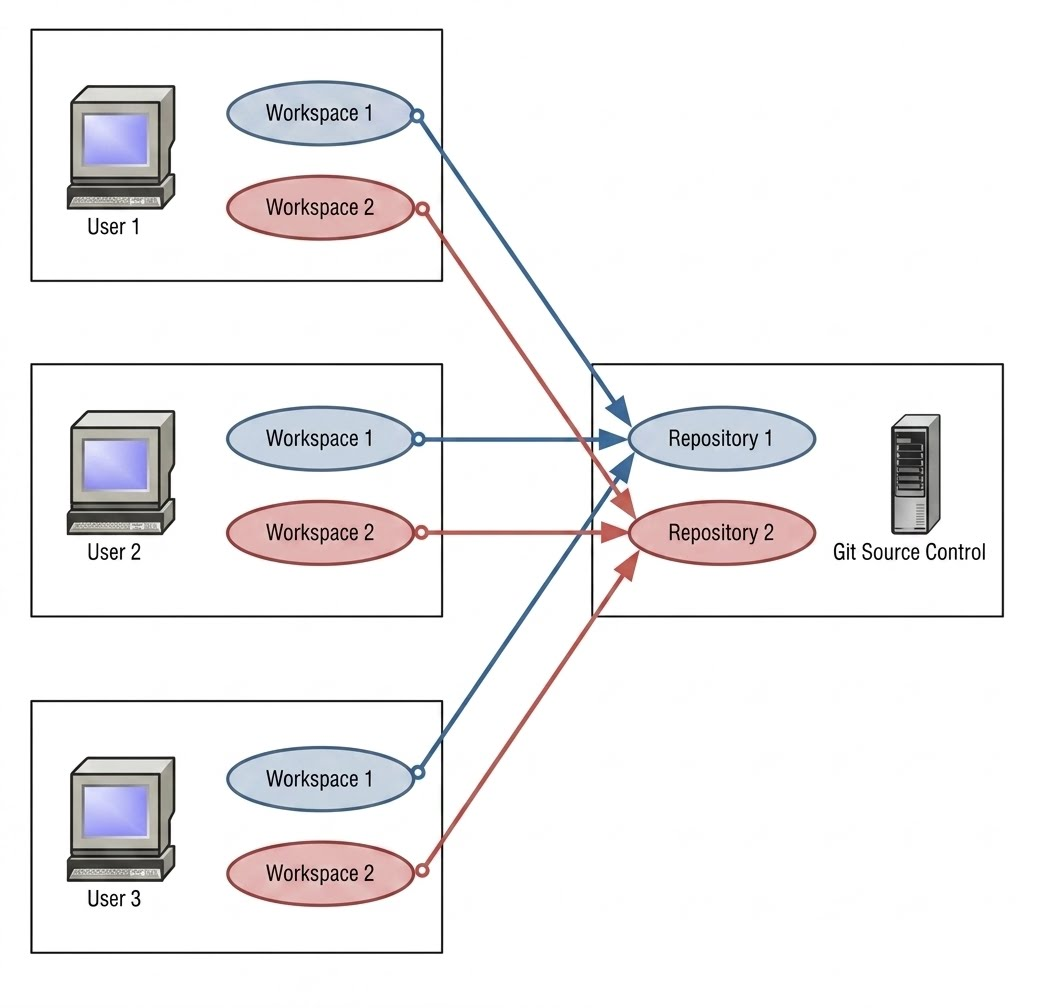
Organizing Multiple Workspaces
You can create multiple workspaces based on business requirements and project purposes. Common workspace organization patterns include:
- Geographic regions: Separate workspaces for different deployment regions
- Departmental use cases: Organize by business unit or functional area
- Project stages: Separate proof-of-concept/prototypes from production development
- Environment alignment: Development, testing, and production workspaces
Workspace and Macro Management
Organize and name workspaces as collections of projects that share the same macro definition files. While each workspace can have multiple macro definition files, we recommend maintaining one macro definition file per workspace. This approach allows you to:
- Switch between workspaces easily without confusion
- Reduce the risk of inadvertently changing macro names and values
- Maintain clear separation between different project contexts
See Macro Manager for detailed information about managing macro definitions.
Network Share Performance
We do not recommend working directly on artifacts stored on network shares. For optimal performance and reliability:
- Copy files to a local project folder in your workspace for editing
- Make all modifications locally
- Copy completed artifacts back to the network share for team access
This approach prevents performance issues and reduces the risk of file corruption due to network latency.
Use Naming Conventions
Establishing and following consistent naming conventions across your DataConnect projects ensures clarity, maintainability, and easier collaboration. Well-named components allow team members to quickly locate and understand artifacts across different interfaces—whether in DataConnect, file explorer, source control, or command line.
Workspaces
Consider workspaces as collections of projects and name them accordingly. The default name for each user is workspace, which suffices if you regularly use a source control system and develop on your local system. If you have design repositories on a remote network share, name your local workspaces descriptively so you can switch between them easily without confusion.
Projects
Organize and name project folders based on business requirements. For example, "Customer Data Quality" and "Product Validation". This provides flexibility when requirements change over time. Projects that provide core or commonly used functionality should have clear base names, while customized variants (specific to certain customers or use cases) should have their own dedicated project folders.
Artifacts
While file names have extensions associated with specific design editors, standardize naming conventions for artifacts to help quickly locate them in file explorers, source control systems, or command prompts. Use technical terms for artifact names since they're closely tied to specific applications or technologies.
Recommended format (adapt to your business needs):
dq_CustomerValidation(data quality design)s_CustomerMaster(schema)conn_SalesforceSource(connection configuration)
Maps and Processes
Map and process designers are not yet available. These designers will be available in a future release. However, the standalone Runtime Engine continues to support maps and processes from previous DataConnect versions via the command line interface.
Example naming for future use:
p_FTP_Send(process)m_SF_Accounts_Update(map)
Variables and Object Names
Variables and object names in Actian DataConnect follow conventions similar to most programming languages. We recommend following Java naming conventions:
- Case-sensitive: Distinguish between
customerIdandCustomerId - No spaces: Use camelCase or underscores instead of spaces
- camelCase for compound words:
streetAddress,customerName - Type prefixes: Preface the name with the variable type for clarity
Examples:
v_streetAddress(variable)array_streetAddresses(array)msg_In(message object)msg_Error(error message object)
Macros and Constants
Macros and constants are similar to variables, but their names expand to values at runtime. They typically provide values that remain static throughout workflow execution. To distinguish macros and constants from regular variables, use ALL CAPS naming:
Examples:
PASSWORD_SF(Salesforce password)USERNAME_SAP(SAP username)SERVER_PROD(production server)FOLDER_NAME(folder path)
Why use ALL CAPS?
- Macros and constants are case-sensitive
- ALL CAPS format makes them visually distinct from variables and object names
- Reduces confusion when reading workflow configurations
- Follows common programming conventions for constants
Determine Infrastructure Requirements
While DataConnect does not require significant system resources, you must plan for a stable and robust Runtime Engine (standalone engine) environment to ensure reliable execution of your data quality and integration workflows when deploying to production.
Key Infrastructure Considerations
Review system requirements:
- Consult the system requirements documentation for Integration Manager and standalone Runtime Engine deployments
- These requirements also apply when using the engine through the Java SDK for concurrent operations
Dedicated server deployment:
- Set up a dedicated server for Actian DataConnect Runtime Engine
- Avoid sharing resources with other applications or database servers
- Ensure necessary client libraries and ODBC drivers are installed on the runtime server
Routine maintenance:
- Establish regular maintenance schedules for disk space management
- Monitor and clean up temporary files and old log files
- Don't neglect maintenance—administrators often leave this to integration teams
Hardware resource planning:
Memory and disk I/O are the two biggest hardware constraints that impact integration performance. Since integration acts as middleware, the runtime server can be overlooked or under-resourced.
- RAM (memory): Favor higher memory allocation for in-memory data processing, particularly beneficial for data quality design execution and AI-based rules recommendation processing
- Disk I/O: Favor faster disk performance for bulk/batch operations that rely on disk persistence
- Consider your predominant processing pattern when allocating resources
Engine concurrency and CPU:
- Plan for a 1:1 relationship between engine concurrency count and CPU cores
- Expect each engine instance to use at least one CPU core
- Scale CPU resources based on expected concurrent workloads
Development guidance:
Provide clear guidelines for development team members on:
- Resource management within data quality designs and workflows
- Best practices for memory-efficient processing
- When to use disk-based versus memory-based processing patterns
For detailed system requirements, see:
Saving and Reusing a Connection
Reusing connection configurations across your data quality designs saves time and ensures consistency. Instead of reconfiguring connection properties for each new design, you can save connection settings and load them when needed.
Benefits of Saved Connections
- Consistency: Use the same connection settings across multiple designs, reducing configuration errors
- Efficiency: Quickly set up new designs without re-entering connection details
- Team collaboration: Share connection configurations with team members
- Version compatibility: Import and reuse connections from DataConnect 12.5
What Information Is Saved
A saved connection contains:
- Connector name: The type of connector (ASCII Delimited, Database, etc.)
- Connection parameters: Server name, username, password, table name, file paths, etc.
- Connector properties: All configured property settings for the connector
- Schema: Field definitions and data types
- Output mode: Write mode for target connections (e.g., REPLACE, APPEND)
Saved connections use standardized file extensions:
- Source connections:
.src.dataset - Target connections:
.trg.dataset
Saving a Connection
To save a connection after configuring it in the Data Quality Designer:
Configure your source or target connection properties.
In the row of connection actions (Connect, Disconnect, Refresh, Clear, Save connection), click Save connection.
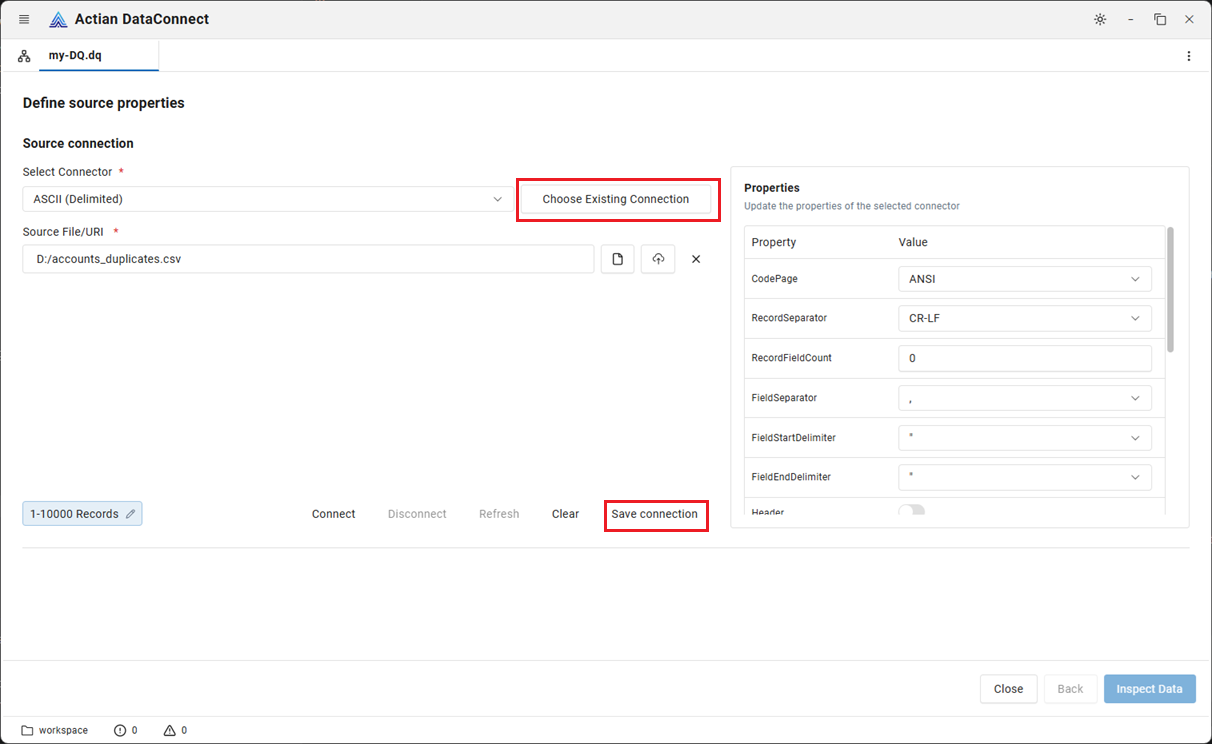
The system saves the connection to your default User-Defined Connections location.
The default location for saved connections is C:/Users/<username>/Actian/DataConnect/UDConnections.
Connections stay inside the UDC folder
A connection can only be saved to, or loaded from, a location inside your User-Defined Connections (UDC) folder. This is a security safeguard. If you choose a location outside that folder, DataConnect rejects it — for example, "Connections can only be saved inside your UDC folder (…\Actian\DataConnect\UDConnections). Choose a location within that folder, or change the UDC folder in Settings > General." To use a different location, change the UDC folder (see below).
Changing the Default Location
You can configure a custom location for saved connections:
- Navigate to Settings > General > User-Defined Connections
- Browse to your preferred folder location
- Click Save to apply the new default location
Loading a Saved Connection
To apply a saved connection when creating a new design:
On the Define source properties page, click Choose Existing Connection (at the top of the Source connection panel, next to Select Connector).
A file dialog opens.
Navigate to and select a saved connection file (
.src.datasetfor source connections or.trg.datasetfor target connections).Click Open to load the connection.
The connection information is loaded and applied to your design, including connector type, parameters, properties, and schema.
Importing Connections from DataConnect 12.5
You can import and reuse connections from DataConnect 12.5:
- Navigate to Settings > General > User-Defined Connections
- Browse to your 12.5 connections folder:
C:/Users/<username>/Actian/DataConnect/UDConnections - Once configured, saved 12.5 connections will be available when you click Choose Existing Connection
This allows you to migrate connections that you created in DataConnect 12.5 and reuse them without reconfiguration.
Where to Use Saved Connections
Saved connections can be used in:
- Source configurations: Load existing connections when defining source properties in Data Quality Designer
- Target configurations: Apply saved connection settings when configuring output targets
- Multiple designs: Reuse connection configurations across different data quality projects
By establishing a library of reusable connections, your team can maintain consistency and accelerate development across all DataConnect projects.