Home Page Overview
The Actian DataConnect home page features a clean, modern interface with a sidebar navigation and a main content area organized into Design, Learn, and Resources sections.
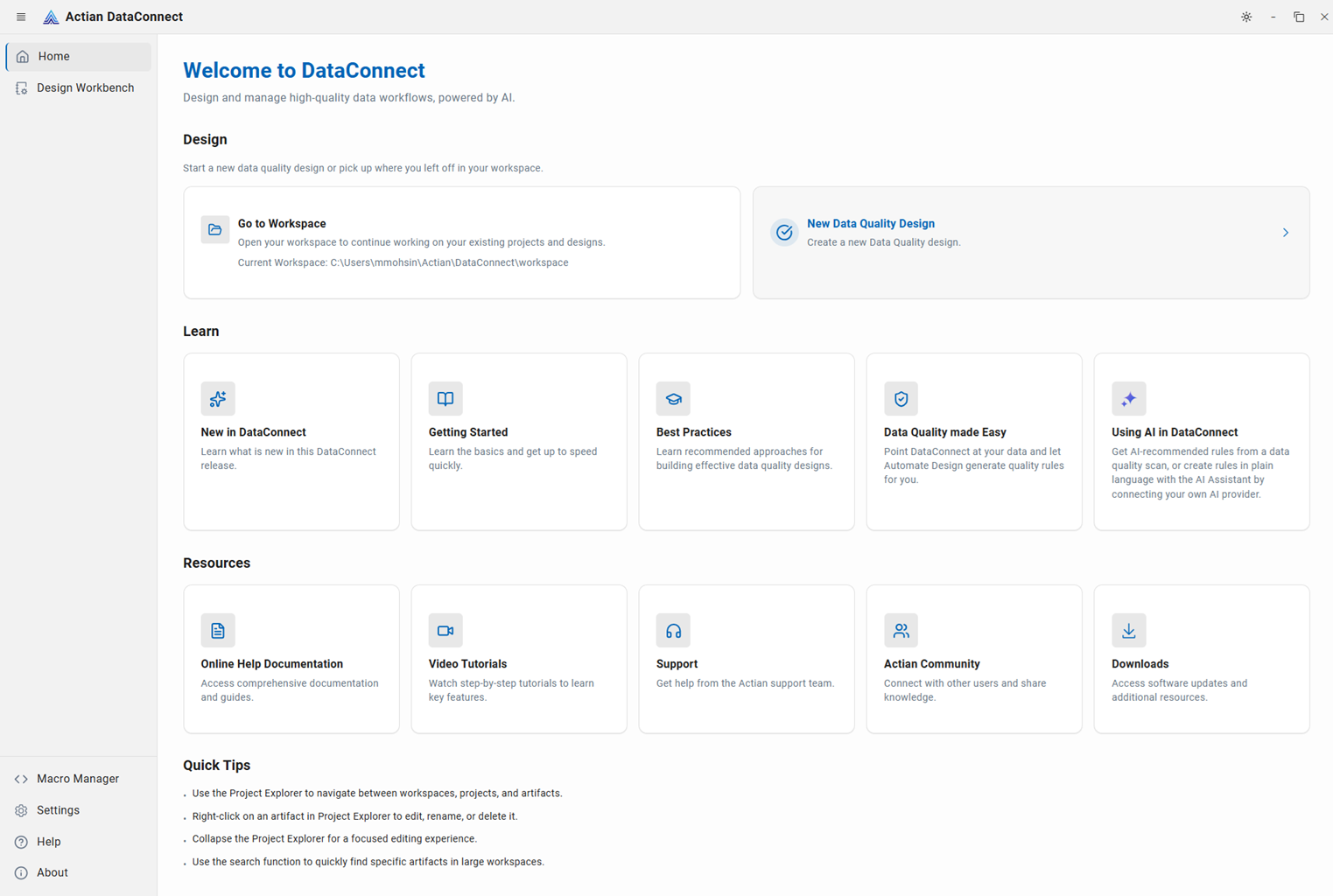
Header Bar
The top application bar contains:
- Hamburger Menu (left) - Toggle sidebar navigation
- Actian DataConnect Logo and Title - Application branding
- Theme Toggle (right) - Switch between light/dark mode
- Window Controls (right) - Minimize, maximize, and close buttons
Left Sidebar Navigation
The persistent sidebar provides quick access to key application areas:
| Icon | Menu Item | Description |
|---|---|---|
 | Home | Landing page (currently active) |
 | Design Workbench | Main workspace for creating data quality designs |
 | Macro Manager | Manage reusable variables and configuration values |
 | Settings | Application configuration and preferences |
 | Help | Access help documentation and support resources |
 | About | Product version, license, legal, and feature information |
Main Content Area
Hero Section
Displays a Welcome to DataConnect message and communicates the platform's purpose:
Design and manage high-quality data workflows, powered by AI.
Design Section
Provides quick access to your workspace and data quality design tools — start a new data quality design or pick up where you left off.
- Open an existing workspace and pick up where you left off on your projects. When a workspace is active, this option also shows its current location on disk.
- Start a new data quality design. This option is available only when a workspace is active — selecting it opens the Design Workbench and begins a new design. If no workspace exists yet, the option stays disabled until you create or import one from the Design Workbench.
Learn Section
Provides educational resources for users at all skill levels.
- Learn what's new in this DataConnect release.
- Learn the basics and get up to speed quickly with the platform.
- Learn recommended approaches for building effective data quality designs.
- Point DataConnect at your data and let Automate Design generate data quality rules for you.
- Get AI-recommended rules from a data quality scan, or create rules in plain language with the AI Assistant. The AI Assistant requires you to connect your own AI provider and model.
Resources Section
Provides support, documentation, and community resources.
- Access comprehensive documentation and reference materials.
Video Tutorials (coming soon)
- Step-by-step video tutorials covering key features and workflows.
- Get help from the Actian support team.
- Connect with peers and experts in the user community.
- Access software updates and download the latest packages.
Quick Tips
These pointers help you work more efficiently in the Design Workbench:
- Navigate the workspace — use the Project Explorer to move between workspaces, projects, and artifacts.
- Act on an artifact — right-click any artifact to edit, rename, or delete it.
- Delete several artifacts at once — hold Shift and click two artifacts to select them and everything in between, or hold Ctrl and click artifacts individually to build a non-contiguous selection, then press Delete.
 Toggle Project Explorer — collapse the Project Explorer for a distraction-free editing view by clicking this icon in the editor toolbar. When it is collapsed, use the expand control in the Activity Bar to bring it back.
- Search within a workspace — use the Search box at the top of the Project Explorer to quickly filter and locate artifacts in large workspaces.
 Sync with filesystem — click this icon at the top of the Project Explorer to refresh the workspace so that files added or removed outside the app appear in the tree.
Usage Flow
For New Users:
- Start with Getting Started in the Learn section.
- Create a workspace in the Design Workbench.
- Return to Go to Workspace to begin projects.
For Existing Users:
- Click Go to Workspace to resume work.
- Check New in DataConnect for updates.
- Access Best Practices for optimization tips.
For Help and Support:
- Open Online Help Documentation for guidance.
- Contact Support for professional assistance.
- Connect with the Actian Community to share knowledge with peers.