Creating, Editing, or Deleting a Property
A property is a component of the metamodel used to store metadata specific to a given item. It allows providing context and/or categorizing the items in the catalog. The properties are also used as search criteria or filters and thus provide more efficient access to items.
Creating a New Property
- Click the New property button to access the property creation screen:
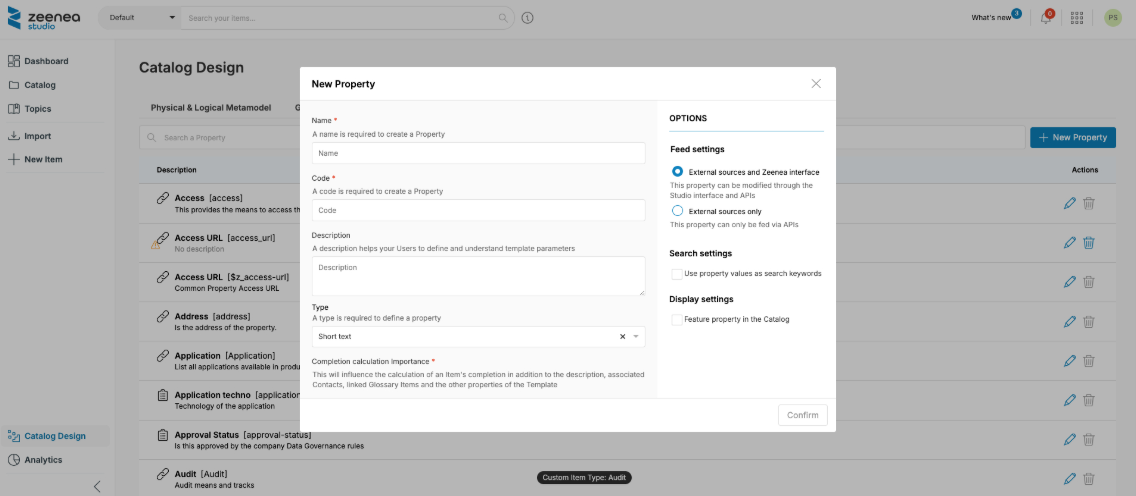
- Complete the following fields:
- Name (unique and required)
- Code (unique and required)
- Description
- Type (required)
- Completion calculation importance (required)
- Options (according to the type)
These fields are detailed in the following sections.
Name
A property is defined by a name.
This will be the name displayed to users, whether they are Data Explorers or Data Stewards. This name is therefore important and must have a rather straightforward meaning for users.
Code
A property is also defined by a code.
This code is a technical identifier and can be used in particular in API queries.
Description
The description helps users to better understand the meaning of the property. It is displayed as a tooltip next to each property when it is added to a metamodel.
Type
There are different types of properties (Short Text, URL, Number, etc.). This allows to indicate the meaning of this information within the company and thus to optimize the indexing and usability of this information for Data Stewards and data consumers.
- Short Text: Useful for acronyms and short alphanumeric values.
- Rich Text: Offers layout options for creating larger documentation while keeping it readable.
- Number: Only for numerical values.
- URL: A hyperlink to a web resource.
- Select (Enumeration): A finite list of configurable values that limits editing possibilities for Data Stewards. This improves the quality of the documentation by structuring the possibilities. To add a value, enter it in the dedicated field and press Enter key to validate it. The value will appear in a box, confirming integration.
- Multi-select (Multivalued): A finite list of configurable values. Unlike the Select type, this type allows you to select multiple values of this property for the same item.
- Date: A date value with formatting that will change based on tenant language.Tenant languageDate formatEnglishyyyy-mm-dd (ISO 8601)Frenchdd/mm/yyyyGermandd.mm.yyyy
- Tag: A flexible property type that allows you to dynamically create values without being limited to predefined values. You can assign multiple tag values to an item. Curators and API users can create new tag values as needed. It can be used as filters or as additional input fields in access request forms.
Completion Calculation Importance
- Ignore: The property is optional and is not taken into account in the completion level.
- Standard: The property is taken into account in the calculation of completion level.
- Important: The property is also taken into account in the calculation of the completion level. An important property will count twice compared to a standard property in the calculation.
Options
Feed Settings
- External sources and Zeenea interface: The property can be modified through Zeenea Studio and the API.
- External sources only: The property can be modified through the API only.
Search Settings
You can customize how each property is used for searching in Studio and Explorer.
- Use property values as search keywords: This option is only available for Short Text property type. It allows users to type the value of a property into the search bar to find matching items.
- Use property as a search filter: This option is only available for Select, Multi-select, Date, and Tag property types. It allows using the property as a search filter to refine the results.
Important: Misuse of these options can degrade the search engine performance and negatively impact the user experience.
Display Settings
- Feature property in the Catalog: This option is available for all property types except Rich Text. The property name and its value are displayed directly in the search results and highlighted on the items details pages. Use this option to emphasize the most important properties for users, especially as a way to distinguish items with similar characteristics. Highlighting too many properties can impair the readability of search results.
Note: It does not affect filter availability, which is controlled by Use property as a search filter option under Search settings.
Deleting a Property
It is possible to completely remove a property from the catalog, as well as the indexed values for this property.
This operation is performed from the Properties section of the Catalog Design page:
- From the Actions column, click the trashcan icon.
- From the property edit screen, click the Delete button.
To be deleted, a property must meet four conditions:
- It must not be associated with a metamodel. If necessary, remove the property from the metamodels from the Item Types menu.
- It must not be used by a connector. If necessary, remove the connector from your Scanner.
- It must not be linked to a custom item type. If necessary, deleting the item type allows you to delete the associated property automatically.
- It must not be a native property of the catalog (ex: Personally Identifiable Information).
Before deleting the property, a confirmation window will ask you to confirm your choice. The indexed values for this property will be permanently deleted in a background task.
Source Property Management
When a new connector is installed, it automatically creates a list of properties in the Metamodel section. These source properties are generated with default information (such as name, code, etc.), with some fields editable and others read-only.
The following information is editable:
- Name
- Description
- Options
Other information is read-only:
- Code (prefixed by $z_)
- Type
- Importance in completion calculation
Note: Once the name or description has been modified, the value from the connector can be restored by clearing the corresponding form field.
Last modified date: 04/22/2026