Creating, Editing, or Deleting a Topic
Topics allow you to define collections of items to help your business users understand the concepts contained in the catalog and guide their searches.
To manage Topics, your user group must have the Catalog Design permission.
Create a Topic
To create a Topic
- Go to the Catalog section on the search results page.
- Select the filters you want to include in the Topic.
- Select Save Filters in the upper‑right corner, and then select Create topic.
- Fill in the required information.
- Select Confirm.
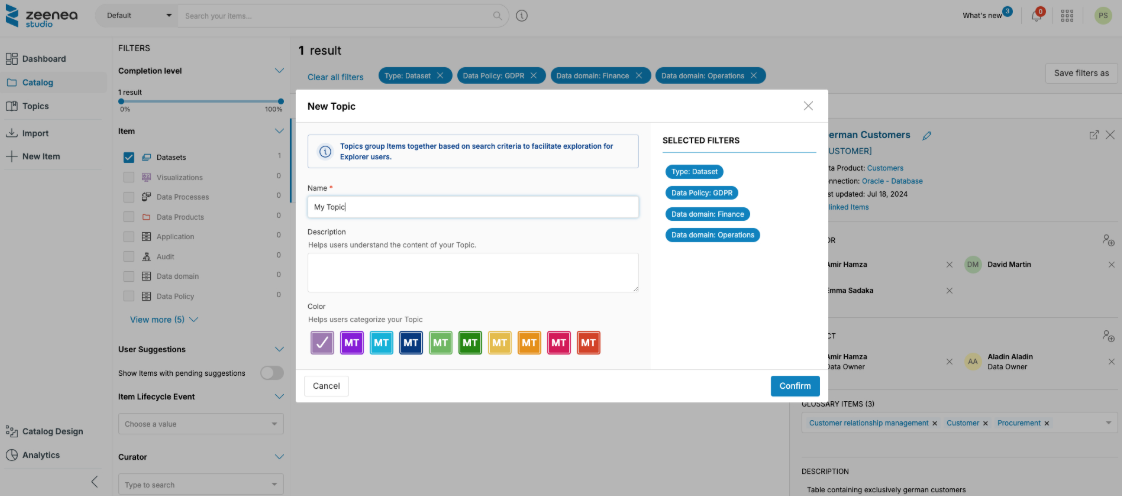
The following information is required to create a Topic:
- Name: Appears on the Zeenea Explorer home page.
- Description: Helps Zeenea Explorer users understand the Topic.
- Color: Helps business users identify the Topic visually.
Edit a Topic
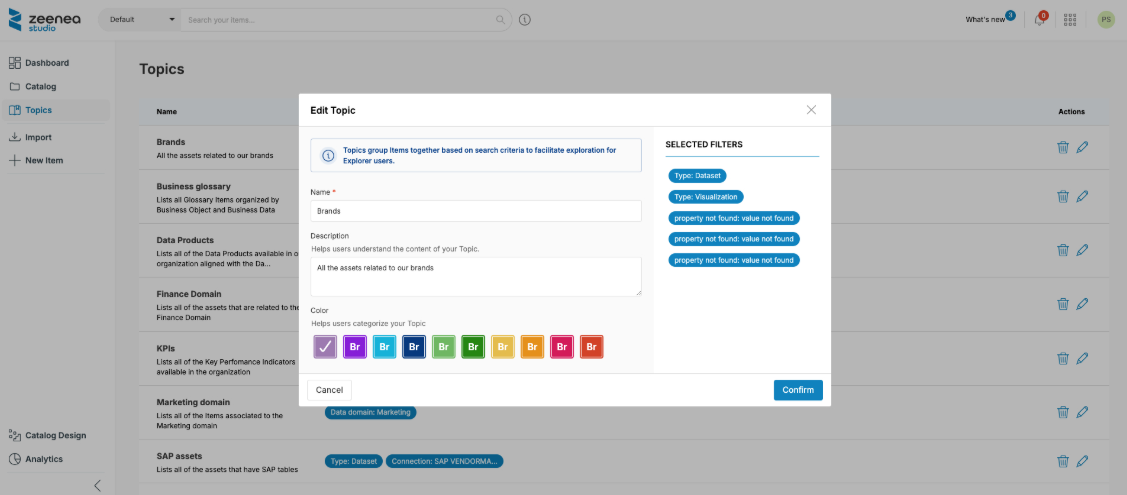
You can edit a Topic's name, description, or color at any time.
To edit a Topic
- Go to the Topics section.
- Select the pencil icon next to the Topic name.
- Update the information.
- Select Confirm.
Update Topic Filters
You can modify the filters associated with a Topic by using the Save Filters option in the Catalog section. This allows you to modify the current filter set and apply it to an existing Topic or use it to create a new one.
Update an Existing Topic
Use this option to apply a new filter set to an existing Topic. You can update the same Topic or apply the filters to a different one.
To update an existing Topic filter
- Go to the Topics section in the Studio.
- Select the Topic to open it.
The Catalog opens with its filters applied. - Adjust the filters as needed.
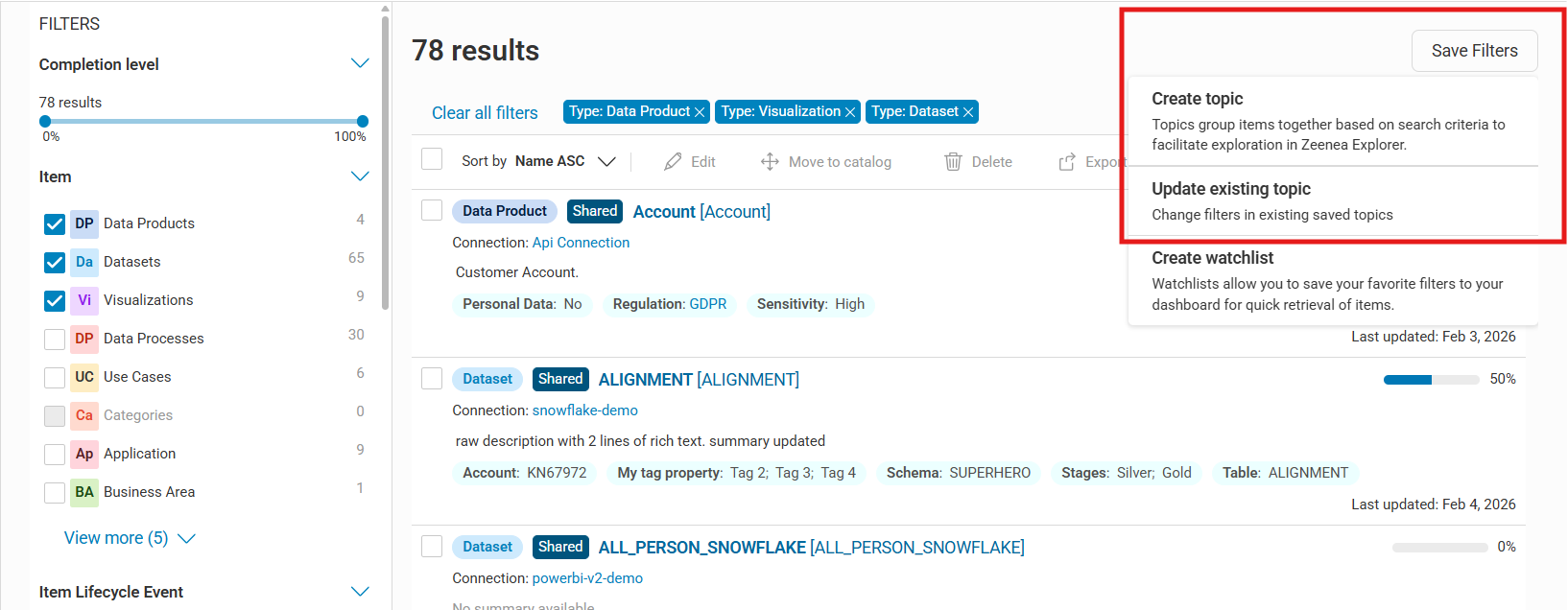
- Select Save Filters in the upper‑right corner, and then select Update existing topic.
- Select the Topic you want to update.
- Select the same Topic to update its filters.
- Select a different Topic to replace its filters.
- Select Confirm.
Create a New Topic From Updated Filters
Use this option to create a new Topic from an existing filter set.
To create a new Topic
- Go to the Topics section in the Studio.
- Select a Topic to open it.
The Catalog opens with its filters applied. - Adjust the filters as needed.
- Select Save Filters in the upper‑right corner, and then select Create topic.
- Enter the new Topic’s name, description, and color.
- Select Confirm.
Delete a Topic
You can delete a Topic at any time if it is no longer needed.
When you delete a Topic, it no longer appears for business users in the Explorer.
To delete a Topic
- Go to the Topics section in the Studio.
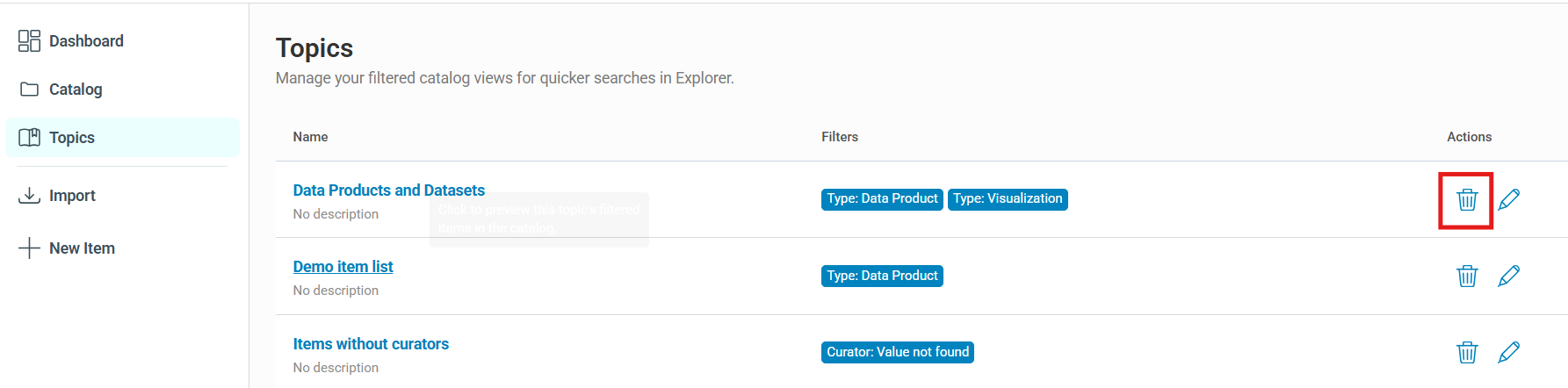
- Select the trash icon next to the Topic name.
- Select Confirm.
Last modified date: 04/22/2026