Importing a File in Zeenea
The Zeenea File Import feature allows you to bulk-create and update items in the catalog. This feature supports Excel (.xlsx) files.
Once you have gathered and formatted the data you want to add or update, click Import and then select a file in the Studio:

Prerequisites
The import file must meet the following criteria:
- The format must be .xlsx.
- The data you wish to import must be located in the first tab of your Excel file.
- The file size must be less than 50 Mb.
- The file can only contain one type of Item, selected directly from the import menu on the Studio. You can import documentation about any type of Item in Zeenea.
- The import file must have a header:
- The file must contain one column per attribute (property, responsibility, etc.) that you want to modify. Columns that can not be mapped with an attribute of the Item Type metamodel will be ignored during import.
- The import file must contain a column named key to identify the imported Items. For more information, see Identification Keys.
- The import file can also have the following attributes, depending on the type of Item being imported:
- name: The name of the Item.
- description: The description of the Item.
- summary: The summary of the item description.
- contacts: For each responsibility, a column with its name will be added to the template. Note that curators can be imported using the curator column.
- Template properties: for each property, a column will be added to the template.
- policy code: The policy code to assign an access request policy to the Item, if required.
- Links with Custom Items or Glossary Items: for each type of Item that can be associated, a column will be added to the template.
- Inputs and Outputs (Only for Data Processes): These columns can be used to import or update a lineage, and can only contain Dataset unique keys or Custom Item unique keys (depending on your metamodel configuration).
- Calculation of the Data Profiling (Fields only)
- Publishing of the Data Profiling (Fields only)
In the case of the Federated Catalog, you can also import the following attributes:
- Sharing status: Whether the Item is shared or not with other catalogs
- Catalog code: The code of the catalog the Item belongs to
File import templates are available by clicking Download Template. These templates are dynamically generated and contain only properties relevant to your metamodel.
You can delete any columns from the template if you do not wish to update their related property.
During the import, Zeenea will map each column to a property. If even one column cannot be mapped to an existing property, the entire file will be discarded and the following screen will be displayed:
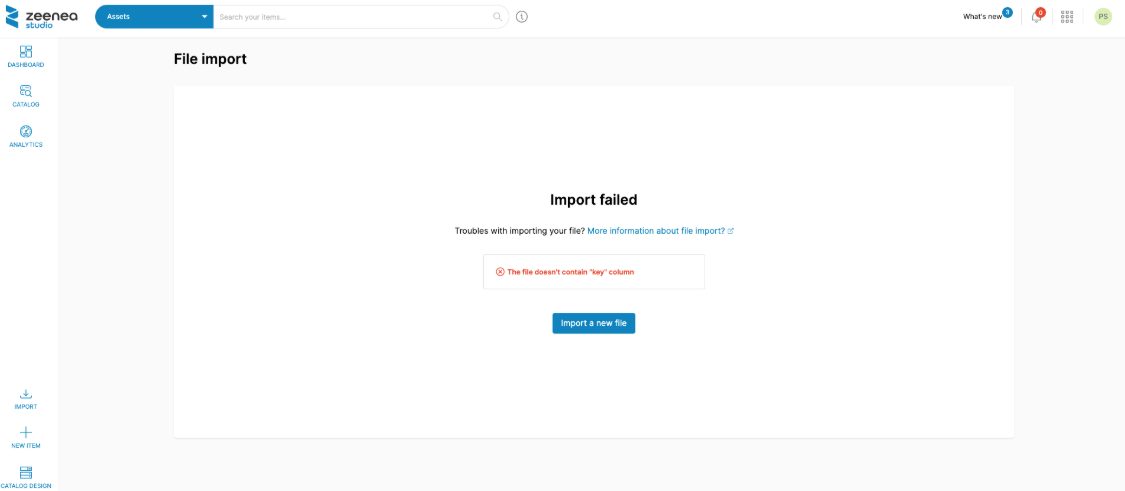
If the above conditions are fulfilled, a summary will be displayed allowing you to check the columns of the file that will be mapped or ignored. Click on Import to apply modifications.
Note the following constraints:
- If no key was specified during an import, a key will automatically be generated upon the creation of that Item. If an Item with the same name already exists for this type, an error will occur and the Item will not be created.
- If a key was specified during the import, but it couldn't be found in the catalog, the import will fail if the Item is linked to a connection. Otherwise, the Item will be created with the specified key.
- If an object is linked to multiple other items, each one of those will need to be separated by a ; symbol.
- If the same Excel file is imported multiple times, duplicates can be created.
- For Glossary Items, the file contains a Parent column as defined in that Glossary Item's metamodel. It is, however, not yet possible to link Children objects to that Glossary Item.
- The Excel Import feature can't be used to delete property values. In case a column has been left empty on the Excel file, it will have no impact on the contents of that property in the Catalog.
- Regarding multivalued properties, the Excel Import feature allows only for new values to be added (previous property values will remain in the Catalog).
- Regarding single-valued properties, any value imported via an Excel file will override the content of said property in the Catalog.
Other Notes
Duplicated Entries in the File
If the file contains several lines for the same item, Zeenea will treat them sequentially.
Duplicated Columns in the File
If the file contains duplicated columns, the entire file will be discarded.
Unmapped Columns
The columns in the file must be mapped to existing attributes of the target Item Type. Unmapped columns will be ignored.
Multi-Valued Properties
Each value must be separated by a semicolon in the same column.
Multi-valued properties in the file will be merged with the existing ones in the catalog.
Special Characters and Formulas
Zeenea does not check for special characters. Files containing formulas will thus be treated.
Specific Attributes
Name
By adding a value to the name column in the import file, you can set or update the functional name of a Dataset or of a Field, in which case the import works as follows:
- If the name column exists in the file but is empty, then it is ignored.
- If the name column exists in the file, is not empty, and its value is the same as the one in the source name column, then the functional name of the Dataset or Field in Zeenea becomes the same as the Source Name (if the source name changes, the functional name will be updated as well).
- If the name column exists in the file, is not empty, and its value is different from the source name, then the functional name of the Dataset of Field in Zeenea is updated with the new value. Then, if the source name is updated, the functional name will remain the same.
Description
To import or update an object's description, the header line must include a description column, and a description type column.
The description type column can take the following values: RICH or SIMPLE.
Descriptions are imported in raw text mode only (with no formatting apart from line breaks):
- If the value of the description type column is SIMPLE, the description specified in the Excel file will update the existing description.
- If the value of the description type column is RICH, the description specified in the Excel file will be ignored.
It is, therefore, possible to change a rich description back to a simple description by changing the value of the description type column. In this case, any HTML tags in the description will be transcribed as raw text in the applications.
Note: Only the Zeenea description can be added/updated. The source description collected by the connector can't be edited.
Summary
To import or update an item's summary, the header line must include a summary column, and a description type column.
If the description type value is RICH, the summary will be updated. Otherwise, the cell will be ignored.
Properties
You can use the import file to update values for property types.
For each value, the header must contain the name of the target property as a column.
Note:
- Only properties defined in Zeenea can be set or updated. Properties harvested through a connector are ignored.
- For URL type properties, you can set or update its label by using the following format in the cell: https://www.mycustomurl.com[label]
"Relationship"-Type Properties
You can use the import file to add or update relations with custom objects.
For each property, the header must contain its name as a column, as well as the name of each custom object you wish to add a link.
Responsibilities
You can add in the header as many columns as there are existing responsibilities (that is, Data Owner, Data Steward, etc.).
For each responsibility, contacts must be identified using their email address, as specified in Zeenea.
If you wish to add multiple contacts for one responsibility, you will have to separate them using a semicolon.
If the user that performs the import does not have permission to edit unassigned items, he will be automatically added as curator to the newly imported items.
Glossary Items
The Import file must contain a column for each type of Glossary Item.
For each Glossary Item you wish to link to another object, you will need to specify its key.
If you wish to add multiple Glossary Items for a single object, you will have to separate them using a semicolon.
Data Profiling
When updating Fields, you can also update the data profiling attributes for each one of them (if the data profiling option is enabled at the connection level).
The fingerprinting column takes one of the following values:
- true (activate the calculation of the profiling)
- false (disable the calculation of the profiling)
You can also publish the Data Profiling in the Explorer. To do so, you will have to select one of the following options in the data profiling column:
- true (show data profiling in the Explorer)
- false (hide data profiling in the Explorer)
Catalog
In the case of the Federated Catalog, change the value of the column catalog code to move an Item from one catalog to another.
Shared
In the case of the Federated Catalog, you can manage the sharing status of an Item by filling in the column shared:
- true (share the Item)
- false (disable the sharing)
Error Management
Zeenea processes the file sequentially, reading it line by line. For each line, it attempts to update as many attributes as possible.
Once the import is complete, a summary page is displayed:
- X imported items: The number of new items successfully added to the catalog, with all specified attributes imported.
- X updated items: The number of existing items in the catalog successfully updated, with all specified attributes imported.
- X lines in error: The number of lines in the file where at least one attribute could not be imported due to an error.
In case of errors, you can download an .xlsx file that details where the errors are found in the original import file.
Cells containing errors are highlighted in orange and a detailed explanation of each error is provided as a comment.
To resolve the errors, you can correct the highlighted cells and re-import the file into Zeenea.
Last modified date: 04/22/2026