Working with Audit Configurations
How to Audit Data
The running of AuditMaster depends on audit configurations. An audit configuration combines three types of information:
Schemas are not required to use AuditMaster, but they make audit records human-readable and enable more precise alerts.
Files monitored under an audit configuration may be arranged into groups. For example, if you have a different group of files for each customer in your application, you can give each customer’s data files their own AuditMaster group. Groups serve only to organize your thinking about auditing and have no affect on the operation of the AuditMaster system, nor do they affect PSQL operation.
For audit configurations that use groups, the following things apply:
We recommend you work through the following scenarios before attempting to create an audit configuration:
1
2
3
4
5
Managing Schemas
AuditMaster can import PSQL schemas for two purposes:
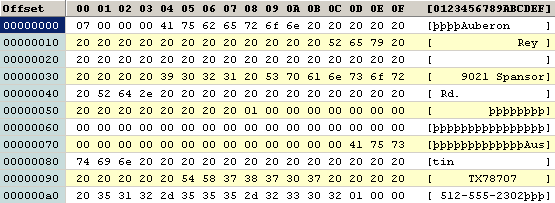
Without its schema, application data in audit records appears as hexadecimal rows and you cannot set alerts for individual data fields. The example Configuring Data Monitoring Without Schemas monitored files in a fictional store database. Lacking a schema, the application data record for an insert resembled the following:
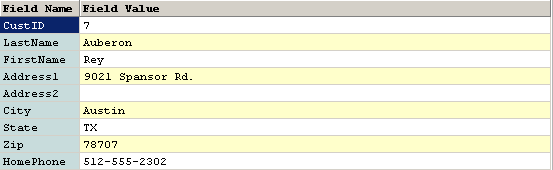
After schema import, AuditMaster can better display the next insert:
Note Schema import has no effect on display of data already captured.
The rest of this section covers the following topics:
Importing a Schema from PSQL
The following example steps you through using the AuditMaster Schema Maintenance Wizard to import a schema from a PSQL database. It uses the same fictional store as in the previous example, and while no files are provided for hands-on practice, after reviewing the steps you should be ready to export a schema from your own application.
A command-line version of the wizard is described under Managing Schemas from the Command Line.
Note If you have set PSQL security policy on the DefaultDB database to Mixed or Database, then before working with a new schema for an audit configuration, you must first add its path to the list of data locations for DefaultDB. See details under Running AuditMaster under PSQL Security.
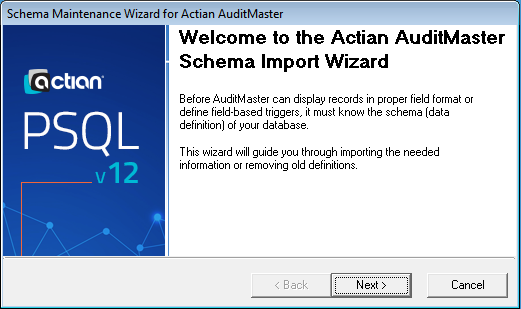
1
Open Schema Maintenance Wizard from the AuditMaster program group.
2
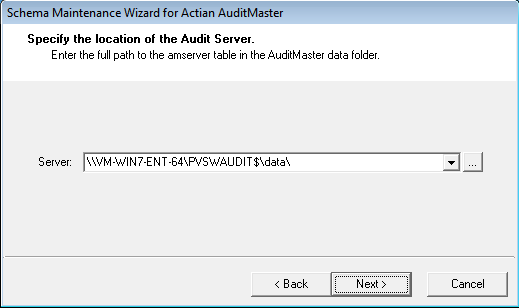
Click Next to specify the location of the amserver file.
3
Accept the default path to the file, or enter a custom path, and click Next. You may also use the ellipsis button to browse to a folder or network location.
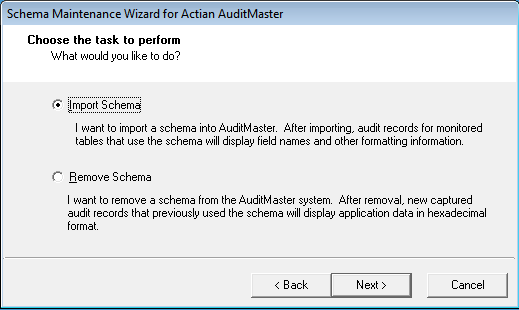
The wizard asks you to choose to import or remove a schema.
4
Select Import Schema and click Next.
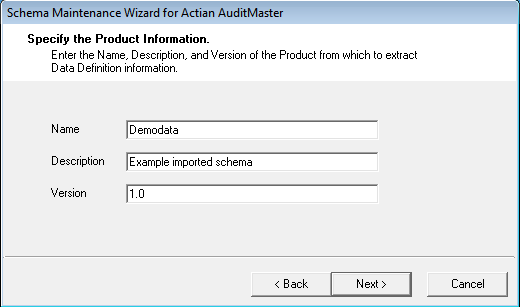
The wizard asks you to enter information about the database to be audited. The following screen shot shows information already entered.
5
Enter a name for the audit configuration.
You will use this name to identify the audited configuration.
6
Enter a description for the audit configuration.
This description will appear in the Product Information area of the Audit Configuration window.
7
Enter a version for the audit configuration.
A version number will help to identify the release of your application and distinguish it from other versions if your network environment supports more than one release.
8
Click Next.
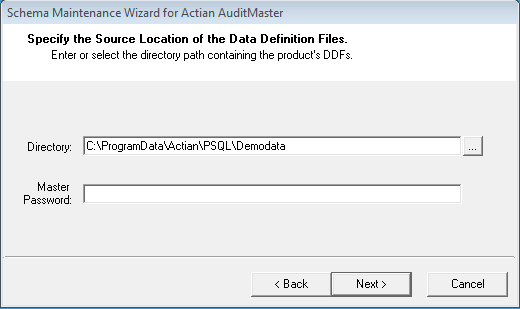
The wizard asks for the location of the data definition files (DDFs) to be imported.
This directory is the location for the database tables and schema information in their data dictionary files (file.ddf, field.ddf, index.ddf).
9
Note A password is required only when using AuditMaster with PSQL versions before v8.5.
10
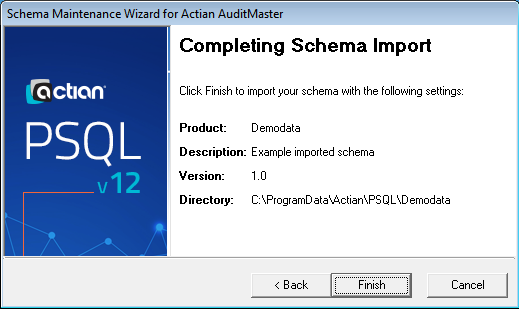
Click Next to see a summary of the schema import. You can click the Back button to make changes.
11
Click Finish to complete the import.
12
Click Close.
In the Audit Configuration window, you will now find the imported schema ready to use.
Note Schema import does not change the display of data already captured.
Removing a Schema from AuditMaster
Removing a schema from the AuditMaster system allows you to replace it with a different schema.
1
Open Schema Maintenance Wizard from the AuditMaster program group.
2
Click Next to continue.
The wizard asks you to specify the location of the amserver file.
3
Accept the default path to the file, or enter a custom path, and click Next. You may also use the ellipsis button to browse to a folder or network location.
The wizard asks you to choose to import or remove a schema.
4
Select Remove Schema and click Next.
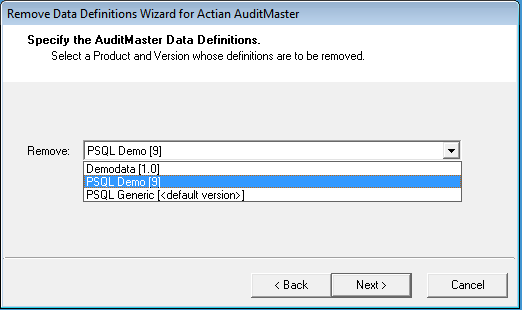
The wizard asks for the schema to remove.
5
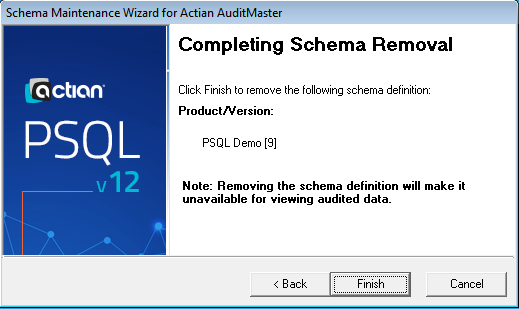
The wizard summarizes the schema removal.
6
Click Finish.
The wizard reports the result of the schema removal.
7
Click Close.
Note From now on, audit records captured using the removed schema are displayed in hexadecimal format unless you import a new schema for the data.
Configuring Data Monitoring with a Schema
The following scenario shows how to set an audit configuration for:
As explained in Managing Schemas, schemas make audit records human-readable and enable more precise alerts.
Only AuditMaster administrative users can set audit configurations.
To follow this tutorial, you must have a PSQL database schema imported to use in the audit configuration. If you do not, please do this first using the steps in Managing Schemas.
1
2
Right-click the server name to select Login. You may also double-click the name to open the login dialog.
3
Enter the default user name admin and the password MASTER.
Note The built-in user ID admin has the default password MASTER. Passwords are case-sensitive, but user names are not. This user ID and password are known only within AuditMaster and are unrelated to user accounts under PSQL or Windows security.
4
5
Select Admin > Audit Configuration to open the Audit Configuration window.
6
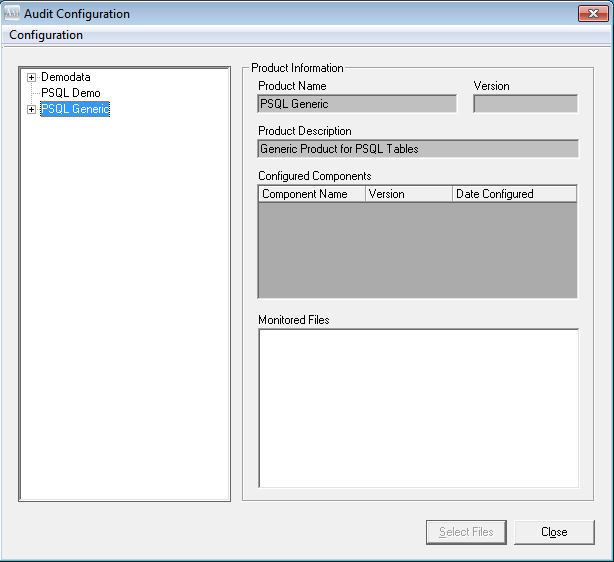
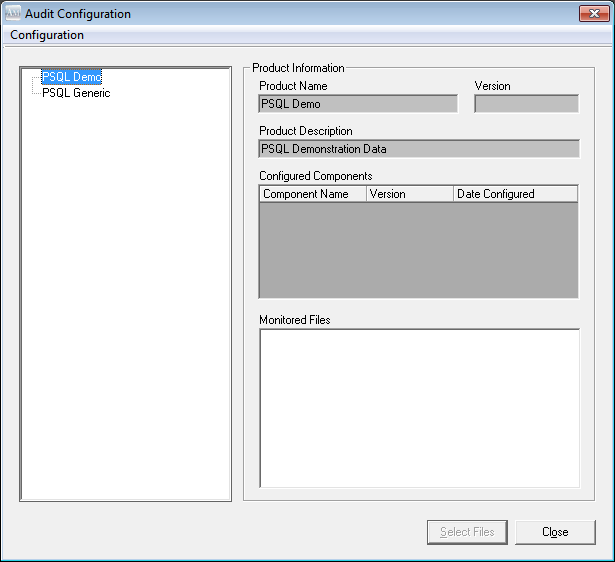
In the left pane of the Audit Configuration window, right-click PSQL Demo and select New Configuration. You may also double-click to open the PSQL Demo Configuration dialog.
7
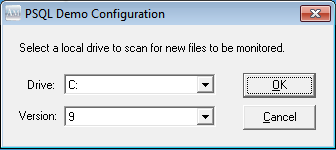
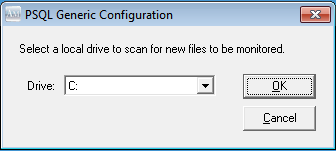
If you have a standard PSQL installation, click OK to accept the default drive C for the PSQL Demo drive location and the version of PSQL. Otherwise, use the list to change to the location of your PSQL database.
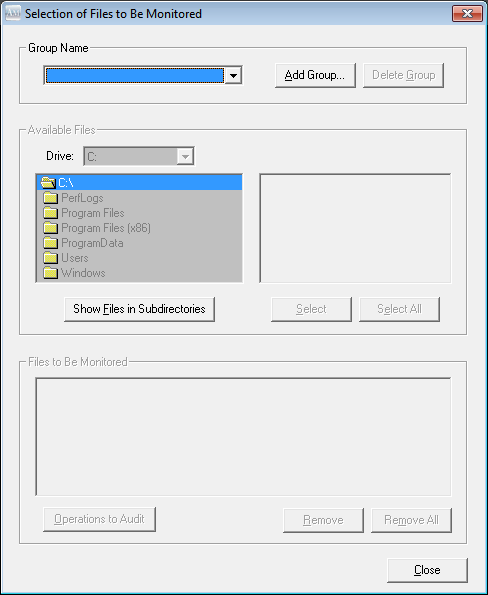
The system displays the Selection of Files to Be Monitored window.
8
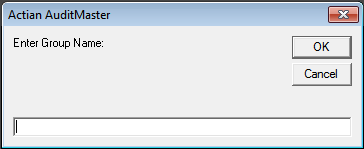
Click Add Group to open the Enter Group Name dialog.
A group is a set of one or more files to monitor. Group names are case-sensitive and can use any keyboard characters, including spaces, up to 40 characters in length. Since group names are globally visible, it is recommended that you name a group to reflect the audit configuration under which you create it.
9
Enter the group name Demodata, and click OK.
10
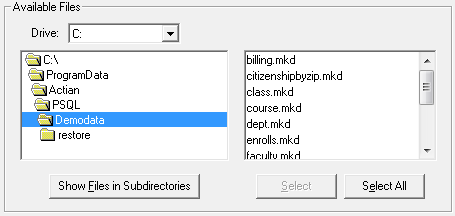
In the Available Files area, navigate through the folder hierarchy to locate files to monitor. Only files in Btrieve format are listed. You may also use the Show Files in Subdirectories button, after double-clicking a folder, to display a list of all Btrieve files from the double-clicked directory downward.
Note Listing many folders and files may take several minutes.
For this example, select the directory for Demodata, the PSQL demonstration database. In a default PSQL installation, this location is C:\ProgramData\Actian\PSQL\Demodata.
11
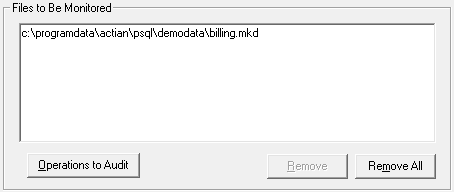
Select the file name billing.mkd, and click Select. You may also double-click the file name to move it to the Files to Be Monitored list.
You can also click Select All to add every file in the current list.
Each file can be a member of only one group in one audit configuration. If you select a file that is already listed in another group, AuditMaster informs you of a configuration conflict. Should this occur, see Resolving Configuration Conflicts.
If you decide not to monitor a file, select it and click Remove to delete it from the group. Remove All deletes all files from the group.
12
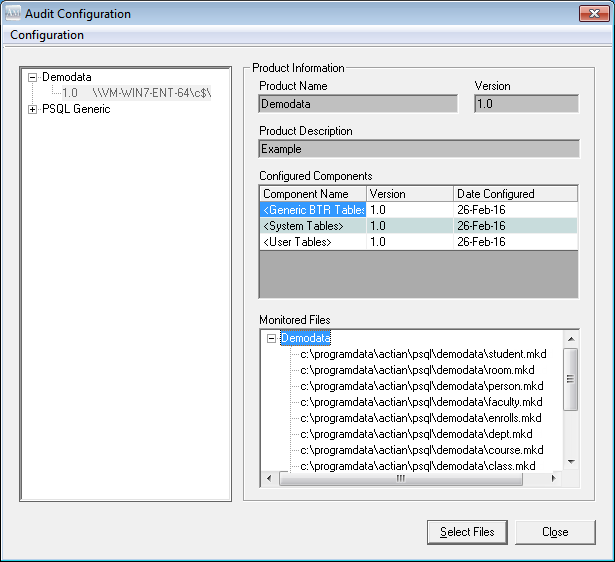
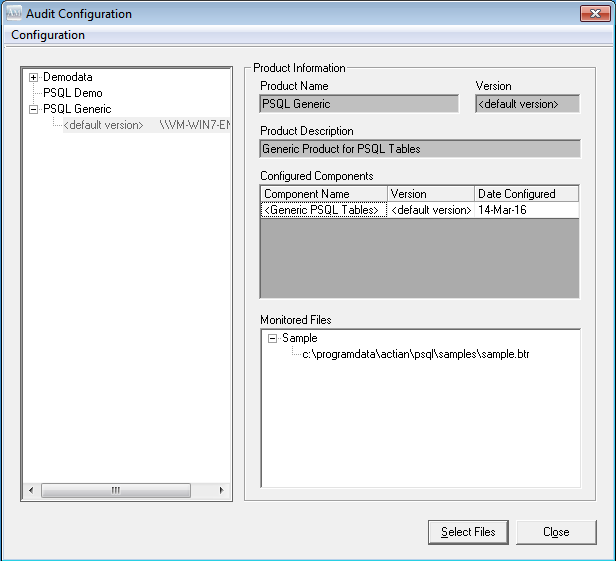
In the Audit Configuration window, the Configured Components area identifies the new configuration. Expanding the newly added group in the Monitored Files area lists the files.
AuditMaster is now set to monitor files.
13
In the audit configurations, expand the one that contains the group and file you want to change, then click the Select Files button to display the Selection of Files to Be Monitored window and return to step 10.
Note All groups and files in an audit configuration that uses a schema must use the same one. If you try to add a file that does not match the schema for the audit configuration, AuditMaster warns that the file is “not registered for monitoring.”
14
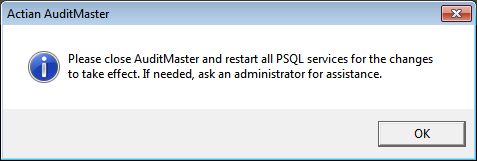
The window closes and the system prompts you to restart the AuditMaster event handler.
15
16
After the restart, the new AuditMaster configuration becomes active and auditing begins.
You are now ready to attempt to create an audit configuration for your own PSQL database server, application, database files, and schema. Proceed to Managing Schemas.
Configuring Data Monitoring Without Schemas
The following scenario shows how to use an audit configuration consisting of:
Only AuditMaster administrative users can set audit configurations.
As in Configuring Data Monitoring with a Schema, this tutorial uses a sample file installed with PSQL, but without importing a schema to demonstrate monitoring of a file with no DDF.
1
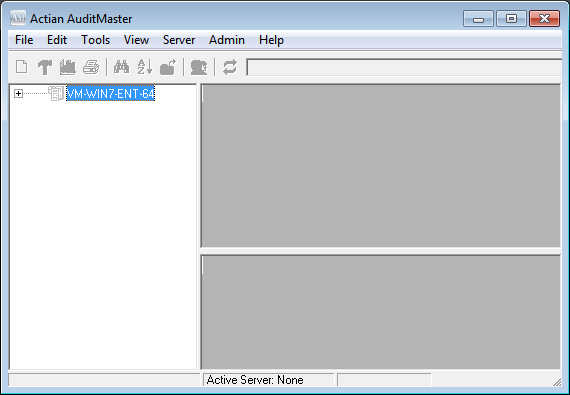
The AuditMaster window appears. For PSQL, an entry for the AuditMaster server was added by default during installation.
2
Right-click the server and select Login. You may also double-click.
3
In the IAuditMaster Login dialog box, enter the default user name admin and the password MASTER in all capital letters and click OK.
Note The built-in user ID admin has the default password MASTER. Passwords are case-sensitive. User names are not.
4
Select Admin > Audit Configuration to open that window.
5
In the left pane, right-click PSQL Generic and select New Configuration. You may also double-click to open it.
The Generic Configuration dialog box appears:
6
The system opens the Selection of Files to Be Monitored window.
7
Click Add Group to open a dialog box to enter the name of a group.
A group is a set of one or more files to monitor. Group names are case-sensitive and can use any keyboard characters, including spaces, up to 40 characters in length. Since group names are globally visible, you may want to name the group to reflect the name of its audit configuration.
8
Enter a group name, and click OK. This example uses the group name Sample.
9
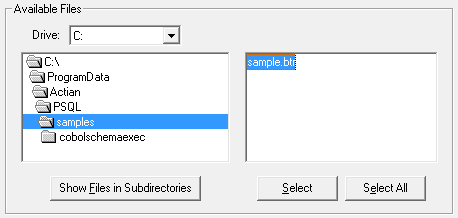
In the Available Files area, navigate through the folder hierarchy to locate files to monitor. Only files in Btrieve format will be listed. You may also use the Show Files in Subdirectories button to display a list of all Btrieve files from the current directory downward.
Note A large number of files may take time to list.
10
Highlight a file name, and click Select. You may also double-click to select a file.
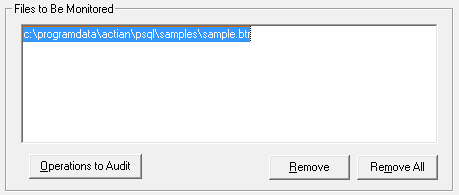
The file path name appears in the Files to Be Monitored list.
You can also click Select All to select every file in the current list.
If you decide not to monitor a file, select it and click Remove to drop it from the group. Remove All drops all files from the group. The physical files are not affected in any way.
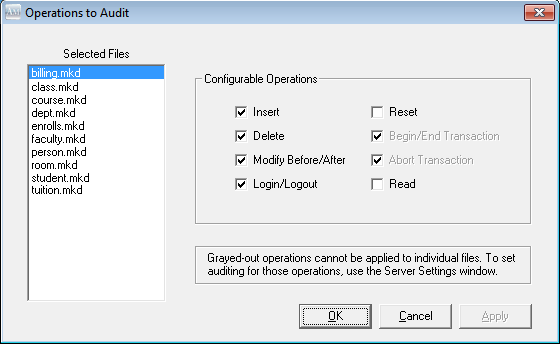
Note The Operations to Audit button enables you to override the global auditing settings applied to each selected file by default. See details under Operations to Audit by File.
11
In the Audit Configuration window, the Configured Components area identifies the new configuration for the product definition. Expanding the newly added group in the Monitored Files area lists the file that was added to the group.
AuditMaster is now set to monitor the PSQL file. The file and its group are associated only with this particular audit configuration.
12
In the audit configurations, expand the one that contains the group and file you want to change, then click the Select Files button to display the Selection of Files to Be Monitored window and return to step 9.
13
The window closes and the system prompts you to restart the AuditMaster event handler.
14
15
After the restart, the new AuditMaster configuration becomes active and auditing begins.
Operations to Audit by File
Each file in an audit configuration has a default list of audit events, but you also can click the Operations to Audit button in the Selection of Files to Be Monitored window to adjust that list as shown here.
 
The following table lists operations you can set for individual files. As with other new settings, you must restart the event handler after making any changes.
 
See also Operations to Audit Globally.
Note In a PSQL database, when the client-side cache engine is turned on, the cache engine reads an entire database page after 8 consecutive reads in anticipation of more reads. The records in the database page read by the cache engine are not audited by the event handler on the server. If auditing requires that every read be captured, verify that the setting is off. However, lack of engine caching can reduce database performance. The behavior occurs only when the threshold of 8 consecutive reads is reached. If 7 reads and then an update occur, no caching occurs and all 7 reads are captured. To see the setting Use Cache Engine in PSQL Control Center, expand Local Client, right-click MicroKernel Router, select Properties, and click Performance tuning. By default, the setting is off.
Resolving Configuration Conflicts
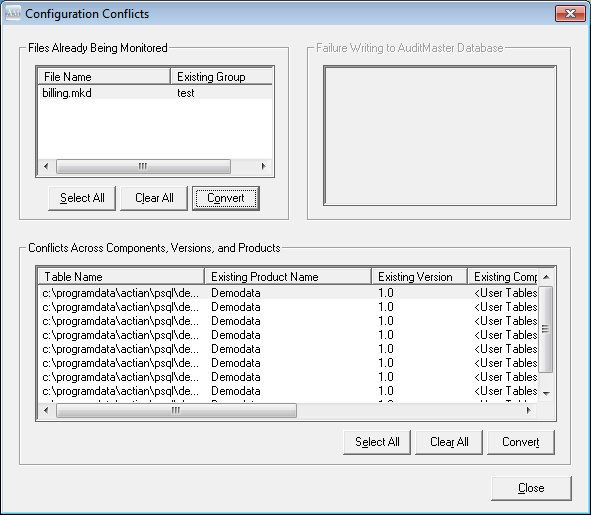
Each file selected for monitoring can belong to only one group in one audit configuration. If you attempt to select files for another group, the following window appears:
The list at upper left shows conflicts involving files being monitored in another audit configuration with the same component, version, and product. The lower list shows files being monitored in another audit configuration no matter what component, version, or product.
You have two options for resolving conflicts:
Click the Close button to cancel the selection and leave files in their original group.
Note The Clear All button is not supported in this release.