Upload Files
You can upload private or public files for later use with Templates and Configurations.
This topic includes:
To upload private files
-
Click Integrations, Manage, Files.
The Private Files page is displayed.
-
Click the Upload Files button.
The Upload Files dialog is displayed.
-
Drag and drop the files onto the box, or click Browse Files to select files from the file browser.
The selected file(s) are listed in the dialog.
-
To delete a file from the list, check the box next to the file name, then click the Delete File button that appears.
-
To add more files, click the Upload Files button.
-
When finished uploading files, click DONE.
The uploaded files are listed on the Private Files page.
To upload public files (administrators only)
-
Click Integrations, Manage, Files.
The Private Files page is displayed.
-
To display public files, click the files control:
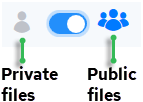
The Public Files page is displayed.
-
Click the Upload Files button.
The Upload Files dialog is displayed.
-
Drag and drop the files onto the box or click Browse Files to select files from the file browser.
The selected file(s) are listed.
-
To delete a file from the list, check the box next to the file name, then click the Delete File button that appears.
-
To add more files, click the Upload Files button.
-
When you are finished uploading files, click DONE.
The uploaded files are listed on the Public Files page.