Field Management and Structure
You can manage fields on the Rules Tab in the Field/Rule pane. Fields are displayed in a tree view. Defined rules are listed under each field. Use the right arrow to collapse a branch (close it) and the down arrow to expand a branch (open it).
Note: See Also Managing Rules from Rules Tab.
There are three types of fields that can appear in the Field/Rule pane: output fields, non-output fields, and derived fields. This topic will focus on output and non-output fields. For information about derived fields, see Derived Fields.
To view auto-discovery data, select any field and execute Data Discovery by clicking  in the Field Data Discovery pane. Click each field to view its discovery data. See Field Data Discovery.
in the Field Data Discovery pane. Click each field to view its discovery data. See Field Data Discovery.To view post profile execution values in output fields, click the pie chart that appears after profile execution. Values in output fields reflect the changes made by remediation and data prep rules applied during profile execution.
By default, all source fields are considered as output fields (the fields that will be written to the target), and listed under OutputFields section. Output fields can be renamed, reordered, or deleted.
The Field/Rule toolbar that is displayed on the Rules tab provides a means of managing fields and rules.
Tip... Hover over each toolbar item to view its description.
The following table provides information about field-specific toolbar icons. For a complete list of toolbar icons, see the toolbar descriptions in the Rules Tab.:
Icons | Description |
|---|---|
 | Clicking 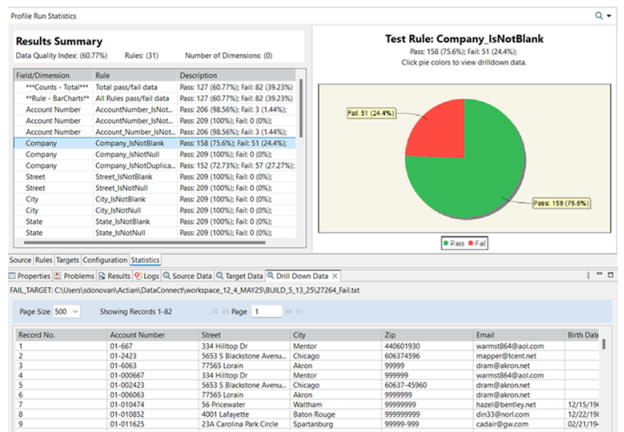 adds a new field. Clicking adds a new field. Clicking  opens a context menu with the following options: opens a context menu with the following options:• Add New Field - Click this to add a new field. • Add source/derived field(s) to output - Click this to move a source or derived field from NonOutputFields to OutputFields. See Add Source/Derived Fields to Output. |
 | • For rules: Deletes selected rules. See Delete Rules. • For fields: When attempting to delete a selected field, you will be presented with one of the following options. See Delete Fields. – Delete - Deletes the selected fields and all associated rules from OutputFields. If any deleted rule generated derived fields, those derived fields are also removed. The fields will no longer be output to the target. However, the fields (but not the rules) remain in memory and can be restored to the OutputFields list later using the Add Source/Derived Fields to Output option. – Keep - The selected field and its associated rules are moved from OutputFields to NonOutputFields. These fields will not be written to the target, but you can drag the field and its rules back into the OutputFields section at any time, if needed. – Cancel - Exits the Confirm message and cancels the action. |
 | Allows reordering of rules and fields by moving them up and down. You can also use drag and drop to reorder fields. See Reorder Rules and Reorder Fields. |
 | Displays a summary information of the number of rules that have been defined and the number of fields that have rules defined against them. See View Rules Summary. |
Refer to the following topics for more information:
Last modified date: 10/14/2026