Remediation Rules
Remediation rules can help you to identify and correct errors, inconsistencies, and inaccuracies in source data. This can include tasks such as removing duplicate records, standardizing format and data types, and filling in missing values.
During profile execution, the Remediation rules are processed first followed by the Profiling Rules. The processing order ensures that the changes specified in the Remediation rules are applied to your data before the Profiling rules are evaluated.
Rules can be configured in any order. While you can reorder the Remediation rules by moving them up or down, the Profiling rules cannot be reordered.
The Remediation rules are executed in the order you create them or reorder them on the Rules tab and the results may vary as per their order, however, the RemoveDuplicates and RemoveDuplicatesFuzzyMatching rules will always be processed last.
See Add New Rule for information about adding rules.
The following is a list of remediation rules:
Rule Name | Description |
|---|---|
Changes the format of a string field from one format to another (applies to string fields which can be parsed as numbers/boolean/date types). | |
Changes the case of a string field to specified case (for example upper, lower, title). | |
Masks or encrypts data so that it cannot be linked to an individual, but can still be shared without risk of exposing sensitive personal information. | |
Removes specified characters or words from a string field. | |
Writes unique records to pass target and duplicate records to fail target using exact match. | |
Writes unique records to pass target and duplicate records to fail target based on fuzzy matching rules and match score filter. | |
Replaces a field value with a new value. | |
Changes the format of zip code and phone number fields to make the values uniform. | |
Trims whitespace from a String field. | |
Applies the specified time zone to a timestamp field. |
ChangeFormat
This function rule changes the format of a source string field from one format to another (applies to string fields which can be parsed as string/numbers/boolean/date types).
Rule Properties
This rule has the following properties.
Rule Name | A default rule name (<FieldName>ChangeFormat) is provided and displayed here. However, you can edit or overwrite it. Click Reset to restore the default rule name. Note: The underscore (_) character is the only special character allowed in the name. Rule names cannot begin with a digit. If a field or column in the source data starts with a digit, 'r_' will be prepended to any rules created based on that field. |
Field Name | The field name to which the rule applies is displayed here, along with the data type in parentheses. For example, Joining_Date (Date). |
Rule Type | The type of rule that is applied to the field. That is ChangeFormat (Function rule). Tip... A Red Cross in a rule icon (for example  ) indicates that the rule has a parameter that has not been defined. ) indicates that the rule has a parameter that has not been defined. |
Rule Parameters
Format Type | Select the format type of the source data (this selection populates the options available in the From Format and To Format parameters): • Boolean • Date • Double • Float • Integer • Long • Numeric • String • Time • TimeStamp |
From Format | Select source field format(s) to change from, or type into the field, then click Add (or the Enter key). Multiple formats can be added. To remove an added format click the  icon that is displayed next to the format. icon that is displayed next to the format.Depending on the Format Type you have selected, you can perform the following operations: • Boolean: Replaces the different combinations of source values like yes.no, true.false, True.False, 1.0, etc., into a consistent set of values like True.False. • Date: Reformats the source field date values like MM-dd-yy, dd-MM-yyyy, etc., into a consistent format like MM.dd.yyyy. See DateTime Format. • Double: Converts source values with a format like #.##, .00, .#, etc., into a consistent format like ###. For example, set From Format to #.# and To Format to #.00 to change the format from 50 to 50.00. See Class DecimalFormat. • Float: Converts source values with a format like #.##, .00, .#, etc., into a consistently formatted float value like ###. See Class DecimalFormat. • Integer: Converts source values with a format like #, -#, etc., into a consistently formatted integer value like #. See Class DecimalFormat. • Long: Converts source values with a format like #, -#, etc., into a consistently formatted long value like #. See Class DecimalFormat. • Numeric: Converts source values with a format like #.##, .00, .#, etc., into a consistently formatted numeric value like ###. See Class DecimalFormat. • String: Accepts a list of regular expressions like .+?(\d{4})$, (.*)@(.*) etc., and a replacement expression like $0. Use this option, for example, to retrieve only the last four digits of a value (such as a credit card, phone number or social security number) by setting From Format to .+?(\d{4})$ and To format to $1. Similarly, to change the order of first and last names (e.g. John Doe) set From Format to ([a-zA-Z]+)\s+([a-zA-Z]+) and To Format to $2 $1 (so that the output becomes Doe John). See Java Regular Expressions. • Time: Reformats source values with a format like HH:mm:ss, hh:mm:ss, etc., into a consistent format like HH:mm. See DateTime Format. • TimeStamp: Reformats source values with a format like yyyy-MM-dd HH:mm:ss, MMM dd, yyyy HH:mm aa, etc., into a consistent format like MM/dd/yyyy HH:mm. See DateTime Format. |
To Format | Select the format to change the source to from the drop-down menu, or type into the field. Unlike the From Format, only one format is permitted in the To Format parameter. |
Rounding Mode | The rounding mode applies if input data is of the type Double, Float, and Numeric. Available options are: • CEILING - Rounding mode to round towards positive infinity. • DOWN - Rounding mode to round towards zero. • FLOOR - Rounding mode to round towards negative infinity. • HALF_DOWN - Rounding mode to round towards "nearest neighbor" unless both neighbors are equidistant, in which case round down. • HALF_EVEN - Rounding mode to round towards the "nearest neighbor" unless both neighbors are equidistant, in which case, round towards the even neighbor. • HALF_UP - Rounding mode to round towards "nearest neighbor" unless both neighbors are equidistant, in which case round up. • UNNECESSARY - Rounding mode to assert that the requested operation has an exact result, hence no rounding is necessary. • UP - Rounding mode to round away from zero. |
Locale | The language or country-based preferences for a user interface. Among other things, locales represent currency, date format, and numbers according to the protocols in the given region. You can choose from the available options. |
Supported Data Types
String (input)
String (output)
Examples:
• Boolean: This is useful if a source column contains different combinations of values like yes.no, true.false, True.False, 1.0, etc., and you want to convert it to a consistent set of values like True.False.
• String: For example, the regular expression "(.+?)\s(.+?)?\s*(.+?)" can be used to identify the first name, middle name (if present), and last name in your input (which can be a column in your source data). You can then reorganize the names using the format "$3 $1 ($2|-NA-)", where -NA- will appear when there is no group 2.
Thus, a name like "John V Doe" is reformatted as "Doe, John V", and a name like "Peter Parker" (with no middle name) is reformatted as "Parker, Peter -NA-", where -NA- is inserted when the middle name is missing.
Thus, a name like "John V Doe" is reformatted as "Doe, John V", and a name like "Peter Parker" (with no middle name) is reformatted as "Parker, Peter -NA-", where -NA- is inserted when the middle name is missing.
Remarks
• This rule replaces the format and not the values.
• When replacing values in the target field, you may encounter a truncation error, often due to a mismatch in field sizes between the target field and the replacement value. To resolve this issue, adjust the field size of target field according to the replaced/overwritten value size.
• See DateTime Format
• See Class DecimalFormat
ChangeStringCase
This function rule changes the case of a string field to specified case (for example upper, lower, and title).
Rule Properties
This rule has the following properties.
Rule Name | A default rule name (<FieldName>ChangeStringCase) is provided and displayed here. However, you can edit or overwrite it. Click Reset to restore the default rule name. Note: The underscore (_) character is the only special character allowed in the name. Rule names cannot begin with a digit. If a field or column in the source data starts with a digit, 'r_' will be prepended to any rules created based on that field. |
Field Name | The field name to which the rule applies is displayed here, along with the data type in parentheses. For example, Name (String). |
Rule Type | The type of rule that is applied to the field. That is ChangeStringCase (Function rule). |
Rule Parameters
Change To Case | The side from which to remove white spaces: • Camel Case - Converts string to camel case which is a programming naming convention. In this all words of a phrase are combined together to form one continuous word and each word except the first word is capitalized. • Kebab Case - Converts string to kebab case which is a way of writing phrases without spaces, where spaces are replaced with hyphens -, and the words are typically all lower case. This is a programming naming convention often used for variable names. This is a programming naming convention. • Lower Case - Converts all characters in the string to lowercase. • Pascal Case - Converts string to pascal case which is a programming naming convention. In this all words of a phrase are combined together to form one continuous word and each word is capitalized. • Snake Case - Converts string to snake case which is a way of writing phrases without spaces, where spaces are replaced with underscores _, and the words are typically all lower case. This is a programming naming convention. • Tile Case - Converts string to title case. The first letter of each word is capitalized except for certain small words like “a,” “the,” and “of.” • Upper Case - (default) Converts all characters in the string to uppercase. |
Supported Data Types
String (input)
String (output)
Remarks
None
DeidentifyValue
This function rule changes data via masking or encryption so that it cannot be linked to an individual. The masked or encrypted data can then be shared without risk of exposing sensitive personal information.
Rule Properties
This rule has the following properties.
Rule Name | A default rule name (<FieldName>DeidentifyValue) is provided and displayed here. However, you can edit or overwrite it. Click Reset to restore the default rule name. Note: The underscore (_) character is the only special character allowed in the name. Rule names cannot begin with a digit. If a field or column in the source data starts with a digit, 'r_' will be prepended to any rules created based on that field. |
Field Name | The field name to which the rule applies is displayed here, along with the data type in parentheses. For example, Name (String). |
Rule Type | The type of rule that is applied to the field. That is DeidentifyValue (Function rule). |
Rule Parameters
Operation | Select how the data will change: • Mask - Select this option to replace the value irreversibly, then specify values for the Method, Location, N Value and Replacement Value parameters. • Encrypt - Select this option to encrypt the value. This option requires you to supply a 16-digit encryption key. The same key will be required in order to subsequently decrypt the value (if decryption is necessary). |
Method | This parameter is available when Mask is selected for the Operation. Select the action to perform on the data: • Replace N Characters: Replaces the number of characters specified in N Value. • Keep N Characters: Retains the number of characters specified in N Value. • Replace All: Replaces all characters in the field. When this option is selected, the Location and N Value fields are disabled and disregarded. |
Location | This parameter is available when Mask is selected for the Operation. Select which portion of the field to perform the selected Method on: • Start: Performs the selected Method on the beginning portion of the value. • Middle: Performs the selected Method on the center portion of the value. • End: Performs the selected Method on the end portion of the value. |
N Value | This parameter is available when Mask is selected for the Operation. Specify the number of characters to perform the selected Method on. The maximum value is 9. The default is 4. |
Replacement Value | This parameter is available when Mask is selected for the Operation. Select a replacement character, or enter a character of your choice. Predefined options are: • Asterisk • Lowercase x • Uppercase X • Hyphen (-) • Pound Sign (#) • At Sign (@) • Underscore (_) |
Key | This parameter is available when Encrypt is selected for the Operation. Enter a 16-digit encryption key. This is also the key to use to subsequently decrypt the value (if decryption is necessary). Right-click in the text box to access these options for macros: • Paste Macro: Allows you to copy/paste a macro from the Paste Macro dialog. See Pasting Macro in Map, Profile or Process. • Create Macro: Allows you to create a macro from the Create New Macro dialog. See Creating Macro using Create Macro Menu Option. Note: It is highly recommended that an encrypted macro be used for the key. An encrypted macro is more secure and can be shared with others without transmitting the key in plain text. |
Supported Data Types
String (input)
String (output)
Remarks
To decrypt values encrypted with this operation, you will need the following parameters. Please ensure these details are stored securely, as they are crucial for data retrieval.
• Encryption Algorithm: AES/CBC/PKCS5Padding
• Key Algorithm: AES
• Key Format: Plain Text
• Key Length: 16 bytes (128 bits)
• Initialization Vector (IV): An IV is used.
• IV Length: 16 bytes (128 bits)
• Base64 Encoding: The final encrypted output is Base64 encoded.
Note: Both the Key and the Initialization Vector (IV) used during the encryption process are required for decryption. The IV is typically prepended to or returned alongside the encrypted data.
RemoveChars
This function rule removes specified characters or words from a string field.
Rule Properties
This rule has the following properties.
Rule Name | A default rule name (<FieldName>RemoveChars) is provided and displayed here. However, you can edit or overwrite it. Click Reset to restore the default rule name. Note: The underscore (_) character is the only special character allowed in the name. Rule names cannot begin with a digit. If a field or column in the source data starts with a digit, 'r_' will be prepended to any rules created based on that field. |
Field Name | The field name to which the rule applies is displayed here, along with the data type in parentheses. For example, Name (String). |
Rule Type | The type of rule that is applied to the field. That is RemoveChars (Function rule). Tip... A Red Cross in a rule icon (for example  ) indicates that the rule has a parameter that has not been defined. ) indicates that the rule has a parameter that has not been defined. |
Rule Parameters
Select the character classes to remove | Tells what to remove from the source field value. You can choose one or multiple options. The options are: • Whitespace - Removes spaces. • Digits - Removes numeric characters. • Non Printable Characters - Removes non printable characters. Non printable characters are symbols that do not visibly appear when printed or displayed. Examples include newline (\n) for line breaks and tab (\t) for spacing. • Special Characters - Removes any special characters. Special characters are the punctuation characters on your keyboard, such as: ! @ # $ % ^ & * ( ) - _ = + \ | [ ] { } ; : / ? . > |
Remove Other | Choose from one of the following options: • <None> - Choose this when you want to skip specifying the Remove Other option. • Literal - Allows you to specify literal values to search for and remove. • Regular Expressions - Allows you to specify your own regular expression (regex pattern) to search for and remove. See Remarks. • Words - Allows you to specify a comma separated list of word numbers or a range of word numbers to remove. For example “1, 2-4,” will remove 1st, 2nd through 4th word. |
Supported Data Types
String (input)
String (output)
Remarks
RemoveDuplicates
This test rule writes unique records to pass target and duplicate records to fail target, using exact match.
This rule supports all data types.
This rule involves the use of clustering. Clustering refers to grouping similar records together, into clusters, based on the comparison of key fields. When the profile is executed, the values in the specified key fields are compared to each other to identify duplicates. If a duplicate value is found, then a cluster containing the duplicate records is created. The cluster contains duplicate records based on the key fields and the cluster is assigned a cluster ID.
After a cluster is created, users can configure a Cluster Matching Rule and a Record Matching Rule to specify criteria for finding unique records within a cluster. For information about creating clusters, see Cluster Data Tab.
Only one Remove Duplicates rule is permitted within a profile. However, multiple fields can be designated as key fields. Once the Remove Duplicates rule has been added to a profile, it will be categorized under MultipleFields on the Rules tab, instead of by the name of the key field.
Note: The cluster file that is used for configuring the Cluster Matching Rules and Record Matching Rules is stored as a separate csv file. In the Project Navigator view, expand the project folder and double-click the <ProfileName>_RemoveDuplicates.csv file to view the cluster file.
See Also: RemoveDuplicatesFuzzyMatching.
Rule Properties
This rule has the following properties.
Rule Name | A default rule name (RemoveDuplicates) is provided and displayed here. However, you can edit or overwrite it. Click Reset to restore the default rule name. Note: The underscore (_) character is the only special character allowed in the name. Rule names cannot begin with a digit. If a field or column in the source data starts with a digit, 'r_' will be prepended to any rules created based on that field. |
Field Name | The field name to which the rule applies is displayed here, along with the data type in parentheses. For example, ZIP (String). |
Rule Type | The type of rule that is applied to the field. That is RemoveDuplicates (Test rule). Tip... A Red Cross in a rule icon (for example  ) indicates that the rule has a parameter that has not been defined. ) indicates that the rule has a parameter that has not been defined. |
Rule Parameters
Dimension | (Optional) Select a dimension to associate the rule with. There is no limit to the number of rules a dimension can be associated with. A rule can be associated with a single dimension. A dimension represents a characteristic of data quality: • Accuracy - The data is correct. • Completeness - The data is present. • Consistency - The data uses the same format or pattern across different sources. • Timeliness - The data is recent and available. • Uniqueness - The data is not duplicated. • Validity - The data conforms to business rules and is within an acceptable range. Each dimension generates a Dimension Score for its associated rules. The score indicates the degree to which the data meets the characteristic. Scores can be viewed in the Statistics tab post profile execution. See Viewing Statistics. For more information about dimensions, see Managing Rules from Rules Tab. For information about managing dimensions, see Managing Data Quality Dimensions. |
Weight | (Optional) Select the importance level of the rule. Values are 1-5, where 5 is the most important. The default value is 1. This value is reflected in the Data Quality Index (DQI) score and the Dimension Score (if the rule is associated with a dimension). For more information, see Managing Rules from Rules Tab. |
Additional properties for this rule are available in the following tabs:
Grouping Tab
Select a field from the list of Input Fields as a key field. The values in the key field will be evaluated to identify duplicates or exact matches. If a duplicate value is found, a cluster is created. The cluster will contain the duplicate records based on the key fields and will be assigned a Cluster ID (visible when browsing the cluster file).
Input Fields | List of available fields that can be used as key fields. |
Key Fields | You can move fields from Input Fields to Key Fields to define a key field. You can specify a combination of Fields to define a key field. Note: Key Fields cannot be selected as Sorting Fields and vice versa. |
Results File | Browse and select a csv file (only csv files are supported) or specify the path and name of a csv file that will be used as the cluster file. You can use macros for filenames. When the profile is executed, you can browse the cluster file in the Cluster Data tab by selecting the Remove Duplicates rule and clicking  from the Rule Definition pane. from the Rule Definition pane. |
Sorting Tab
The Sorting tab allows you to arrange the records within each cluster in a specific order. You can sort on multiple fields. Click  to add a row and
  to delete it. After adding a row, specify the following values:
to add a row and to delete it. After adding a row, specify the following values:Field | Click the Field box and select a sorting field from the drop-down. |
Sort Order | Click the Sort Order box and select Ascending or Descending for each sorting field. |
Note: Use the up and down icons ( ) to reorder the sorting fields.
) to reorder the sorting fields.Unique Record Rules Tab
The Unique Record Rules tab provides a way to specify one or more clusters via cluster matching rules, then identify one or more records as unique via the record matching rules.
You can perform the following actions:
 | Click  to open the Add Unique Record Rule dialog from where you can add a rule. to open the Add Unique Record Rule dialog from where you can add a rule. |
 | Select a rule and click  to delete it. to delete it. |
 | Select a rule and click  to edit it. to edit it. |
 | Select a disabled rule and click  to enable it. to enable it. |
 | Select an enabled rule and click  or disable it. or disable it. |
 | Click the up and down icons (  ) to move the rules up or down. ) to move the rules up or down. |
The Add Unique Record Rule dialog allows you to add rules of the following type:
• Cluster Matching Rules - You can define one or more Cluster Matching Rules to select one or more clusters. Multiple rules can be defined and combined using the AND/OR logical operators. Follow these steps:
1. Click  to add a row (you can click
  to delete it).
to add a row (you can click to delete it). 2. Select from AND/OR. You cannot specify the logical operators for the first row.
3. Click the Field Name box and then click the down arrow that appears and select a field.
4. Click the Function box and then click the down arrow that appears and select a function from the list (CompareToConstant, CompareToField, IsBlank, IsNotBlank, IsNull, MatchesRegex).
5. Click the Operator box and then click the down arrow that appears and select an operator from the list (Equal, Greater, Greater or Equal, Lesser, Lesser or Equal, Not Equal). No operator is required for the IsBlank, IsNotBlank, IsNull, and MatchesRegex functions.
6. Click the Value box and specify a value to compare. No value is required for the IsBlank, IsNotBlank, IsNull, and MatchesRegex functions.
Note: If you do not add a rule, all clusters are considered.
• Record Matching Rules - You can define a Record Matching criteria or rule to identify one or more records as unique. You can choose from one of the following Criteria options:
• None - All records (from the cluster) will qualify.
• Completeness - Picks the record (from the cluster) which has least number of null/blank values.
• Accuracy - Picks the record (from the cluster) which has the highest number of accurate fields. Accuracy is based on the number of test rule failures for a record. The fewer the failures, the higher the accuracy.
• Custom Conditions- Picks all qualifying records (from the cluster) based on custom rules that you add by clicking  .
.
.To define a custom Record Matching rule to identify one or more records as unique, follow these steps:
1. Click  to add a row (you can click
  to delete it).
to add a row (you can click to delete it). 2. Select from AND/OR. You cannot specify the logical operators for the first row.
3. Click the Field Name box and then click the down arrow that appears and select a field.
4. Click the Function box and then click the down arrow that appears and select a function from the list (CompareToConstant, CompareToField, IsBlank, IsNotBlank, IsNull, MatchesRegex).
5. Click the Operator box and then click the down arrow that appears and select an operator from the list (Equal, Greater, Greater or Equal, Lesser, Lesser or Equal, Not Equal). No operator is required for the IsBlank, IsNotBlank, IsNull, and MatchesRegex functions.
6. Click the Value box and specify a value to compare. No value is required for the IsBlank, IsNotBlank, IsNull, and MatchesRegex functions.
• Record Selection - The record selection option provides a way to select records after applying the Unique Record Rules. These options include:
• First - Picks the first from all qualifying records.
• Last - Picks the last from all qualifying records.
• Any - Picks any from all qualifying records. Usually the first record is picked.
• All - Picks all of the qualifying records.
• None - Picks none of the qualifying records.
• Range - Picks from the specified range of records. You can specify comma separated list of ranges. For example “1, 2-4,” will pick 1st, 2nd through 4th record from the cluster.
Note: Completeness and Accuracy pick the best record, except when multiple records have the same score. In such cases, the Record Selection option (First, Last) will determine which one gets picked. If multiple records have the same score, the record selector will define which records are selected. Note that if the score is 0 (that is, all records have a score of 0), then none will be selected. An exceptional case is when you use Record Selection as a Range and provide an out-of-bounds value, which may result in no unique record being selected.
When the profile is executed, the focus is shifted to the Statistics tab from which you can view the graphical representation of the pass/fail data. On the Results Summary pane, click on the required field name:
• ***Counts - Total*** - Click this to view the total pass and fail data in the pie chart representation. You can click on parts of the graph to view the data in the Drill Down Data tab.
• **Rule - BarCharts** - Click this to view all the pass and fail rule in the bar chart representation. You can click on parts of the graph to view the data in the Drill Down Data tab.
• -MultipleFields- - Click this to view the following information about the Remove Duplicates rule:
• Keys - The Key Fields.
• Sort Keys - The keys which sort the records within each cluster.
• Number of Unique Record Rules - The number of Unique Record Rules defined.
• Cluster File - The path and name of the cluster file.
• Number of clusters - The number of duplicate clusters (groups) that were found.
• Number of duplicates found - Duplicate row count that was found in the source data.
• Number of Unique records - The number of unique records that were found.
• Browse Clusters File - Click this to open the clusters file in the Drill Down Data tab.
See Also: Viewing Pass, Fail, and Drill Down Output.
Cluster Data Tab
The Cluster Data tab is only visible after generating clusters.
On the Rules tab, select the Remove Duplicates rule and click  from the Rule Definition pane to generate clusters and browse the cluster file in the Cluster Data tab.
from the Rule Definition pane to generate clusters and browse the cluster file in the Cluster Data tab. The following additional fields are displayed:
Select | This checkbox allows you to select records manually. By selecting the desired records and clicking the Generate Rules button, you will create Unique Record Rules. This feature is particularly helpful if you have few duplicates in your source data or prefer to have Data Profiler generate the rules for you. |
$$ClusterId | The unique ID that is assigned to each cluster. Using this, you can identify and understand how many clusters exist and how many records are in each cluster. The cluster IDs are not retained, so every time the profile is executed or the cluster file is generated, the order of the clusters and the associated IDs will change. |
$$pass | $$Pass gives you information about pass records, if it is blank then the record passed the rule, if marked as “X” then the record failed the rule. |
$$rule_id | This is an ID allocated to each Unique Record Rule. The rule_id is only displayed for the unique records identified from the Unique Record Rules. |
Note: The Generate Clusters icon ( ) is available only for Duplicate Rules.
) is available only for Duplicate Rules. Supported Data Types
All data types.
Remarks
• Provides pass and fail statistics and generates a cluster file. Duplicate records are sent to the fail target and unique records are written to the pass target.
• Only one Remove Duplicates rule is permitted within a profile. However, multiple fields can be designated as key fields. Once the Remove Duplicates rule has been added to a profile, it will be categorized under MultipleFields on the Rules tab, instead of by the name of the key field.
RemoveDuplicatesFuzzyMatching
This test rule writes unique records to pass target and duplicate records to fail target based on fuzzy matching rules and match score filter.
This rule supports all data types.
Finding “duplicate” data in this case does not mean finding an exact match but means finding an approximately similar record. Fuzzy Matching (also called Approximate String Matching) is a technique that can be used to filter these similar looking fuzzy duplicates by finding an approximate match.
There are many situations where fuzzy matching techniques can be used. For instance, using fuzzy matching, you can find multiple variations of a word, term, or phrase. For example, if your word is “DataConnect,” fuzzy matching returns DataConnect, Data Connect, D Connect, Data C, DattaConecct, and so on.
This rule uses clusters. Let us now understand how the cluster technique works. The main idea in clustering is to group similar records together, into clusters, based on comparison using key fields. When the profile is executed, the values in the specified key field are compared to each other to identify duplicates. If a duplicate value is found, then a cluster is created. The cluster contains the duplicate records, based on the key field and is assigned a cluster ID.
After a cluster is created, you can configure a Match Score Filter, a Cluster Matching Rule, and a Record Matching Rule to specify criteria for finding approximately similar records within a cluster.
Note: The duplicate records are written to the fail target and unique records are written to the pass target. The cluster file is stored as a separate csv file. In the Project Navigator view, expand the project folder and double-click the <ProfileName>_RemoveDuplicates.csv file to view the cluster file.
Rule Properties
This rule has the following properties.
Rule Name | A default rule name (RemoveDuplicatesFuzzyMatching) is provided and displayed here. However, you can edit or overwrite it. Click Reset to restore the default rule name. Note: The underscore (_) character is the only special character allowed in the name. Rule names cannot begin with a digit. If a field or column in the source data starts with a digit, 'r_' will be prepended to any rules created based on that field. |
Field Name | The field name to which the rule applies is displayed here, along with the data type in parentheses. For example, ZIP (String). |
Rule Type | The type of rule that is applied to the field. That is RemoveDuplicatesFuzzyMatching (Test rule). Tip... A Red Cross in a rule icon (for example  ) indicates that the rule has a parameter that has not been defined. ) indicates that the rule has a parameter that has not been defined. |
Rule Parameters
Dimension | (Optional) Select a dimension to associate the rule with. There is no limit to the number of rules a dimension can be associated with. A rule can be associated with a single dimension. A dimension represents a characteristic of data quality: • Accuracy - The data is correct. • Completeness - The data is present. • Consistency - The data uses the same format or pattern across different sources. • Timeliness - The data is recent and available. • Uniqueness - The data is not duplicated. • Validity - The data conforms to business rules and is within an acceptable range. Each dimension generates a Dimension Score for its associated rules. The score indicates the degree to which the data meets the characteristic. Scores can be viewed in the Statistics tab post profile execution. See Viewing Statistics. For more information about dimensions, see Managing Rules from Rules Tab. For information about managing dimensions, see Managing Data Quality Dimensions. |
Weight | (Optional) Select the importance level of the rule. Values are 1-5, where 5 is the most important. The default value is 1. This value is reflected in the Data Quality Index (DQI) score and the Dimension Score (if the rule is associated with a dimension). For more information, see Managing Rules from Rules Tab. |
Additional properties for this rule are available in the following tabs:
Grouping Tab
Select a field from the list of Input Fields as a key field. The values in the key field will be evaluated to identify duplicates or exact matches. If a duplicate value is found, a cluster is created. The cluster will contain the duplicate records based on the key fields and will be assigned a Cluster ID (visible when browsing the cluster file).
Input Fields | List of available fields that can be used as key fields. |
Key Fields | You can move fields from Input Fields to Key Fields to define a key field. You can specify a combination of Fields to define a key field. Note: Key Fields cannot be selected as Sorting Fields and vice versa. |
Results File | Browse and select a csv file (only csv files are supported) or specify the path and name of a csv file that will be used as the cluster file. You can use macros for filenames. When the profile is executed, you can browse the cluster file in the Cluster Data tab by selecting the Remove Duplicates rule and clicking  from the Rule Definition pane. from the Rule Definition pane. |
Matching Tab
Allows you to configure string comparison rules and set the match score cutoff. Click  to add a comparison rule and
  to delete it. Specify the following rule details:
to add a comparison rule and to delete it. Specify the following rule details:Field Name | Select a field whose values are compared with each other using the algorithm specified in Comparison Type. You can specify multiple matching fields and each matching field can be configured to use any of the provided algorithms. This list includes only string fields and those which are not used as Key Fields on the Grouping tab. Only fields within the cluster are compared with each other. |
Comparison Type | A list of supported string matching algorithms/functions. For more information, see Remarks. |
Weight | Weightage given to the rule which helps to calculate the final score. Default is 1 (same weightage). Allowed range is 1 to 100. If same value is assigned to all rules, they will have same weightage. For example, rule1 - 30, rule2 - 30, rule3 - 30 will have same weightage. |
Match Score Filter | Select a decimal values between 0.01 to 1. Comparison score is between 0 to 1. Records with comparison score less than this value are not considered a match for probable duplicates and are discarded. The higher the value you select, more strict is the matching. |
Sorting Tab
The Sorting tab allows you to arrange the records within each cluster in a specific order. You can sort on multiple fields. Click  to add a row and
  to delete it. After adding a row, specify the following values:
to add a row and to delete it. After adding a row, specify the following values:Field | Click the Field box and select a sorting field from the drop-down. |
Sort Order | Click the Sort Order box and select Ascending or Descending for each sorting field. |
Note: Use the up and down icons ( ) to reorder the sorting fields.
) to reorder the sorting fields.Unique Record Rules Tab
The Unique Record Rules tab provides a way to specify one or more clusters via cluster matching rules, then identify one or more records as unique via the record matching rules. You can perform the following actions:
 | Click  to open the Add Unique Record Rule dialog from where you can add a rule. to open the Add Unique Record Rule dialog from where you can add a rule. |
 | Select a rule and click  to delete it. to delete it. |
 | Select a rule and click  to edit it. to edit it. |
 | Select a disabled rule and click  to enable it. to enable it. |
 | Select an enabled rule and click  or disable it. or disable it. |
 | Click the up and down icons (  ) to move the rules up or down. ) to move the rules up or down. |
The Add Unique Record Rule dialog allows you to add a rules of the following type:
• Cluster Matching Rules - You can define one or more Cluster Matching Rules to select one or more clusters. Multiple rules can be defined and combined using the AND/OR logical operators. Follow these steps:
1. Click  to add a row (you can click
  to delete it).
to add a row (you can click to delete it). 2. Select from AND/OR. You cannot specify the logical operators for the first row.
3. Click the Field Name box and then click the down arrow that appears and select a field.
4. Click the Function box and then click the down arrow that appears and select a function from the list (CompareToConstant, CompareToField, IsBlank, IsNotBlank, IsNull, MatchesRegex).
5. Click the Operator box and then click the down arrow that appears and select an operator from the list (Equal, Greater, Greater or Equal, Lesser, Lesser or Equal, Not Equal). No operator is required for the IsBlank, IsNotBlank, IsNull, and MatchesRegex functions.
6. Click the Value box and specify a value to compare. No value is required for the IsBlank, IsNotBlank, IsNull, and MatchesRegex functions.
Note: If you do not add a rule, all clusters are considered.
• Record Matching Rules - You can define a Record Matching criteria or rule to identify one or more records as unique. You can choose from one of the following Criteria options:
– None - All records (from the cluster) will qualify.
– Completeness - Picks the record (from the cluster) which has least number of null/blank values.
– Accuracy - Picks the record (from the cluster) which has the highest number of accurate fields. Accuracy is based on the number of test rule failures for a record. The fewer the failures, the higher the accuracy.
– Custom Conditions- Picks all qualifying records (from the cluster) based on custom rules that you add by clicking  .
.
.To define a custom Record Matching rule to identify one or more records as unique, follow these steps:
1. Click  to add a row (you can click
  to delete it).
to add a row (you can click to delete it). 2. Select from AND/OR. You cannot specify the logical operators for the first row.
3. Click the Field Name box and then click the down arrow that appears and select a field.
4. Click the Function box and then click the down arrow that appears and select a function from the list (CompareToConstant, CompareToField, IsBlank, IsNotBlank, IsNull, MatchesRegex).
5. Click the Operator box and then click the down arrow that appears and select an operator from the list (Equal, Greater, Greater or Equal, Lesser, Lesser or Equal, Not Equal). No operator is required for the IsBlank, IsNotBlank, IsNull, and MatchesRegex functions.
6. Click the Value box and specify a value to compare. No value is required for the IsBlank, IsNotBlank, IsNull, and MatchesRegex functions.
• Record Selection - The record selection option provides a way to select records after applying the Unique Record Rules. These options include:
– First - Picks the first from all qualifying records.
– Last - Picks the last from all qualifying records.
– Any - Picks any from all qualifying records. Usually the first record is picked.
– All - Picks all of the qualifying records.
– None - Picks none of the qualifying records.
– Range - Picks from the specified range of records. You can specify comma separated list of ranges. For example “1, 2-4,” will pick 1st, 2nd through 4th record from the cluster.
Note: Completeness and Accuracy pick the best record, except when multiple records have the same score. In such cases, the Record Selection option (First, Last) will determine which one gets picked. If multiple records have the same score, the record selector will define which records are selected. Note that if the score is 0 (that is, all records have a score of 0), then none will be selected. An exceptional case is when you use Record Selection as a Range and provide an out-of-bounds value, which may result in no unique record being selected.
When the profile is executed, the focus is shifted to the Statistics tab from which you can view the graphical representation of the pass/fail data. On the Results Summary pane, click on the required field name:
• ***Counts - Total*** - Click this to view the total pass and fail data in the pie chart representation. You can click on parts of the graph to view the data in the Drill Down Data tab.
• **Rule - BarCharts** - Click this to view all the pass and fail rule in the bar chart representation. You can click on parts of the graph to view the data in the Drill Down Data tab.
• -MultipleFields- - Click this to view the following information about the Remove Duplicates rule:
– Keys - The Key Fields.
– Sort Keys - The keys which sort the records within each cluster.
– Number of Unique Record Rules - The number of Unique Record Rules defined.
– Cluster File - The path and name of the cluster file.
– Number of clusters - The number of duplicate clusters (groups) that were found.
– Number of duplicates found - Duplicate row count that was found in the source data.
– Number of Unique records - The number of unique records that were found.
– Browse Clusters File - Click this to open the clusters file in the Drill Down Data tab.
See Also: Viewing Pass, Fail, and Drill Down Output.
Cluster Data Tab
On the Rules tab, select the Remove Duplicates rule and click  from the Rule Definition pane to generate clusters and browse the cluster file in the Cluster Data tab. The following additional fields are displayed:
from the Rule Definition pane to generate clusters and browse the cluster file in the Cluster Data tab. The following additional fields are displayed:Select | This checkbox allows you to select records manually. By selecting the desired records and clicking the Generate Rules button, you will create Unique Record Rules. This feature is particularly helpful if you have few duplicates in your source data or prefer to have Data Profiler generate the rules for you. |
$$ClusterId | The unique ID that is assigned to each cluster. Using this, you can identify and understand how many clusters exist and how many records are in each cluster. The cluster IDs are not retained, so every time the profile is executed or the cluster file is generated, the order of the clusters and the associated IDs will change. |
$$pass | $$Pass gives you information about pass records, if it is blank then the record passed the rule, if marked as “X” then the record failed the rule. |
$$rule_id | This is an ID allocated to each Unique Record Rule. The rule_id is only displayed for the unique records identified from the Unique Record Rules. |
Note: The Generate Clusters icon ( ) is available only for Duplicate Rules.
) is available only for Duplicate Rules. Supported Data Types
All data types.
Remarks
• Provides pass and fail statistics and generates a cluster file. Duplicate records are sent to the fail target and unique records are written to the pass target.
• Only one Remove Duplicates Fuzzy Matching rule is permitted within a profile. However, multiple fields can be designated as key fields. Once the Remove Duplicates Fuzzy Matching rule has been added to a profile, it will be categorized under MultipleFields on the Rules tab, instead of by the name of the key field.
• Supported Fuzzy Matching algorithms:
– CONTAINS: Checks the small string in the long string.
– DAMERAU_LEVENSHTEIN: This distance between two strings is the minimum number of operations (insertions, deletions or substitutions of a single character, or transposition of two adjacent characters) required to change one string into another. For more information, see Damerau–Levenshtein distance.
– EXACT_MATCH: Checks two strings for exact match.
– JARO: A measure of characters in common, being no more than half the length of the longer string in distance with consideration for transpositions.
– JARO_WINKLER: This algorithm extends Jaro algorithm and uses a prefix scale “p” which gives more favorable ratings to strings that match from the beginning for a set prefix length “l”. The prefix length is set to 4 characters (the maximum possible prefix length). For more information, see Jaro–Winkler distance.
– LEVENSHTEIN: This distance between two strings is the minimum number of single-character edits (insertions, deletions or substitutions) required to change one string into other. For more information, see Levenshtein distance.
– POSITIONAL_QGRAM: Positional q-grams is an extension to q-grams with an additional property called maxDistance used in calculating the string similarity. For example, ‘peter’ contains the positional bigrams (‘pe’,0), (‘et’,1), (‘te’,2) and (‘er’,3). If maxDistance is set to 1, then (‘et’,1) will only be matched to bi-grams in the other string with positions 0 to 2
– QGRAM: q-grams (also called as n-grams) is the process of breaking up a string into multiple strings each with length n (q). For example, apply q-grams on abcde with q = 3 would yield abc, bcd, cde. For example, the word ‘peter’ with q=2 would yield following bigrams - ‘pe’, ‘et’, ‘te’ and ‘er’. A q-gram similarity measure between two strings is calculated by counting the number of q-grams in common.
– SHORTHAND: Determine if the shorter string is a “shorthand” of the longer. That is, if it can be produced only by deletions. If the first character of a word in the longer string is deleted, the entire word is considered deleted. For e.g. IBM is a shorthand of International Business Machines.
Example demonstrating the use of RemoveDuplicatesFuzzyMatching rule
This example demonstrates how to configure and execute the RemoveDuplicatesFuzzyMatching rule to identify and remove potential duplicate records based on exact and fuzzy matching logic.
Scenario
Assume your dataset contains customer records with the following fields:
• first_name
• last_name
• company
• zip
• id
You suspect there may be duplicate records where:
• The first name matches exactly, and
• The last name and company fields are similar (but not necessarily exact matches)
We will consider the following sample data in this example: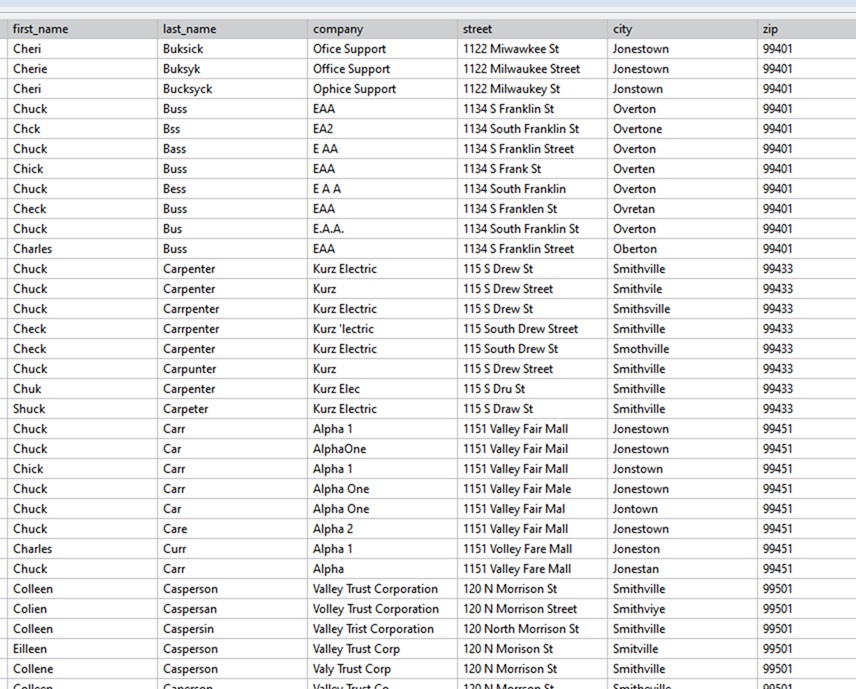
Step 1: Define the Key Field (Cluster Creation)
Create a rule that uses first_name as the matching key. This means a separate cluster will be generated for each exact match of the first name.
On the Rule Configuration screen, select first_name as the Key Field.
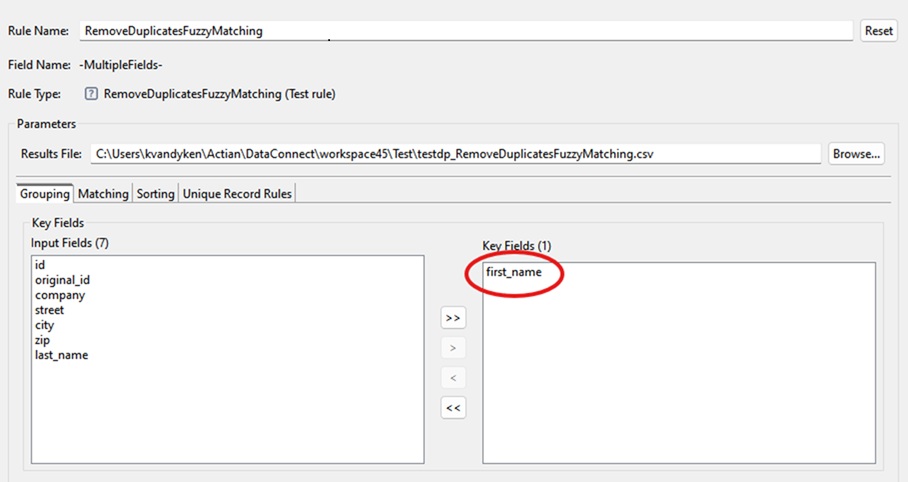
This means, a cluster will be created for each exact first_name. For example, all records with first_name = "Chuck" will be grouped into the same cluster. Clusters are evaluated independently for possible duplicates.
Step 2: Configure Fuzzy Matching Fields
Within each cluster, the last_name and company fields need to be evaluated to determine whether they are sufficiently similar to indicate potential full-record duplicates that should be removed.
On the Matching tab, these fields need to be selected and a matching algorithm assigned to each one. Navigate to the Matching tab. Within each cluster (for example, all “Chuck” records), configure fuzzy matching on the last_name and company fields:
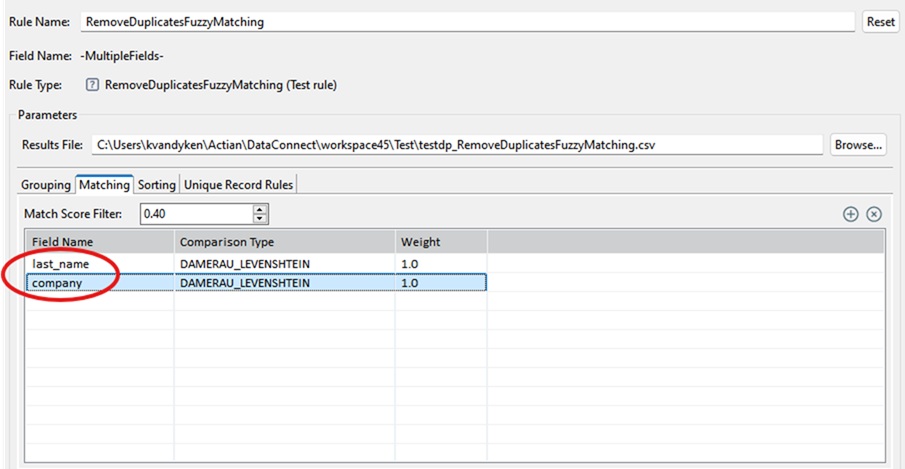
Select an appropriate fuzzy matching algorithm for each field based on the available options (e.g., DAMERAU_LEVENSHTEIN algorithm).
This allows the rule to, identify records where last_name values are similar (e.g., “Smith” vs. “Smyth”) and identify records where company values are close matches (e.g., “ABC Corp” vs. “ABC Corporation”)
Note: Key Fields cannot be selected as Matching Fields or Sorting Fields and vice versa.
Step 3: Configure Sorting
Go to the Sorting tab. Choose zip as the sort field within each cluster. Sorting helps organize records logically when reviewing potential duplicates.
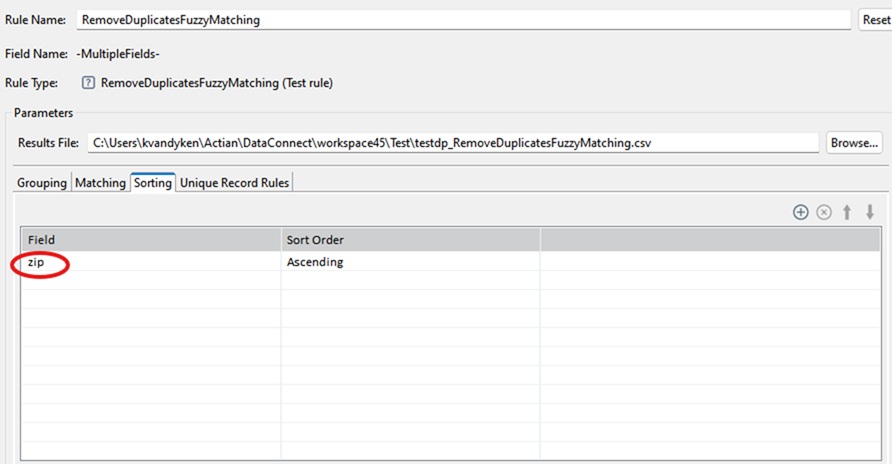
Step 4: Run the Rule
Click Run to execute the profile. When processing is complete, you are navigated to the Results page. Click on RemoveDuplicatesFuzzyMatching rule. On the right side of the screen, you’ll see a pass/fail pie chart summarizing the results.
Note: Key Fields cannot be selected as Matching Fields or Sorting Fields and vice versa.
Step 5: Review Clusters
Below the pie chart, click Browse Cluster File to view the generated clusters. You will now see grouped clusters.
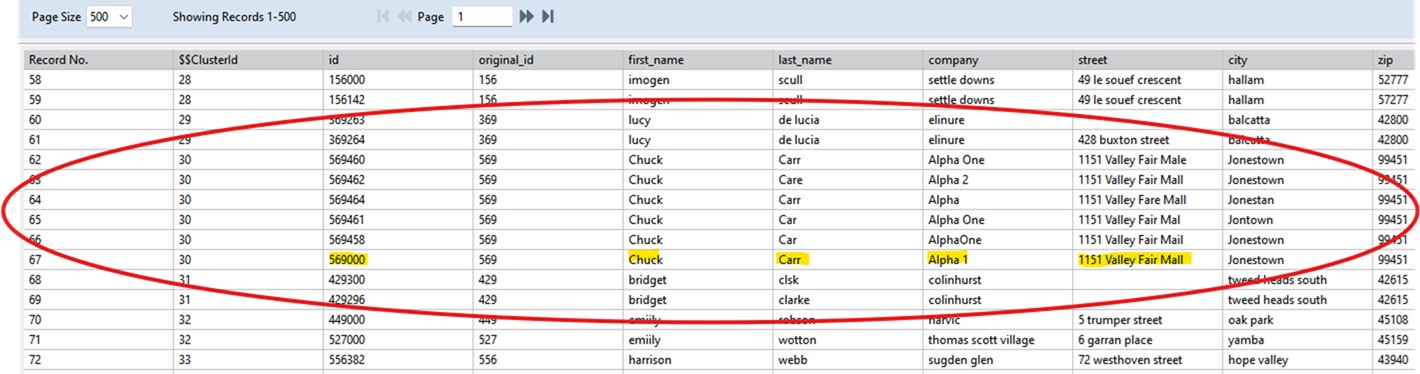
For example: Cluster 30 contains all records where first_name = "Chuck". Within that cluster, you will observe, similar last_name values and similar company values. This indicates likely duplicate records.
You may determine that the record with Id: 569000 appears to be the most accurate or complete version and therefore is the best candidate to keep.
Step 6: Select the Record to Keep
To retain specific records:
1. Go back to the Rules tab.
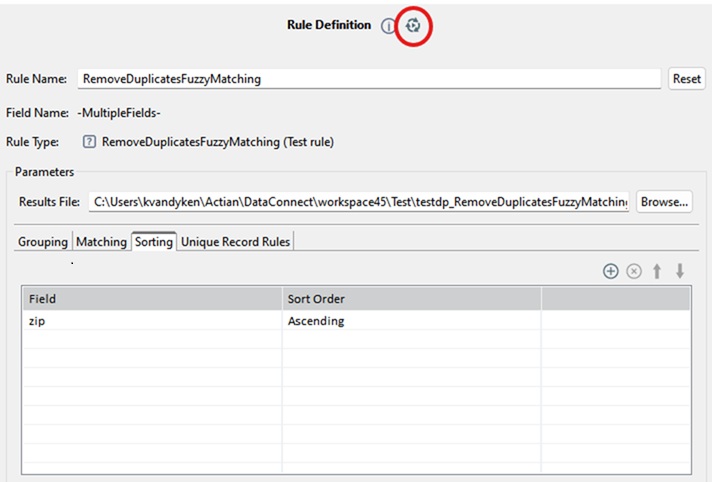
2. Click the Run button on the right side of the Rule Definition.
This opens the Cluster Data Browser in editable mode.
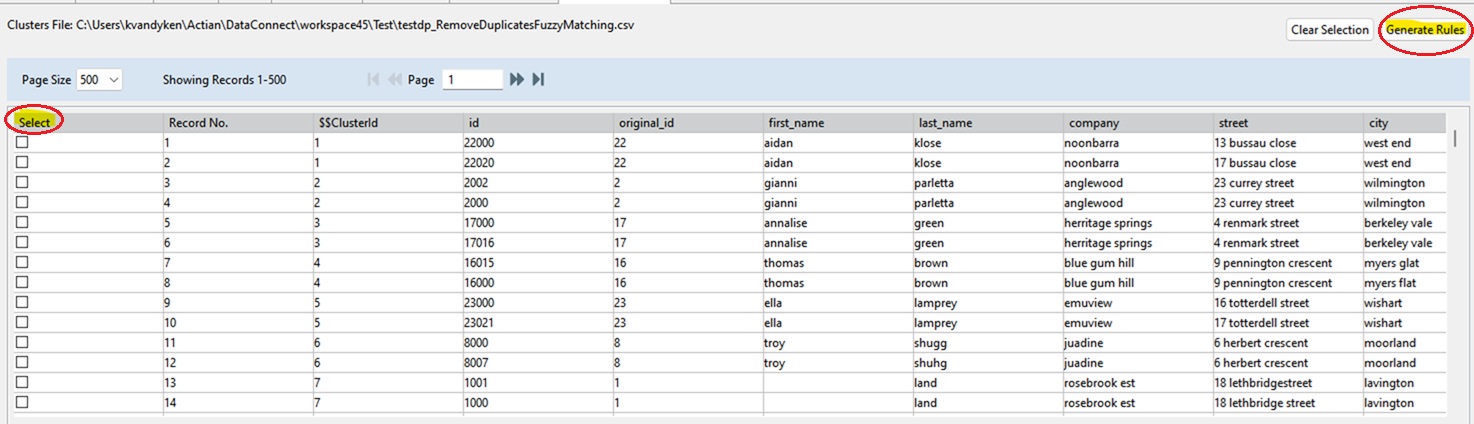
3. Select the record(s) you want to keep.
4. Click Generate Rules.
The system generates the necessary rules to preserve the selected record(s) and remove the others.
Step 7: Repeat the Process
The process can be repeated. This allows controlled and precise duplicate resolution.
1. Review a cluster.
2. Select one or more records to keep.
3. Generate rules.
4. Move to the next cluster.
Important Note: Handling First Name Variations
This configuration only handles exact matches on first_name. If your data includes variations such as, “Chuck”, “Chuk”, “Chuc”, you should, first clean up exact first_name duplicates using the rule described above. Then create a new RemoveDuplicatesFuzzyMatching rule where:
• last_name is used as the key field
• first_name is configured for fuzzy matching
This staged approach improves matching accuracy and reduces false positives.
ReplaceValue
This function rule replaces field values based on a specified constant, field, function result, regular expression result, or a lookup result. This rule also enables users the option to replace values only if a specified condition is met. The field data being replaced is the field this rule is written for.
Note: When writing replaced values to a target field, you may encounter a truncation error, often due to a mismatch in field sizes between the target field and the replacement value. To resolve this issue, adjust the field size of target field according to the replaced/overwritten value size.
Rule Properties
This rule has the following properties.
Rule Name | A default rule name (<FieldName><ReplaceValue>) is provided and displayed here. However, you can edit or overwrite it. Click Reset to restore the default rule name. Note: The underscore (_) character is the only special character allowed in the name. Rule names cannot begin with a digit. If a field or column in the source data starts with a digit, 'r_' will be prepended to any rules created based on that field. |
Field Name | The field name to which the rule applies is displayed here, along with the data type in parentheses. For example, ZIP (String). |
Rule Type | The type of rule that is applied to the field. That is ReplaceValue (Function rule). Tip... A Red Cross in a rule icon (for example  ) indicates that the rule has a required parameter that has not been defined. ) indicates that the rule has a required parameter that has not been defined. |
Rule Parameters
This rule has the following parameters.
Select an option from the Replace Function Choices drop-down list.
Option | Description |
Replace with Constant | Replaces the field value with the specified Constant. • Constant - Enter the constant value with which to replace. |
Replace with Field | Replaces the field value with the specified alternate source Field value. • Field - Select the field from which to replace. |
Replace with Function Results | (Available for string fields) Replaces the field value with the selected function results. You can select one or both functions: • ChangeStringCase - Changes the case of a string field to specified case (for example upper, lower, title) before writing to target field. See ChangeStringCase for more information. • StringTrim - Trims whitespace from a String field. See StringTrim for more information. |
Replace with Lookup | Replaces a source field value with a value from an incore lookup which is stored in memory (RAM). See Replace with Lookup for more information. |
Replace with RegX | (Available for string fields) Replaces what matches the specified regular expression with the replacement value. See Replace with RegX for more information. |
Select Condition | (Optional) Select the condition that must be met for replacing a value. Options are: • CompareToConstant (see CompareToConstant) • CompareToField (see CompareToField) • FuzzyMatch (see FuzzyMatch) • IsBlank - (available for string fields) - Replaces if the field value is blank. • MatchesRegex (see MatchesRegex) |
Replace with Lookup
This option allows you to perform a lookup (search and retrieve values from another dataset). The lookup data is stored in memory (RAM).
This rule is useful when your data contains a field that is related to another field in another dataset and you want to replace it’s value with a value out from that other dataset.
Users select or add a lookup, specify a Lookup Key Field from the lookup list of fields in the lookup dataset, specify a Matching Key Field from the source data or derived field, and the lookup Replacement Field from the lookup dataset. During execution, when the Lookup Key Field and the Matching Key Field values match, the lookup Replacement Field value replaces the data field value before writing to the target.
This rule option supports all data types. However, the Lookup Key Field and Matching Key Field values must be the same data type.
This option requires a lookup source definition. You can add a lookup source in the Source tab (see Managing Lookups in Profile Editor), or in the Rules tab when configuring this rule or the LookupValue rule.
Note: If the lookup is already added, select it from the Lookup Name drop-down list, and select the Matching Key Field and the Replacement Field.
This topic includes the following:
Option Parameters
Parameter | Description |
Lookup Name | Click Add  to create a lookup in the Lookup Configuration Wizard, or select a lookup from the drop-down list. to create a lookup in the Lookup Configuration Wizard, or select a lookup from the drop-down list. Tip... In the Lookup Configuration Wizard, connect to the lookup as with a source connector. When prompted to select the Lookup Key Field, select the lookup column for comparing against the Matching Key Field in the source or derived field. Click  to edit or click to edit or click  to delete a lookup. to delete a lookup. |
Lookup Key Field | The lookup field previously selected in the Lookup Configuration Wizard. This field contains the lookup values to compare against the Matching Key Field values. When the Lookup Key Field and the Matching Key Field values match, the Replacement Field value (from the lookup) is used. If no match is found, the field is replaced with a null or blank. |
Matching Key Field | Select the field in the source (or derived field) to match against the Lookup Key Field. When the Lookup Key Field and the Matching Key Field values match, the Replacement Field value is returned. |
Replacement Field | Select the field in the lookup that contains the replacement value. |
Select Condition | (Optional) Select the condition that must be met for replacing a value. Options are: • CompareToConstant (see CompareToConstant) • CompareToField (see CompareToField) • FuzzyMatch (see FuzzyMatch) • IsBlank - (available for string fields) - Replaces if the field value is blank. • MatchesRegex (see MatchesRegex) |
Configuring a ReplaceValue rule
1. In the Rules tab, select the field to which the lookup will be applied, then click  >Add New Rule.
The Add Rules dialog opens.
>Add New Rule. The Add Rules dialog opens.
2. In the Remediation tab, select ReplaceValue, and Finish.
The Rule Definition pane opens.
The Rule Definition pane opens.
The Rule Name field displays the rule name which can be edited.
3. In the Rule Definition pane:
• Select Replace with Lookup from the Replace Function Choices drop-down list.
• Click  (on the right of the Lookup Name drop-down list) to open the Lookup Configuration Wizard.
(on the right of the Lookup Name drop-down list) to open the Lookup Configuration Wizard.4. In the Lookup Configuration Wizard:
• Enter a name for the lookup and add a description (if required).
• Configure the lookup data connection properties, click Connect and Next.
• Verify that you are connected to the correct lookup data, note the name of the column to be used for the Lookup Key Field (the column that contains content that matches the source or derived content), then click Next.
• In the Field Name column, select the Lookup Key Field (the field to match against the Matching Key Field) and click Finish.
The lookup you created is now available in the Lookup Name drop-down list and the Source tab Source drop-down list.
5. In the Rule Definition pane:
• Matching Key Field: Select the source or derived field to match against the Lookup Key Field.
• Replacement Field: Select the lookup field that contains the values to retrieve.
6. Save the profile, then click  to execute the profile.
The Total pass/fail data pie chart is displayed.
to execute the profile.The Total pass/fail data pie chart is displayed.
7. Click the pie chart to open the Drill Down data tab.
View the replaced values in the relevant data column.
View the replaced values in the relevant data column.
Editing a lookup source
1. In the Rules tab, click  >Add New Rule.
The Add Rules dialog opens.
>Add New Rule. The Add Rules dialog opens.
2. In the Remediation tab, select ReplaceValue, and Finish.
The Rule Definition displays the rule you created in the Rule Name field. The rule name is the source field name + the rule name (which can be edited).
The Rule Definition displays the rule you created in the Rule Name field. The rule name is the source field name + the rule name (which can be edited).
3. Select Replace with Lookup from the Replace Function Choices drop-down list.
4. Select the lookup you want to edit from the Lookup Name drop-down list.
5. Click  to edit (on the right of the Lookup Name drop-down list) in the Configuration Wizard.
to edit (on the right of the Lookup Name drop-down list) in the Configuration Wizard. 6. Edit fields and properties as needed, click Connect and Next.
7. Verify that you are connected to the correct lookup data, note the column to be used for the Lookup Key Field (the field that contains the replacement value), then click Next.
8. In the Field Name column, select the field to use as the Lookup Key Field and click Finish.
Note: When users change the lookup name, connection, key field or replacement field, all related elements and metrics using the lookup file reflect the changes (for example, the rule name).
Deleting a lookup source
1. In the Rules tab, click  >Add New Rule.
The Add Rules dialog opens.
>Add New Rule. The Add Rules dialog opens.
2. In the Remediation tab, select ReplaceValue, and Finish.
The Rule Definition displays the rule you created in the Rule Name field. The rule name is the source field name + the rule name (which can be edited).
The Rule Definition displays the rule you created in the Rule Name field. The rule name is the source field name + the rule name (which can be edited).
3. Select Replace with Lookup from the Replace Function Choices drop-down list.
4. Select the lookup you want to edit from the Lookup Name drop-down list.
5. Click  to delete (on the right of the Lookup Name drop-down list).
The lookup is removed from the Lookup Name drop-down list and the Source tab Source drop-down list.
to delete (on the right of the Lookup Name drop-down list). The lookup is removed from the Lookup Name drop-down list and the Source tab Source drop-down list.
Example: Replacing StateCode values with StateName values
The following use case examples describe a user with a source State column that contains state codes (e.g. CA and TX). The user wants the values to be state names (e.g. California and Texas). These examples use the following “States.txt” data file as the lookup file, which contains a StateCode column and a StateName column:
StateCode, StateName
"AL","Alabama"
"AK","Alaska"
"AZ","Arizona"
"AR","Arkansas"
"CA","California"
"CO","Colorado"
"CT","Connecticut"
<etc.>
Note: If multiple matches of the StateCode are found, the first instance of the StateName is used.
To configure the rule we set the following:
• Set the ReplaceValue rule on the source field that contains incorrect values. In this example, the State column field which contains state codes.
• Define a new lookup named state_lookup and connect it to “States.txt”.
• Set the following parameters:
• Replace Function Choices - Replace with Lookup
• Lookup Name - Choose state_lookup if it is not already selected.
• Lookup Key Field - StateCode (This is the lookup field to match against the Matching Key Field that you selected when creating the lookup.)
• Matching Key Field - State (This is the source field to match against the Lookup Key Field.)
• Replacement Field - StateName (This is lookup field with values that will replace the state code.)
Replace with RegX
This option replaces what matches the specified regular expression with the replacement value, before writing to target field.
Option Parameters
The following parameters are available.
Parameter | Description | |
Pattern | The regex pattern to search for. See Java Regular Expressions. | |
Replacement | The replacement value. | |
Occurrences | The field occurrences that you want to replace. For example “1, 3-4, 7”. The “3-4” (from 3rd through 4th) is a range. You can also specify “all”. If left blank, all instances are replaced. | |
Select Condition | (Optional) Select the condition that must be met for replacing a value. Options are: • CompareToConstant (see CompareToConstant) • CompareToField (see CompareToField) • FuzzyMatch (see FuzzyMatch) • IsBlank - (available for string fields) - Replaces if the field value is blank. • MatchesRegex (see MatchesRegex) | |
Supported Data Types
All data types.
Remarks
When replacing values in the target field, you may encounter a truncation error, often due to a mismatch in field sizes between the target field and the replacement value. To resolve this issue, adjust the field size of target field according to the replaced/overwritten value size.
StandardizeFormat
This function rule changes the format of fields that contain values such as zip codes and phone numbers. This rule is useful when users want to standardize the format of values to make it easier to profile the data.
This rule replaces values in the output field, and generates pass and fail statistics based on conversion success or failure.
Note: A value for a country can be ISO2 code or the full country name if being referenced dynamically using expressions.
Rule Properties
This rule has the following properties.
Rule Name | The default rule name (<FieldName>_StandardizeFormat) is provided and displayed here. However, you can edit or overwrite it. Click Reset to restore the default rule name. Note: The underscore (_) character is the only special character allowed in the name. Rule names cannot begin with a digit. If a field or column in the source data starts with a digit, 'r_' will be prepended to any rules created based on that field. |
Field Name | The field name to which the rule applies is displayed here, along with the data type in parentheses. For example, Zip (String). |
Rule Type | The type of rule that is applied to the field. That is StandardizeFormat (Function rule). |
Rule Parameters
This rule has the following properties.
Field Type | (required) Select the relevant type of data in the field. This selection populates options in the Format Type field. Options are: • Zip - Postal zip codes. • Phone - Telephone numbers. |
Format Type | Select the type of format to apply to the field. |
• Phone - (required) Select the phone number formatting standard to use from the Format Type drop-down list: – International - The international formatting standard which includes the country code in the result. For example: +1 (202) 888 2943 – National - The national formatting standard, which does not include a country code in the result, unless the country code is explicitly included in the custom format. For example: (202) 888 2943 – E164 - The E164 formatting standard. For example: +34632123456 – RFC3966 - The RFC3966 formatting standard. For example: tel:+1-201-555-0123 • Country - Select the geographic region for the phone numbers. Each phone number format is based on a country. If there is a column named country, users can type `country` into this field so that the format applied to each phone number value is determined by the country value. This can be helpful if your data contains phone numbers from different countries. Note: Country value can be ISO2 code, or the full country name if being referenced dynamically using expressions. | |
• Zip - (required, unless Custom Format is specified) Select the formatting standard to use from the Format Type drop-down list. Each zip code format is based on a country. If there is a column named country, users can type `country` into this field so that the format applied to each zip code value is determined by the country value. This can be helpful if your data contains zip codes from different countries. In cases where a country supports multiple formats, multiple options are available to choose from. For example, both of these formats are available for the United States:United States and United States (Zip + 4). | |
Custom Format | (optional) Enter a format to use and click Add. The format specified is used (not the Format Type selected). Multiple formats can be entered. When multiple formats are specified, the first format that matches the cell value is used. The following characters have special meaning in the format: L = Letter (for zip codes only) N = Number ? = Indicates that the preceding letter or number is optional #{CC} - Inserts the country code (for phone numbers only) All other characters are included in the result at the position specified in the format. For example, the following specifies a United States zip code format: NNNNN NNNN |
Supported Data Types
String data types (input)
String (output)
Remarks
Does provide pass and fail statistics.
StringTrim
This function rule trims whitespace from a String field.
Rule Properties
Rule Name | A default rule name (<FieldName>_StringTrim) is provided and displayed here. However, you can edit or overwrite it. Click Reset to restore the default rule name. Note: The underscore (_) character is the only special character allowed in the name. Rule names cannot begin with a digit. If a field or column in the source data starts with a digit, 'r_' will be prepended to any rules created based on that field. |
Field Name | The field name to which the rule applies is displayed here, along with the data type in parentheses. For example, Address (String). |
Rule Type | The type of rule that is applied to the field. That is StringTrim (Function rule). |
Rule Parameters
Trim Side | The side from which to remove white spaces: • Both (default) • Left • Right |
Supported Data Types
String (input)
String (output)
Examples
To convert a string field to another data type and to ignore extra whitespace:
Apply the StringTrim rule to a string field, and then apply StringToConversion rule to the output. Without String Trim, extra white space in the field value causes the conversion rule to fail.
To determine distinct values in a string field and ignore whitespace:
Apply the StringTrim rule to a string field, then apply the DistinctValues rule to the output. Without String Trim, varying amounts of extra whitespace are considered distinct values.
Last modified date: 10/14/2026