Exploring Data Profile Editor
When you create or open a data profile file, it opens in a tab called the Data Profile Editor. The following image shows the Data Profile Editor.
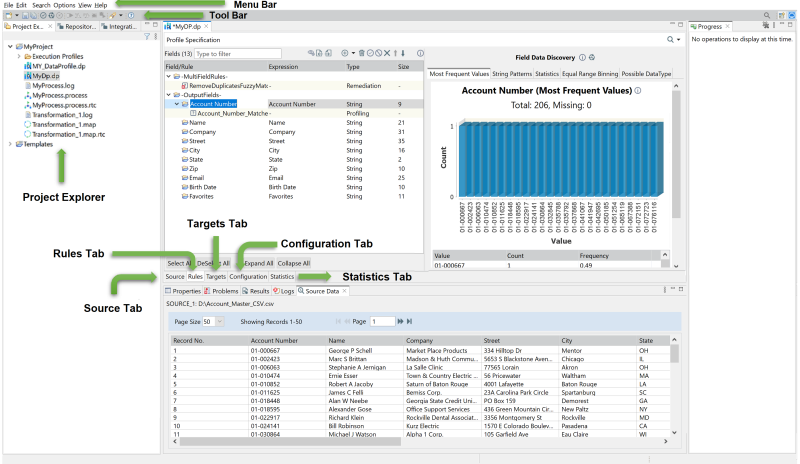
It includes the following main areas:
• Project Explorer: Displays folders, projects, and artifacts within a workspace in a tree view. You cannot reorder or sort the items in this view. Double-click the file to open the artifact.
• Source Tab: You can manage the source connection and schema information from this tab. It also allows you to define sort and sample data. For more information, see Specifying Source Connection for Data Profile.
• Rules Tab: You can manage the data quality rules to be applied to source fields from this tab. For more information, see Adding Rules from Rules Tab. You can also add and remove fields to/from your output. See Add Source/Derived Fields to Output.
• Targets Tab: You can manage the target connection and schema information from this tab. For more information, see Specifying Target Connections for Data Profile.
• Configuration Tab: You can manage logging options, macros, and Rules Tab. For more information, see Configuring Data Profile.
• Statistics Tab: Displays overall execution results, rule-specific pass/fail statistics, and Rules Tab (if configured). For information, see Validating and Running Profile.
Last modified date: 09/22/2025