Manage Configuration Macros
These are macros which are specific to a configuration.
Edit Configuration Macros
To edit macros that are associated with a configuration
-
Click Integrations, Manage, Configurations.
The Configurations page is displayed, listing all available configurations. See View Configurations.
-
Click the desired configuration name.
The Configuration Details page is displayed. See Edit Configuration Details.
-
Click Macros.
The Configuration Macros page is displayed, listing all macros associated with the configuration.
You can edit the following information:
| Properties | Editable | Description |
|---|---|---|
| Macro | Yes | The macro name. Click the template name to edit it. A text box is displayed. Type a new name and then press enter. |
| Value | Yes | The macro value. Click the macro value to change it. A text box is displayed. Type a new value and then press enter. To encrypt any macro values, click the  icon in the Value column, and then click SECURE MACRO. The icon in the Value column, and then click SECURE MACRO. The  icon changes to the icon changes to the  icon which indicates that the macro value is encrypted. icon which indicates that the macro value is encrypted. |
| Description | Yes | The macro description. Click the macro description to edit it. A text box is displayed. Type a new description and then press enter. |
| Origin | No | The origin of macro. For example Configuration, Public, Private. |
The Configuration Macros page options and actions:
| Options and Actions | Description |
|---|---|
 |
Click this icon and specify the value that you want to search. The values in each column will be evaluated during the search. Contents will be filtered based on the search string.Click  to close the search box. to close the search box. |
 |
Click the down arrow and select how many records to display on the page. The default page size is set to 25. |
 |
Use these options to Navigate from one page to another. |
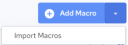 |
• Add Macro - See Add Macros to a Configuration. • Import Macro - See Import Macros to a Configuration. |
| Delete Macro | This button is displayed when you select a macro by clicking the check-box that is displayed against the macro name. Select a macro and click Delete Macro to delete it.Caution!The delete action cannot be undone. |
 |
If any entry spans multiple lines, it is in a collapsed state by default.Click this icon to expand the collapsed lines. The icon changes to  (click this to collapse the lines). (click this to collapse the lines). |
  |
These are another set of icons that can be used to expand and collapse the lines which span multiple lines. |
Add Macros to a Configuration
To add a macro to a configuration
-
Click Integrations, Manage, Configurations.
The Configurations page is displayed, listing all available configurations. See View Configurations.
-
Click the desired configuration name.
The Configuration Details page is displayed. See Edit Configuration Details.
-
Click Macros.
The Configuration Macros page is displayed, listing all macros associated with the configuration.
-
Click the
 button that is displayed beside Add Macro.
A blank record is added for the new macro with the default name “Macro 1”.
-
Click the blank space under Macro, Value, and Description fields and a text box appears. Type the required values and press enter.


Import Macros to a Configuration
To import a macro to a template
-
Click Integrations, Manage, Configurations.
The Configurations page is displayed, listing all available configurations. See View Configurations.
-
Click the desired configuration name.
The Configuration Details page is displayed. See Edit Configuration Details.
-
Click Macros.
The Configuration Macros page is displayed, listing all macros associated with the configuration.
-
From the Add Macro drop-down menu, click Import Macros.
The Upload Macro File dialog appears.
-
Drag and drop the macros file or click BROWSE FILES to add the macro file.
The macros are added and listed on the Configuration Macros page. For more information on macros, see DataConnect documentation on https://docs.actian.com/.


