Schedule a Warehouse
After creating a warehouse, you may schedule a start, stop, backup, or a scaling to economize on AU costs (see Warehouse Cost and Actian Units).
You may create one or multiple schedule events to stop, start, or scale a warehouse using these elements:
| Action | Recurrence | Time Increment |
|---|---|---|
| • Start Warehouse • Stop Warehouse • Scale Warehouse • Start Database • Stop Database |
• Interval – event duration, from 0 hours, 15 minutes to 23 hours, 45 minutes • Schedule Once – date and time to run an event • Daily – every day of the week • Every weekday (Mon–Fri) • Weekly – particular weekdays • Monthly – month 1–12 on a particular day of the month • Custom (quartz cron expression—see Cron Expressions) |
Fifteen-minute increments, 12:00 AM – 11:45 PM |
To manually scale a warehouse, see Scale a Warehouse.
To create or delete a schedule event, follow the appropriate procedure:
To create a start/stop schedule event
-
In the Actian warehouses console, click the warehouse name to display its Warehouse Details page.
-
In the Schedule row, click the Create Schedule icon:

The Schedule Warehouse/Database Action dialog opens.
-
Select an Action for the event:
-
Start Warehouse or Stop Warehouse
-
Start Database or Stop Database
-
-
Choose a Recurrence interval:
-
Interval
-
Schedule Once
-
Daily
-
Every weekday (Mon–Fri)
-
Weekly
-
Monthly
-
Custom
-
-
Select a Start time for the action:
| Recurrence | Setting |
|---|---|
| • Interval – event duration | Select an interval from 0 hours, 15 minutes to 23 hours, 45 minutes |
| • Schedule Once – trigger a one-time event | Select a day of the month and an execution time from 12:00 AM – 11:45 PM. |
| • Daily – every day of the week • Every weekday (Mon–Fri) |
Select a start time from 12:00 AM – 11:45 PM. |
| • Weekly – particular weekdays | 1.Select one or more weekdays for the action.2.Select a start time from 12:00 AM – 11:45 PM. |
| • Monthly – month 1–12 on a particular day of the month | 1.Select a month for the action.2.Select a month day for the action.3.Select a start time from 12:00 AM – 11:45 PM. |
| • Custom | Enter a custom cron expression in the field. See Cron Expressions. |
-
Click the Schedule button to create the action.
The schedule action is added to the list at the bottom of the dialogue.
-
Click the Add Schedule button to add another schedule event and repeat steps 3–6.

To create a warehouse scaling schedule event
- In the Actian warehouses console, click the warehouse name to display its Warehouse Details page.
-
In the Schedule row, click the Create Schedule icon:
The Schedule Warehouse Action dialog opens.
-
Select an Action for the event: Scale Warehouse.
-
Choose the number of Actian Units (AUs) to scale to. (Number of AUs available depends on your account quota.)
-
Choose a Recurrence interval:
-
Interval
-
Daily
-
Schedule Once
-
Every weekday (Mon–Fri)
-
Weekly
-
Monthly
-
Custom
-
-
Select a Start time for the action:
| Recurrence | Setting |
|---|---|
| • Interval (event duration) | Select an interval from 0 hours, 15 minutes to 23 hours, 45 minutes |
| • Schedule Once – trigger a one-time event | Select a day of the month and an execution time from 12:00 AM – 11:45 PM. |
| • Daily – every day of the week • Every weekday (Mon–Fri) |
Select a start time from 12:00 AM – 11:45 PM. |
| • Weekly – particular weekdays | 1.Select one or more weekdays for the action.2.Select a start time from 12:00 AM – 11:45 PM. |
| • Monthly – month 1–12 on a particular day of the month | 1.Select a month for the action.2.Select a month day for the action.3.Select a start time from 12:00 AM – 11:45 PM. |
| • Custom | Enter a custom cron expression in the field. See Cron Expressions. |
-
Click the Schedule button to create the action.
The schedule action is added to the list at the bottom of the dialogue.
-
Click the Add Schedule button to add another schedule event and repeat steps 3–6.
To delete a schedule event
-
In the Actian warehouses console, click the warehouse name to display its Warehouse Details page.
-
In the Schedule row, click the Create Schedule icon:
The Schedule Warehouse/Database Action dialog opens.
-
Scroll down to the list of schedule events.
-
To search for a particular event by action or recurrence, enter text in the search field:

-
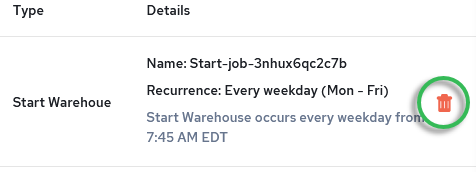
When the schedule event is shown in the list, click the delete icon on its right:
-
Confirm the deletion.
The schedule event is removed from the events list.