Select the Actian Database Driver and Connect to a Warehouse
To select the Actian database driver in DBeaver and connect to your Avalanche warehouse
- Start the DBeaver application.
-
Click Database, New Database Connection.
The Connect to database dialog opens.
-
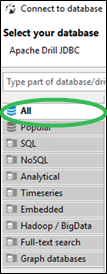
Select the All tab on the left to show all drivers.
-
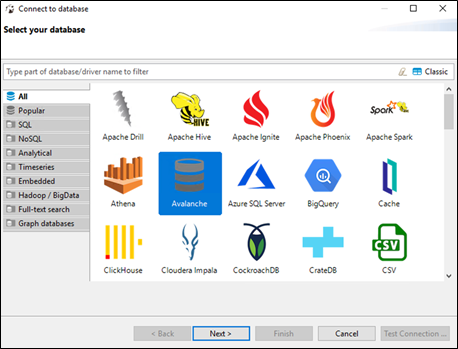
Select the Actian driver and click Next.
-
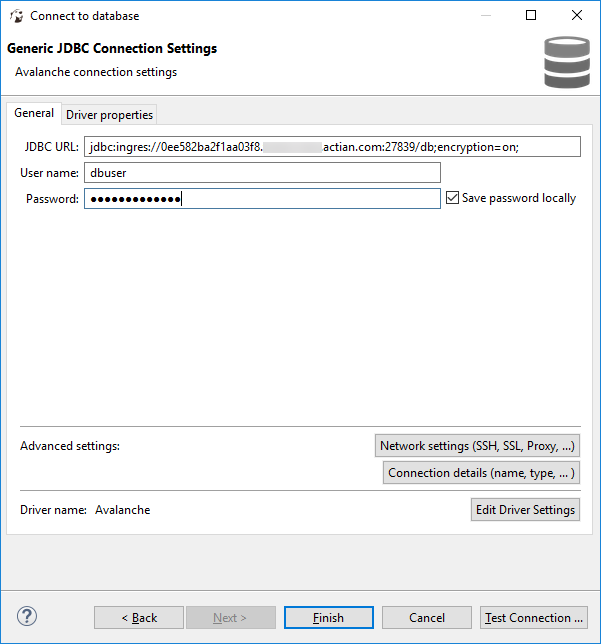
Paste the JDBC connection string (from step 3 of Get Connection Properties for DBeaver) into the DBeaver JDBC URL field.
-
In the User name and Password fields, enter the username (dbuser) and password you set in the Set the dbuser Connection Password procedure.
-
Click Test Connection.
If you are notified of missing drivers, select them and click Download.
-
Upon successful connection, close the confirmation dialog and click Next.
-
Click Next again and then Finish.
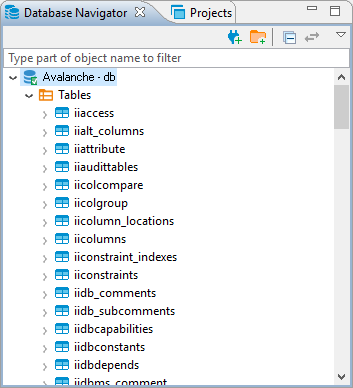
The connected warehouse is listed in the Database Navigator tab. The Actian database is included in the display.