Designing reports with AI
Jaspersoft Desktop can design reports with AI in two ways. This chapter explains the difference, how to set up each one, and how to connect the AI tools you may already use (Claude, ChatGPT, Codex, Cursor, VS Code and others).
Two ways, and the difference between them
| Chat inside Jaspersoft Desktop | Chat in another app (MCP) | |
|---|---|---|
| Where you type | In Jaspersoft Desktop: the AI Assistant column of a workspace, or the home screen | In the other application: Claude Desktop, Claude Code, ChatGPT, Codex, Cursor, VS Code… |
| Which AI model answers | The model service you choose (Anthropic, OpenAI, Google Gemini, DeepSeek), with your own API key, or a model on your own computer (Ollama) | The other application's own model |
| Who pays | The model service bills your API key for each question; nothing, with Ollama | Your subscription to the other application |
| What it can do | Change the report on show, create reports and data adapters, read and write the files of the workspace | The same: it uses the same commands, and its changes to a report can be undone the same way |
| What you need | An API key from a model service, or Ollama | The other application, and Jaspersoft Desktop running |
Turning on the MCP server does not make the chat inside Jaspersoft Desktop work. MCP lets another application, with its own model, work in Jaspersoft Desktop: you chat in that application, and you see its changes in Jaspersoft Desktop as they happen. To chat inside Jaspersoft Desktop, you need a model service and an API key (see Chatting inside Jaspersoft Desktop).
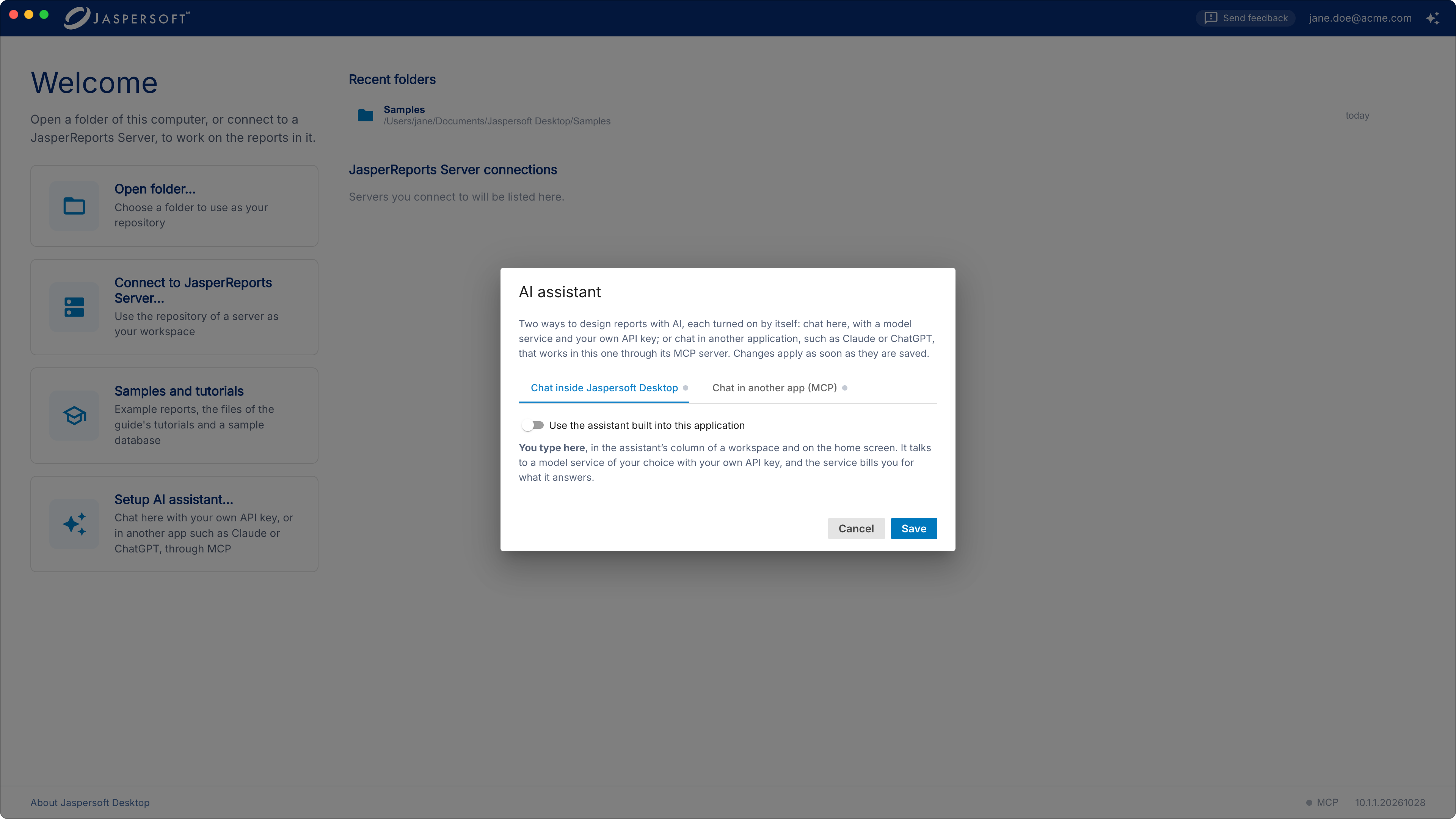
You can use either way, or both. Both are set up in the AI assistant settings: on the home screen, click Set up AI Assistant….
The MCP server is a feature of Jaspersoft Desktop only.
Chatting inside Jaspersoft Desktop
What you need
An API key from one of these model services:
| Service | Where to get a key |
|---|---|
| Anthropic (Claude models) | console.anthropic.com, under API keys |
| OpenAI (GPT models) | platform.openai.com, under API keys |
| Google Gemini | aistudio.google.com, under Get API key; or Vertex AI with Google Cloud credentials |
| DeepSeek | platform.deepseek.com, under API keys |
| Ollama (a model on your own computer) | No key: see A fully private setup with Ollama |
An API key is not the same as a subscription to the service's chat (Claude Pro, ChatGPT Plus…). The service bills an API key by use, separately. If you already pay for a chat subscription and do not want a second bill, use that application through MCP instead (see Working from another app (MCP)).
Setting it up
- On the home screen, click Set up AI Assistant….
- On the Chat inside Jaspersoft Desktop tab, turn on Use the assistant built into this application.
- Choose the Provider.
- Paste your API key.
- Leave Model empty to use the provider's default model, or type the name of another model of that provider. The field suggests a few.
- Click Test connection. Jaspersoft Desktop asks the provider a short question with these settings, and shows the answer, or what went wrong.
- Click Save. The change applies at once; nothing needs restarting.
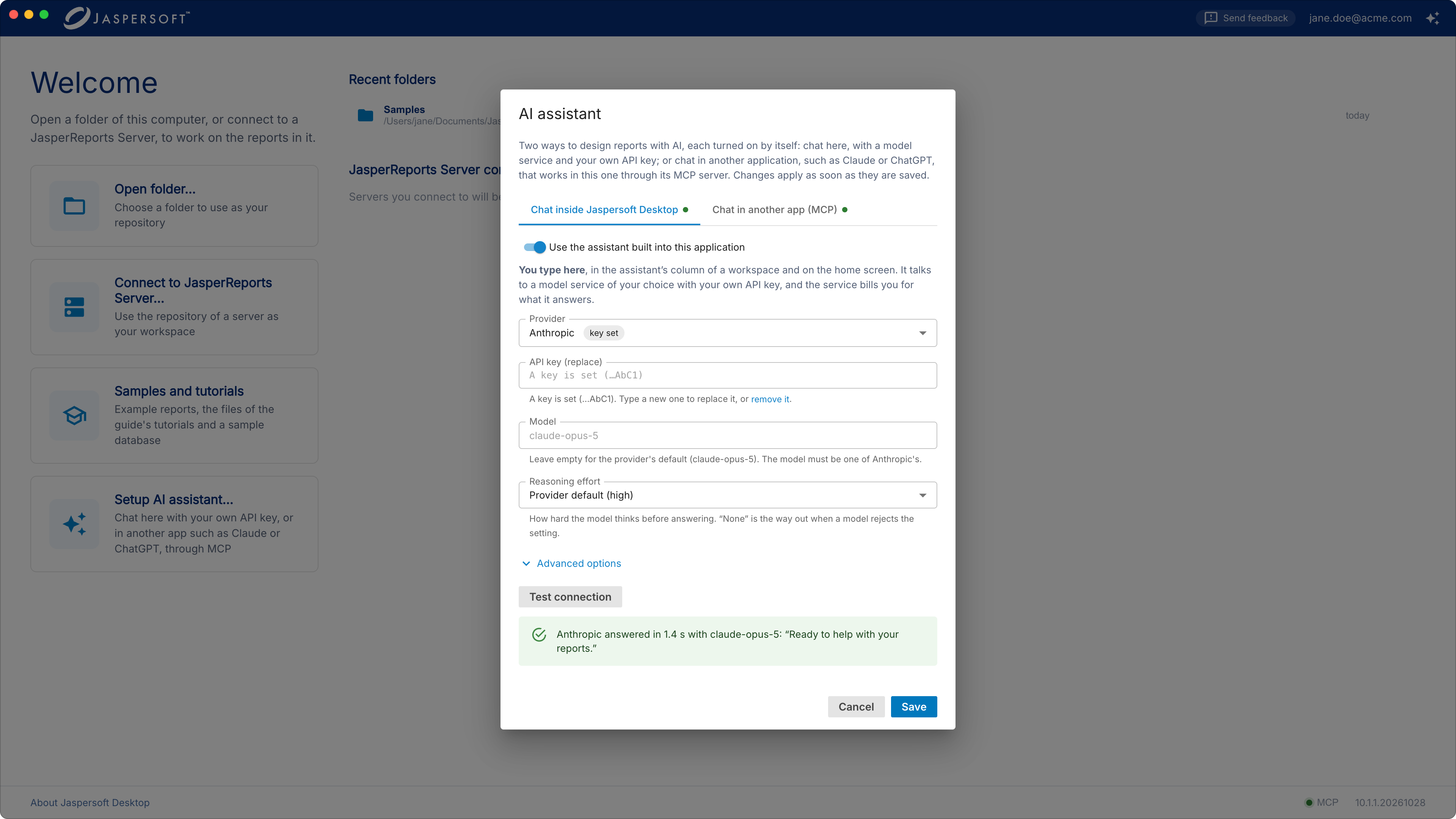
The API key is stored on your computer, encrypted by the operating system, and sent only to the provider, with each question. It is never shown again: the dialog shows only its last characters. To replace it, type a new one; to remove it, click remove it under the field.
Reasoning effort sets how hard the model thinks before answering. More effort gives better answers to hard questions, and takes longer and costs more. If a model rejects the setting, choose None.
Advanced options
| Option | When to change it |
|---|---|
| API URL | To go through a gateway, Azure OpenAI, or another service that speaks the same API as the provider. |
| API (OpenAI, DeepSeek) | Chat Completions for services that are compatible with OpenAI; only OpenAI has the Responses API. |
| Vertex AI (Google Gemini) | To use Gemini through Google Cloud, with a project and a service account key file instead of an API key. |
| Attachments | Whether questions may carry images and pages of PDF files. A screenshot of a preview shows real data: turn images off if that data must not leave your computer. |
| Max output tokens, Request timeout | For very long answers, or a slow service. |
A fully private setup with Ollama
With Ollama, the model runs on your computer. Your questions, your reports and their data never leave it, and there is nothing to pay. In exchange, answers are slower, and a model small enough for a laptop makes more mistakes than the large services do.
What you need:
- Ollama, installed from ollama.com.
- A model that can use tools: the assistant changes reports by calling tools, and a model that
cannot gives answers but changes nothing. On ollama.com, such models carry the tools label;
gpt-oss:20bandqwen3are good starting points. - Enough memory: about 16 GB of RAM (or of video memory) for a model of 20 billion parameters, more for larger ones.
Use a model that runs on your computer. Models whose name ends in -cloud run on Ollama's servers,
and are not private.
-
Download the model. In a terminal:
-
Give the model a longer context. The assistant sends long instructions and the list of its tools with every question, and they do not fit in Ollama's default context of 4,096 tokens (the default on computers with less than 24 GB of video memory). In the Ollama app, open Settings and set Context length to at least 32k. If you start Ollama from a terminal instead, start it with:
-
In Jaspersoft Desktop, open the AI assistant settings and, on the Chat inside Jaspersoft Desktop tab, set:
Setting Value Provider OpenAI (Ollama speaks the same API) API key Any text, for example ollama. Ollama does not check it, but a provider without a key counts as not set up.Model The model's name as ollama listshows it, for examplegpt-oss:20bReasoning effort None, unless you know the model takes the setting Advanced options › API URL http://localhost:11434/v1Advanced options › API Chat Completions Advanced options › Request timeout 600 seconds: the first answer waits for the model to load Advanced options › Attachments Turn off images, unless the model can read them -
Click Test connection, then Save. The test result says "OpenAI answered…": that is the API it used; the answer came from your model.
Ollama must be running while you use the assistant. If the assistant answers but never changes the report, the model cannot use tools or its context is too short: try another model, or a longer context.
Using the assistant
Open a workspace, then click the AI Assistant button at the right of the title bar (or choose View › AI Assistant, Ctrl+Shift+A, on macOS ⌘⇧A). Its column opens at the right of the documents.
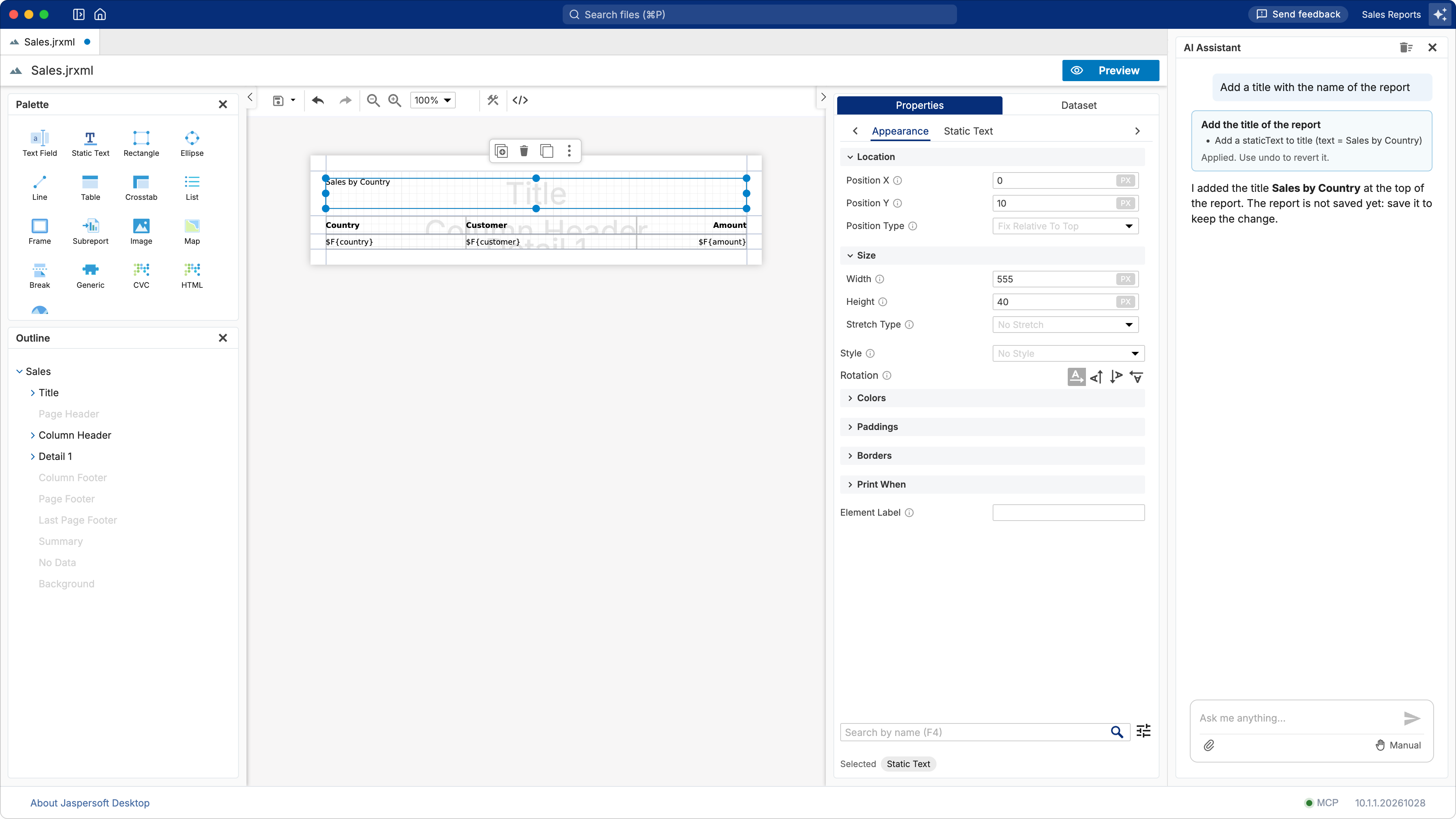
Ask in your own words, for example "add a title with the name of the report", "group the rows by country" or "make a report from sales.csv". The assistant knows the open tabs and the files of the workspace, not only the report on show. You can attach an image (a sketch, a screenshot of a report to imitate) or a data file (CSV, JSON, Excel).
Before it changes a report, the assistant shows what it is about to do and waits for you:
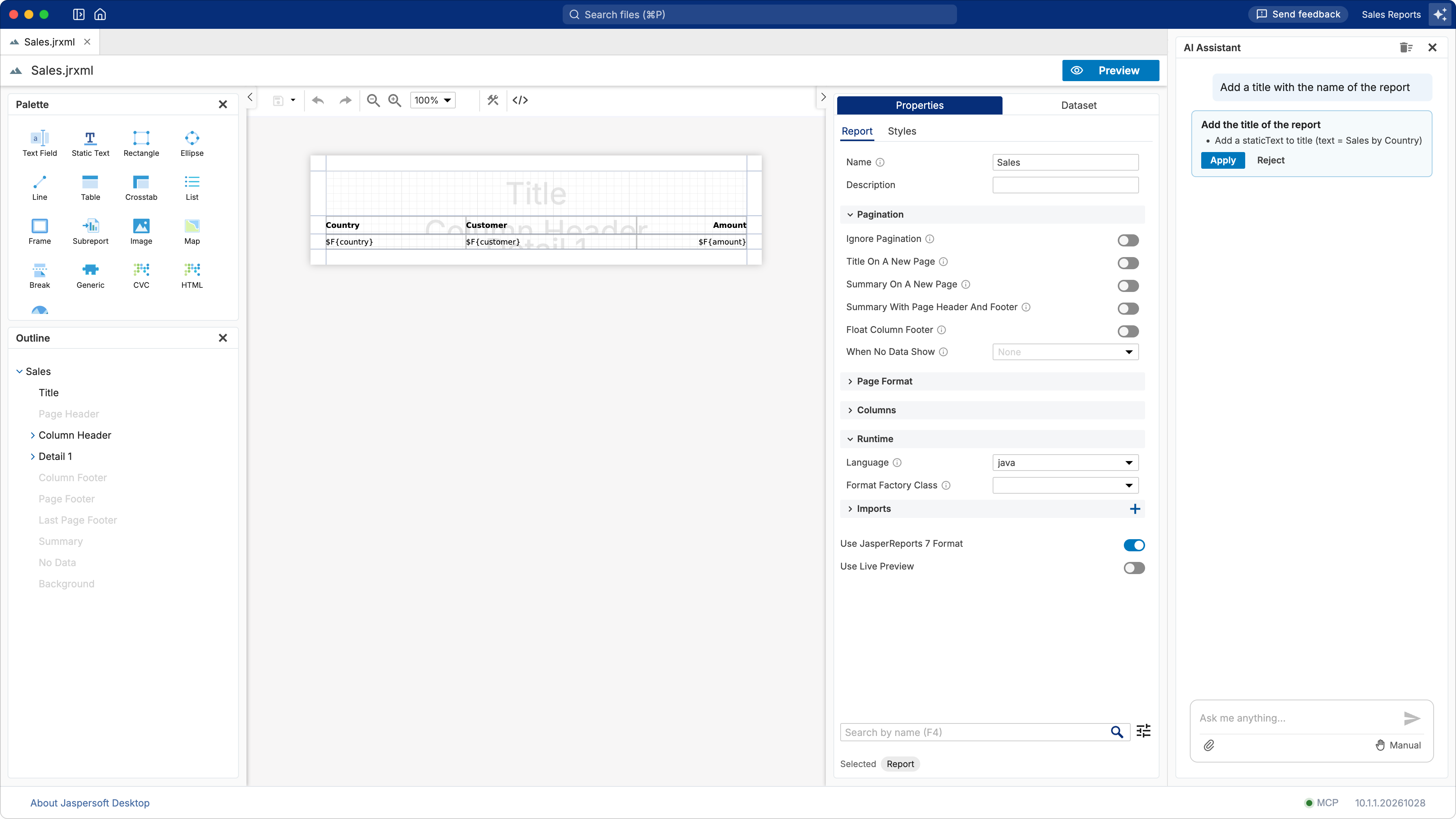
- In Manual mode (the default), each change waits for Apply or Reject.
- In Edit automatically mode, changes to the report on show are made without asking. Each change is a single undo step, so Edit › Undo takes it back.
Writing or replacing a file of the workspace always asks first, in both modes.
The assistant changes the report in the editor. It does not save it: save it yourself when you are happy with the result, as with any change.
The assistant on the home screen
The home screen has an assistant too: click the AI Assistant button at its top right. It can open a folder or a server for you and pass your request on, for example "open my Reports folder and create a sales report from sales.csv". The workspace opens and its assistant takes the request up.
If the assistant is not set up
If you open the assistant's column before setting up a model service, the column says so, with a button to the settings. If the MCP server is on, it also reminds you that MCP does not make this chat work, and that you chat in your MCP client instead.
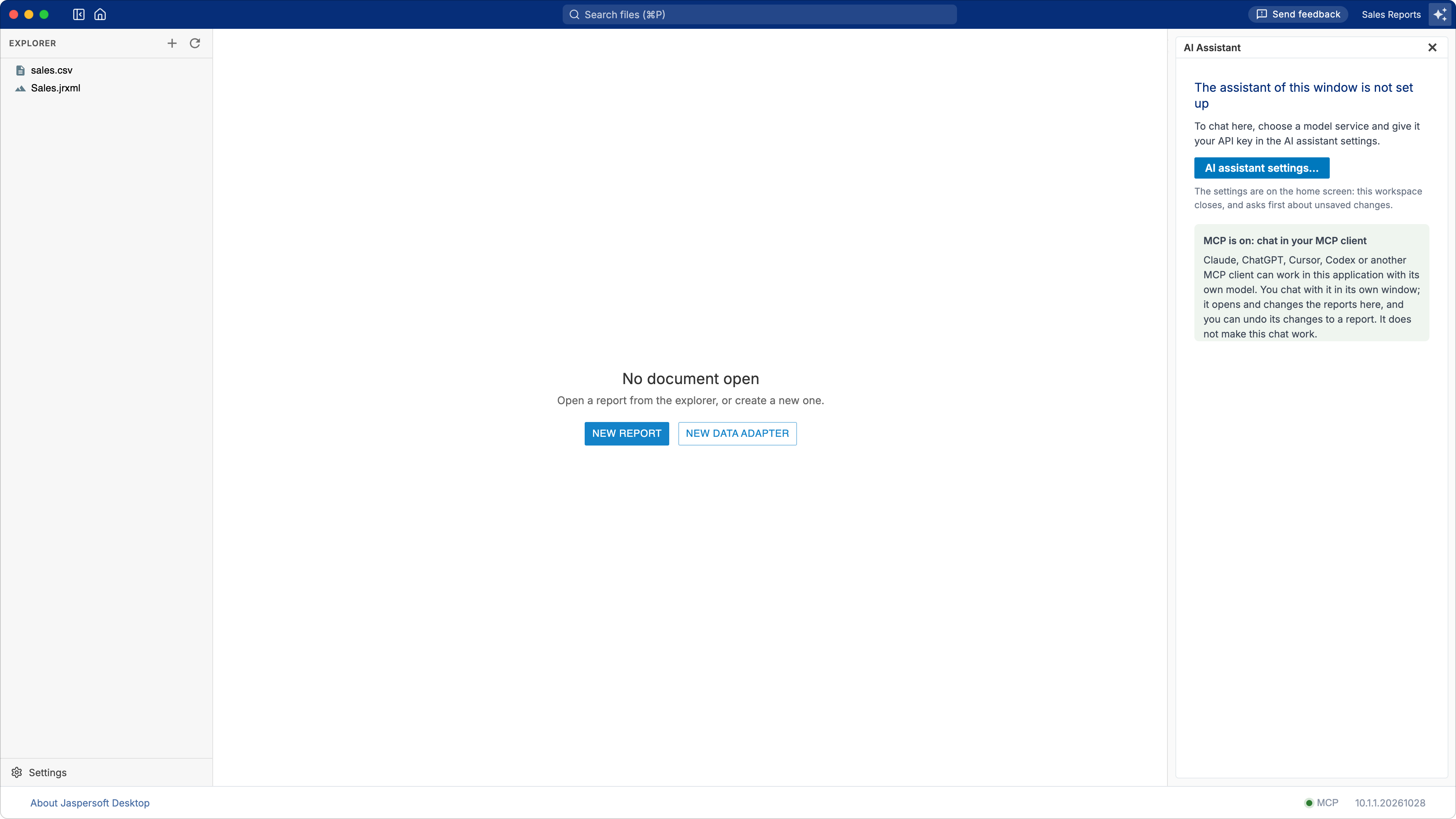
AI assistant settings… closes the workspace (it asks first about unsaved changes) and opens the settings on the home screen. When you open the workspace again, it is as you left it.
Working from another app (MCP)
The Model Context Protocol (MCP) is a standard way for AI applications to use tools. Jaspersoft Desktop comes with an MCP server: an AI application that supports MCP can open a folder in Jaspersoft Desktop, read and write its files, create data files and data adapters, and change the report on show, with the same commands as the built-in assistant.
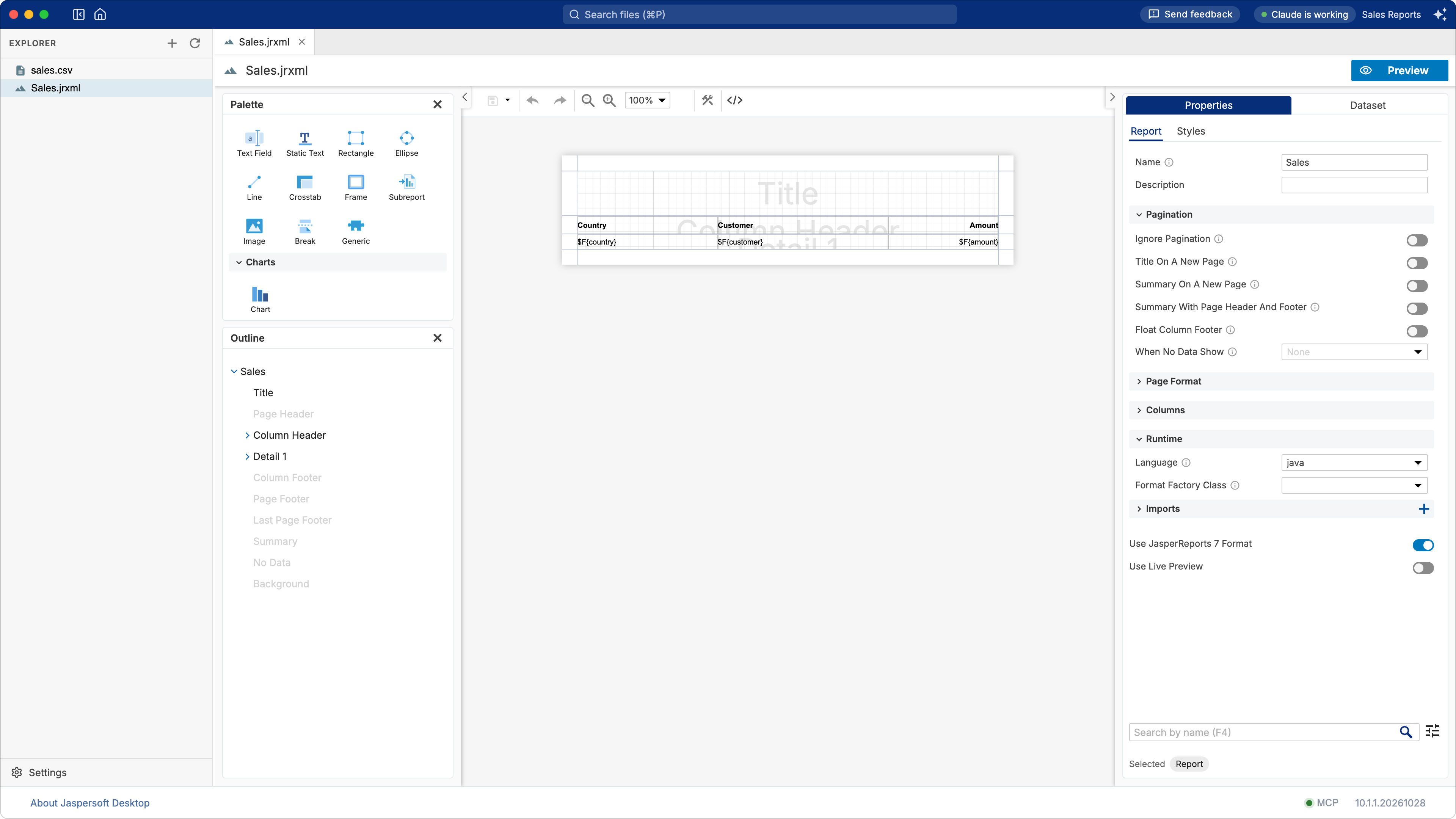
Jaspersoft Desktop must be running while you work this way: the AI application works in it, and you see the changes as they happen. While it works, the title bar says so:
Turning the MCP server on
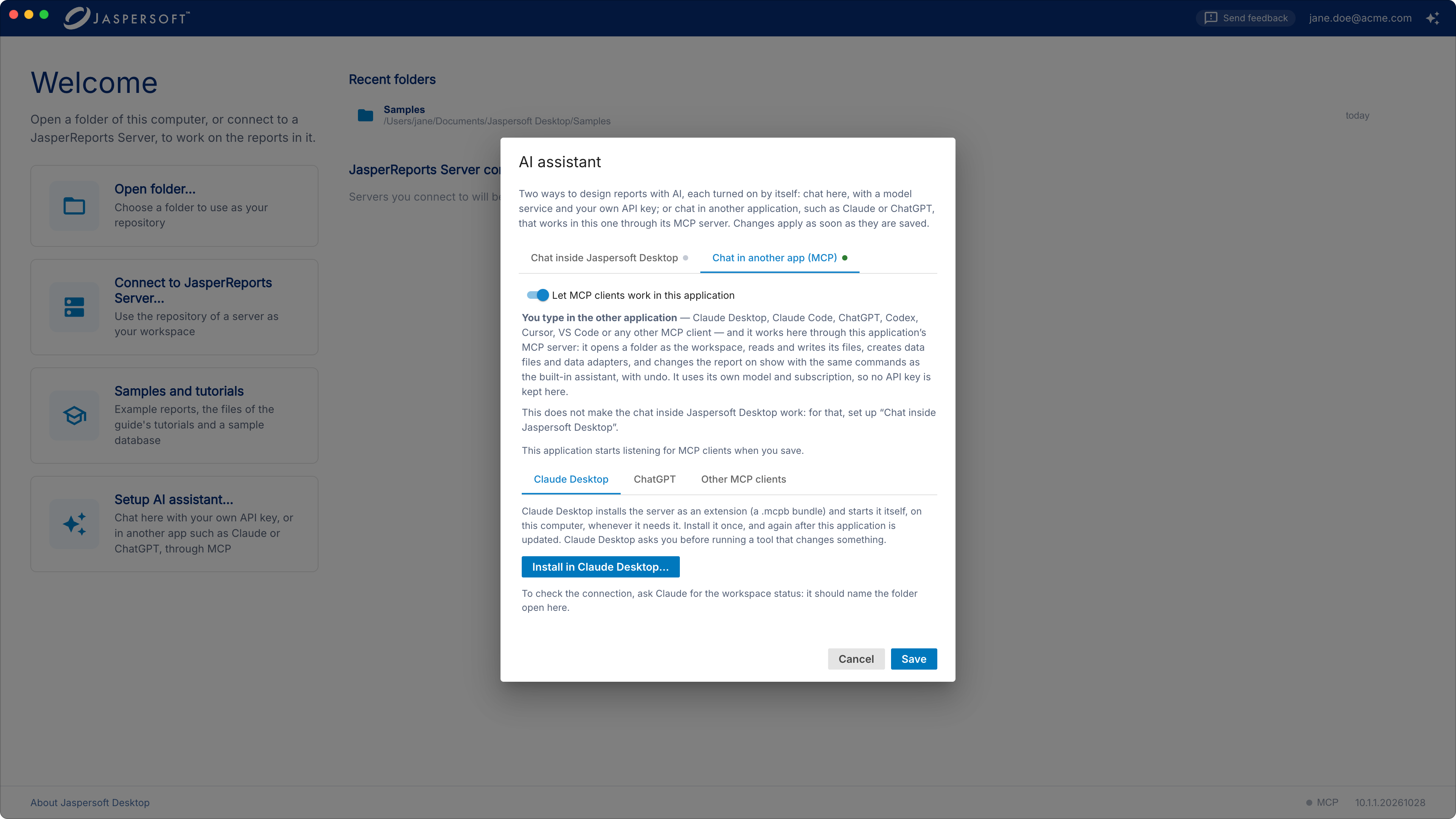
- On the home screen, click Set up AI Assistant….
- Open the Chat in another app (MCP) tab.
- Turn on Let MCP clients work in this application.
- Click Save.
The MCP dot in the bar at the bottom of the window — on the home screen or in a workspace — is green while the server is listening. Click it to see its details.
Then set up your AI application, as described below. To check the connection, ask it for "the workspace status of Jaspersoft Desktop": it should name the folder open in Jaspersoft Desktop, or say that none is open.
Claude Desktop
- On the Chat in another app (MCP) tab, under Claude Desktop, click Install in Claude Desktop….
- Claude Desktop opens and asks whether to install the Jaspersoft Desktop extension. Install it.
Claude Desktop starts the extension itself when it needs it. Install it again after Jaspersoft Desktop is updated. Claude Desktop asks you before it runs a tool that changes something.
ChatGPT
ChatGPT does not start servers on your computer: it reaches out from OpenAI's servers to an address on the internet. So Jaspersoft Desktop serves the MCP server over HTTP, and a tunnel makes it reachable.
- On the ChatGPT tab, turn on Serve over HTTP and click Save. Open the dialog again to
see the address of the endpoint,
http://127.0.0.1:18089/mcp/…. - Start a tunnel to that port, for example
ngrok http 18089, and note the public address it gives you. - In ChatGPT, open Settings, turn on Developer mode, and add a connector. Its URL is the
public address of the tunnel followed by the path of the endpoint, from
/mcp/to the end. No authentication. - Start a chat with the connector enabled.
The address contains a secret, and it is the only thing that protects the tunnel: whoever has it can read and change the open workspace. Give it to ChatGPT and to nobody else, and stop the tunnel when you are done.
Other AI applications
Every other application below starts the MCP server itself, on your computer. You need two things:
- The path of the server: on the Other MCP clients tab, copy it from the command shown there,
node "…/mcp/server/index.mjs". On macOS it is usually/Applications/Jaspersoft Desktop.app/Contents/Resources/mcp/server/index.mjs. - Node.js 20 or later, installed on your computer (nodejs.org): the server runs with it. Check
with
node --versionin a terminal.
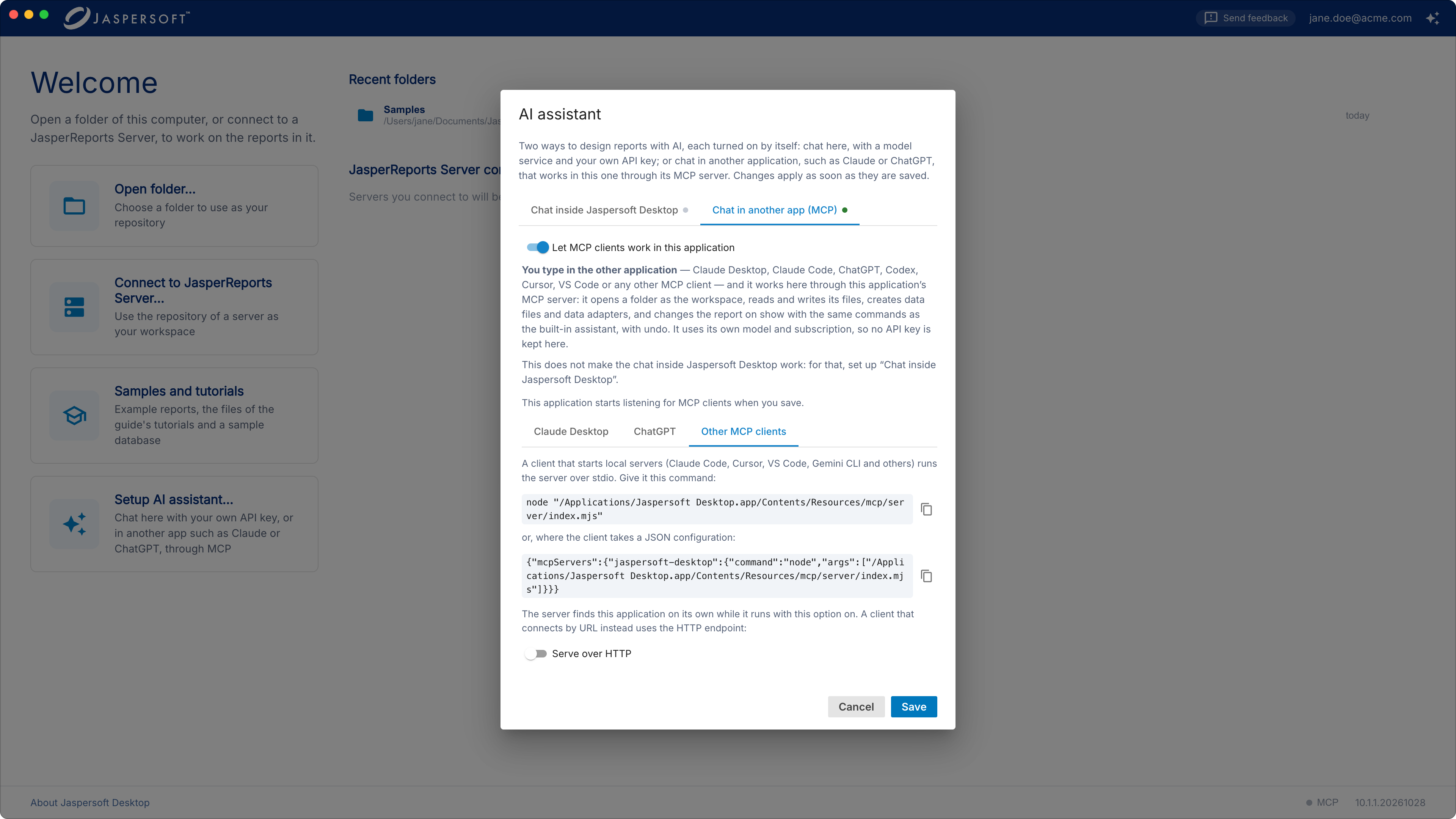
If you prefer not to install Node.js, or the application connects by address, turn on Serve over
HTTP on the same tab and give the application the endpoint's address instead (the url examples
below). It works on this computer only.
In the examples, replace /path/to/index.mjs with the path of the server, and
http://127.0.0.1:18089/mcp/<secret> with the address of your endpoint.
Claude Code
In a terminal:
or, over HTTP:
--scope user makes it available in every project. In Claude Code, /mcp shows whether it is
connected.
Codex
In a terminal:
or add it to ~/.codex/config.toml (Codex in the terminal and in the IDE extensions share it):
Over HTTP, the entry has a url instead:
Antigravity
- In the agent panel, click … at the top, then MCP Servers, Manage MCP Servers and
View raw config. This opens
mcp_config.json(~/.gemini/config/mcp_config.json). - Add the server under
mcpServers:
Over HTTP, use "serverUrl": "http://127.0.0.1:18089/mcp/<secret>" in place of command and args.
VS Code (GitHub Copilot)
- In the Command Palette (Ctrl+Shift+P, on macOS ⌘⇧P), run MCP: Open User Configuration.
- Add the server under
servers(VS Code's key isservers, notmcpServers):
Over HTTP: "type": "http", "url": "http://127.0.0.1:18089/mcp/<secret>". VS Code asks you to
trust the server the first time it starts. The tools are available in Copilot's Agent mode.
Cursor
Open Cursor Settings › MCP and add a server, or edit ~/.cursor/mcp.json directly:
Over HTTP: "url": "http://127.0.0.1:18089/mcp/<secret>".
Any other application
Most applications that support MCP take the same JSON as Cursor (an entry under mcpServers with
command and args); the Other MCP clients tab shows it, ready to copy. These applications
change their settings often: if a menu named here has moved, look for "MCP" in the application's
settings or documentation.
What the AI application can see
Through the MCP server, the AI application reads what it needs from the open workspace, the reports and data files it works on included, and sends it to its own model. Use it only with workspaces whose content you may share with that service. It works in the workspace open in Jaspersoft Desktop: it can open another folder when you ask it to, and read a data file you name when it creates a data adapter.
Frequently asked questions
I turned on the MCP server, but the chat inside Jaspersoft Desktop says it is not set up. That is expected: the two are separate. Chat in your MCP application, or set up a model service on the Chat inside Jaspersoft Desktop tab.
Can I use the assistant without sending anything over the internet? Yes, with a model that runs on your computer: see A fully private setup with Ollama.
Can the chat inside Jaspersoft Desktop use my Claude or ChatGPT subscription? No. A subscription works only in the service's own applications. Use those applications through MCP, or get an API key, which is billed separately.
Test connection fails. The message says why. The most common reasons: the key is wrong or was revoked (create a new one); the model name is not one of the provider's (leave Model empty to use the default); the account has no credit left; a proxy blocks the connection.
My AI application does not find the Jaspersoft Desktop tools.
Check that Jaspersoft Desktop is running and that the MCP dot on its home screen is green. For an
application set up by hand, check that node --version works in a terminal and shows version 20 or
later, and that the path in the configuration is the one shown on the Other MCP clients tab.
Restart the application after changing its configuration.
The AI application says no workspace is open. Open a folder in Jaspersoft Desktop, or ask the application to open one: it asks you which folder.
Can I undo what the AI application did? Changes to the report on show are undone with Edit › Undo, as your own. Nothing is saved until you save it, so you can also close the report without saving.