Tutorial: orders and their lines, with a subreport
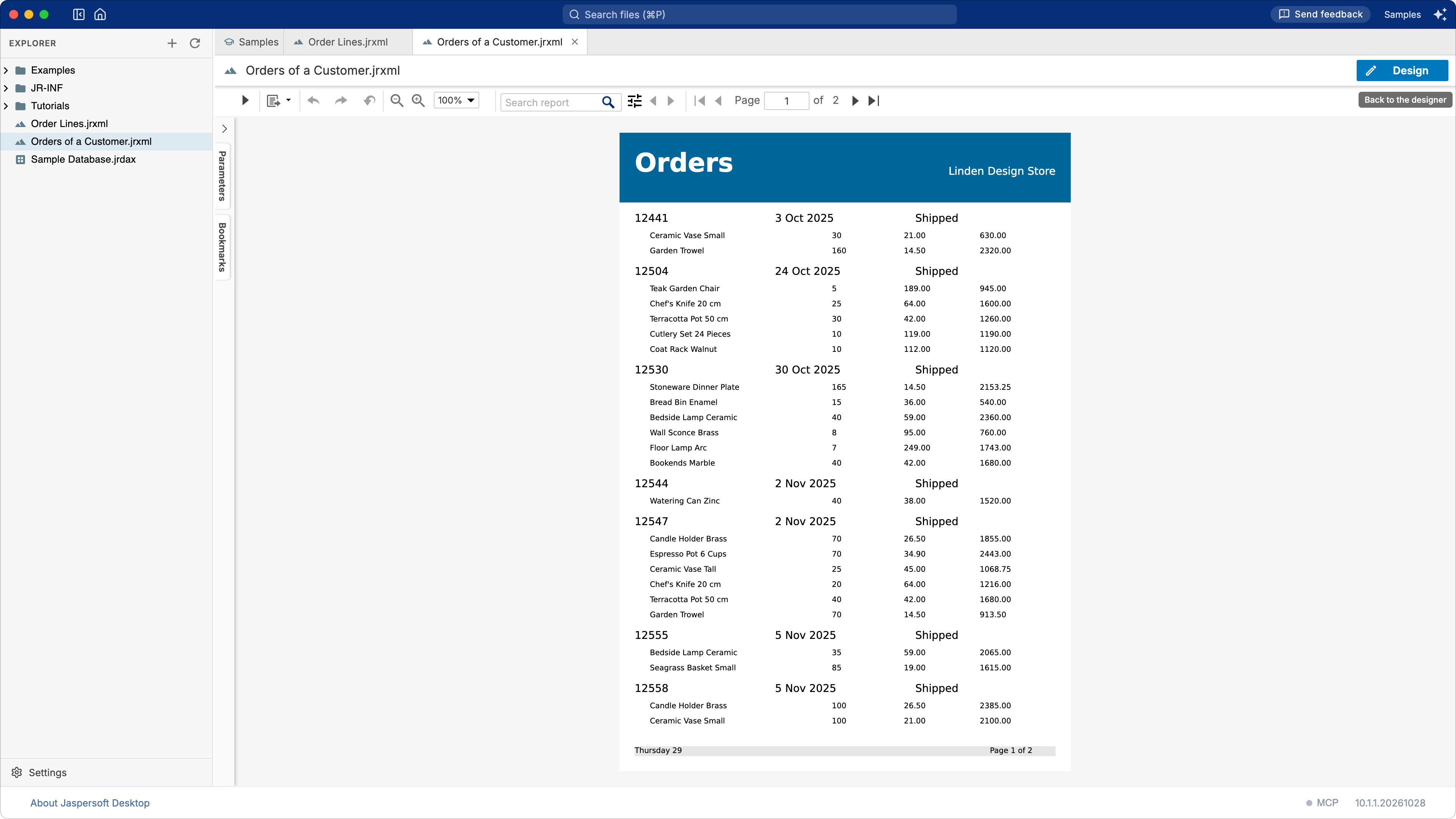
What you build: the orders of a customer in the last quarter of 2025, each followed by its lines: the products, the quantities, the prices. What you learn: a subreport, a report that takes a parameter and runs inside another one, and how the two are linked. Time: about 25 minutes.
Before you start
You work in the Samples workspace, on the sample database (see A chart and a table). You build two reports:
Order Lines.jrxml, the subreport: the lines of one order, the one it is given;Orders of a Customer.jrxml, the master: the orders, and for each of them, the subreport.
How a report works explains what links the two in a few lines.
1. The subreport: the lines of an order
- Choose Report in the explorer's + menu. Choose Blank A4, then Next.
-
In Data Source, type
/Sample Database.jrdax, and the query of the lines of one order, 12441, to try it:SELECT P.NAME AS PRODUCT, L.QUANTITY, L.UNIT_PRICE, CAST(L.QUANTITY * L.UNIT_PRICE * (1 - L.DISCOUNT) AS DECIMAL(12,2)) AS AMOUNT FROM ORDER_LINES L JOIN PRODUCTS P ON P.PRODUCT_ID = L.PRODUCT_ID WHERE L.ORDER_ID = 12441 ORDER BY L.LINE_NUMBER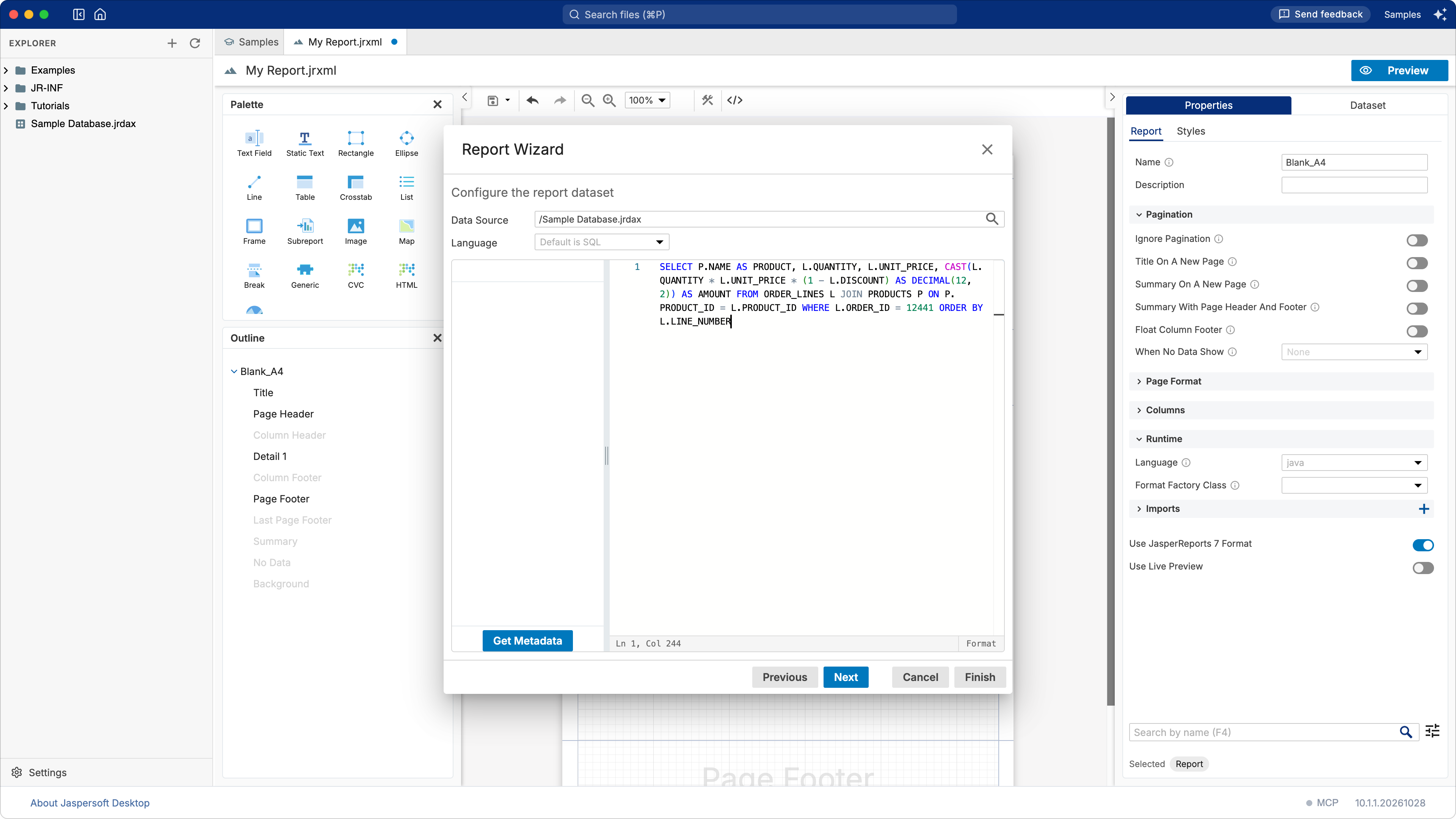
-
Click Next, double-click the four fields, then Finish. A blank template places nothing on the page: the fields are in the report, ready to be used.
2. The parameter
The subreport must show the lines of the order the master gives it, not of 12441. That order comes in through a parameter.
-
Open the Dataset tab, expand Parameters and click its +. Right-click the new
Parameterand choose Edit: set Name toORDER_IDand Class tojava.lang.Integer, the type of the column. Close it with its ×.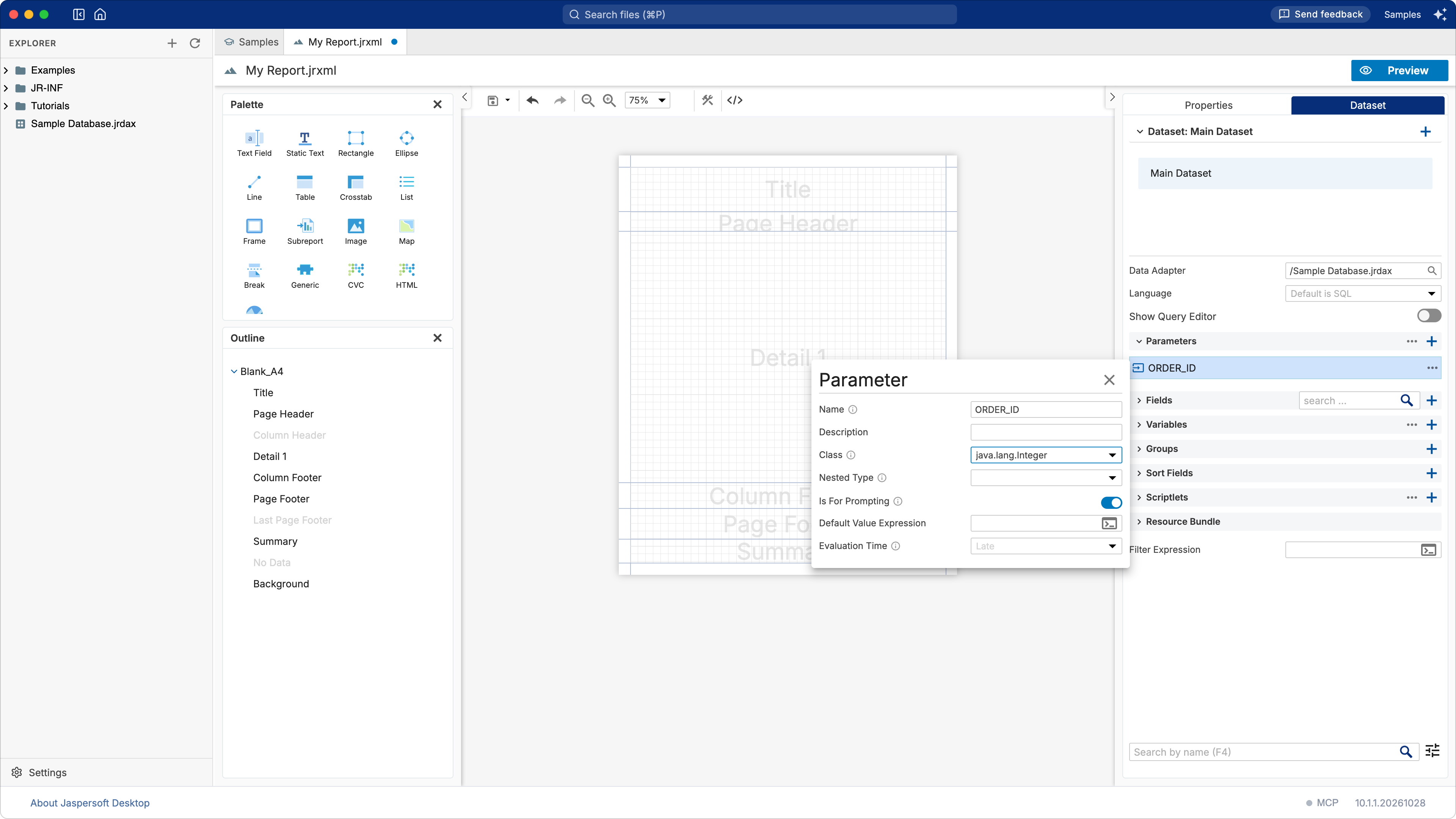
-
Turn on Show Query Editor and replace
12441with the parameter: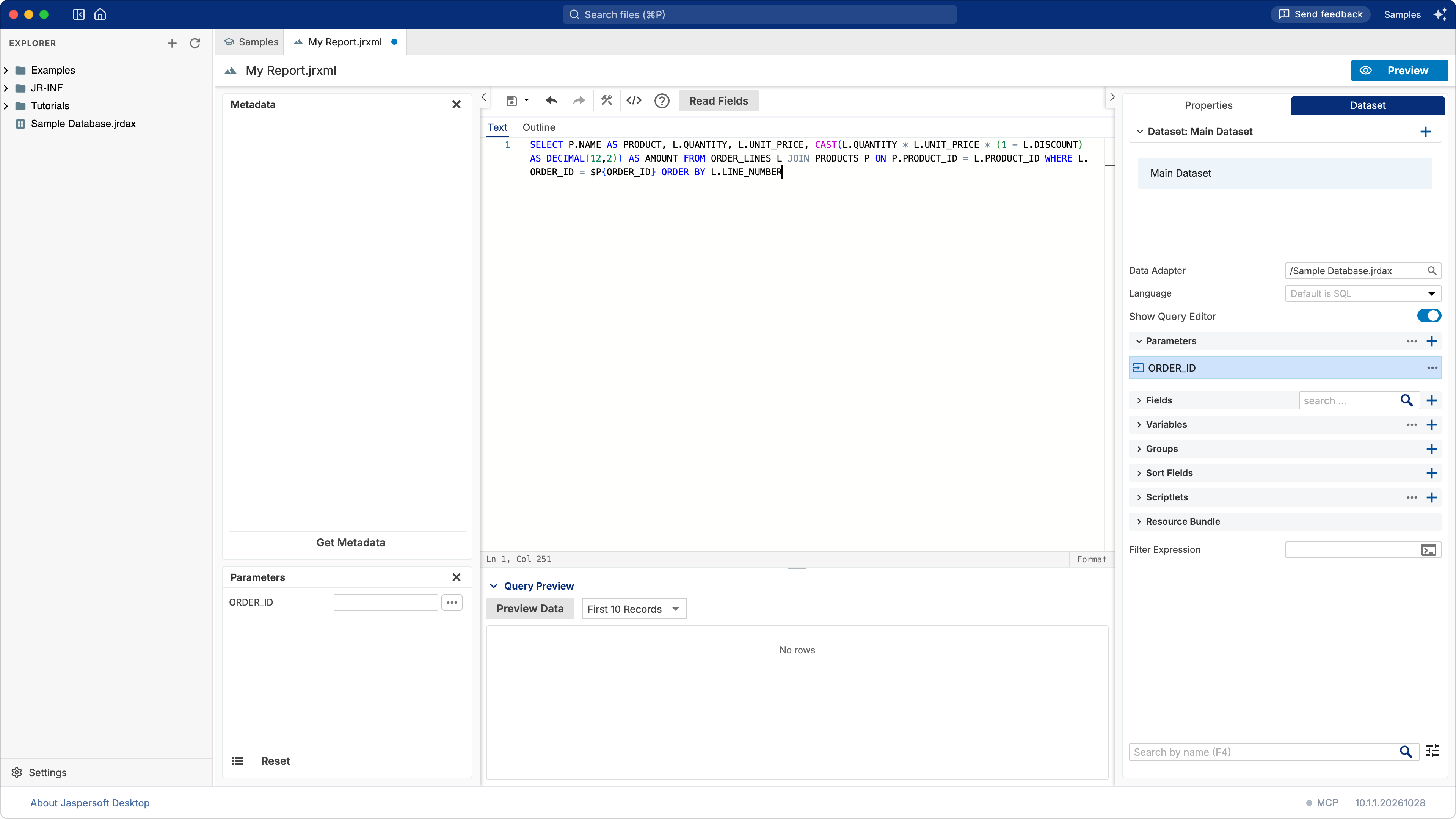
Turn Show Query Editor off.
The query names the parameter only once it exists: a query naming a parameter the report does not have is refused, which is why it was tried on one order first.
3. Only the lines
A subreport prints all of its bands, its title and page footer included, wherever the master puts it. This one needs only the lines.
- In the Outline, point at Title and click its × (Delete Band). Do the same for Page Header, Column Footer, Page Footer and Summary: only Detail 1 is left.
- Click an empty area of the page, open Properties, expand Page Format and set the four
Margins (Top, Bottom, Left, Right) to
0. The master decides where the lines go; margins would add space around each of them. -
In the Dataset tab, expand Fields and drag each field onto the Detail 1 band. Place them side by side, on the Appearance tab of Properties:
Field Position X Width PRODUCT0235QUANTITY24090UNIT_PRICE33595AMOUNT435100each with Position Y
0and Height20. -
Select Detail 1 in the Outline and set its Height to
20: one line per order line.
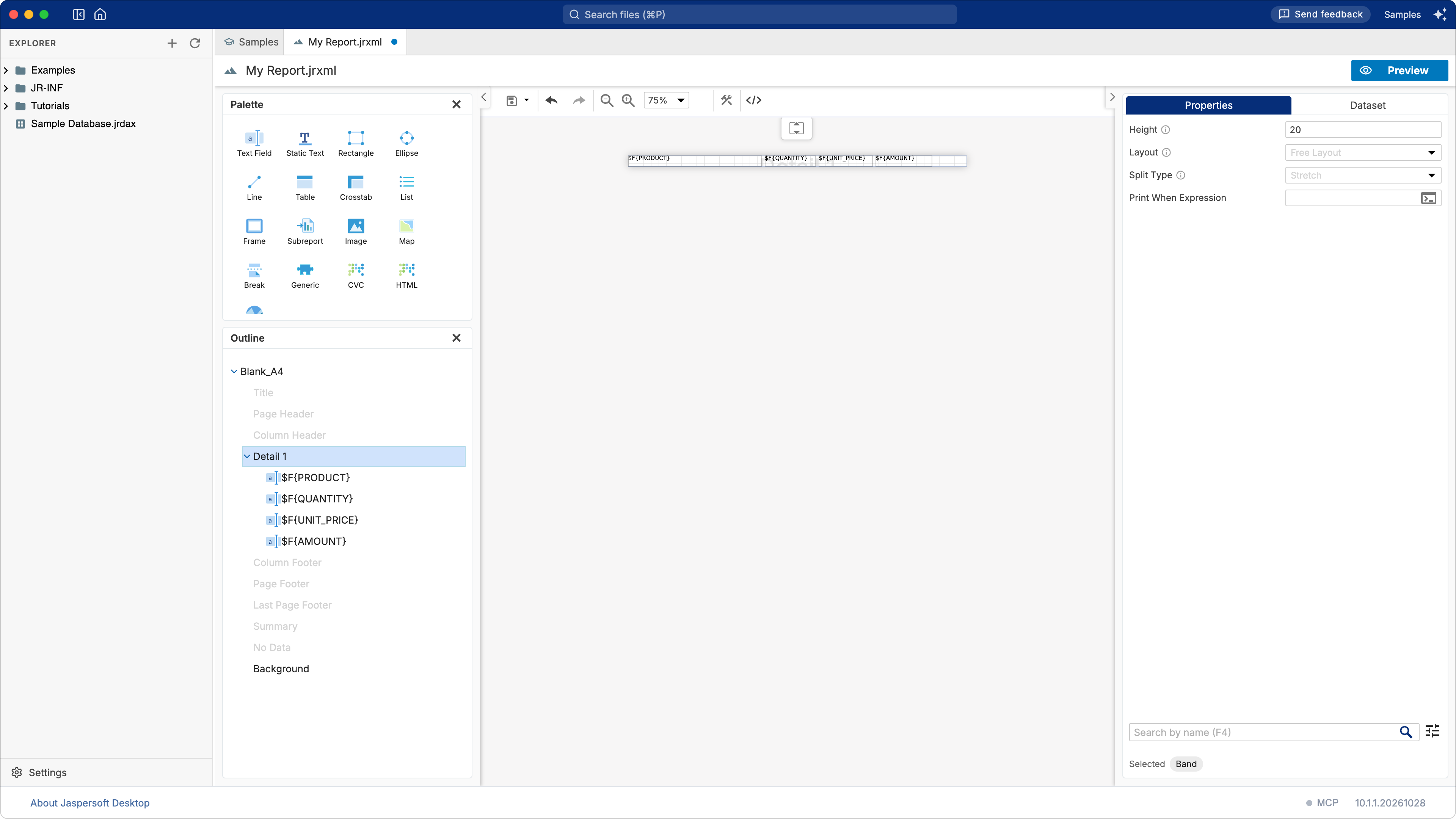
Save it as Order Lines.jrxml, at the top of the workspace.
4. The master: the orders
-
Choose Report in the + menu again, with the template Simple Blue, the data adapter
/Sample Database.jrdaxand the query:SELECT O.ORDER_ID, O.ORDER_DATE, O.STATUS FROM ORDERS O JOIN CUSTOMERS C ON C.CUSTOMER_ID = O.CUSTOMER_ID WHERE C.COMPANY_NAME = 'Linden Design Store SARL' AND O.ORDER_DATE >= DATE '2025-10-01' ORDER BY O.ORDER_DATEChoose the three fields, then Finish.
-
Set the template's two texts: TITLE to
Ordersand Add a description here toLinden Design Store(click each, then Text on the Static Text tab of Properties). - Select
$F{ORDER_DATE}and, on its Text Field tab, set Pattern tod MMM yyyy: the date without the time. - Select Detail 1 in the Outline and set its Height to
50, to make room under each order.
5. The subreport in the master
- Drag
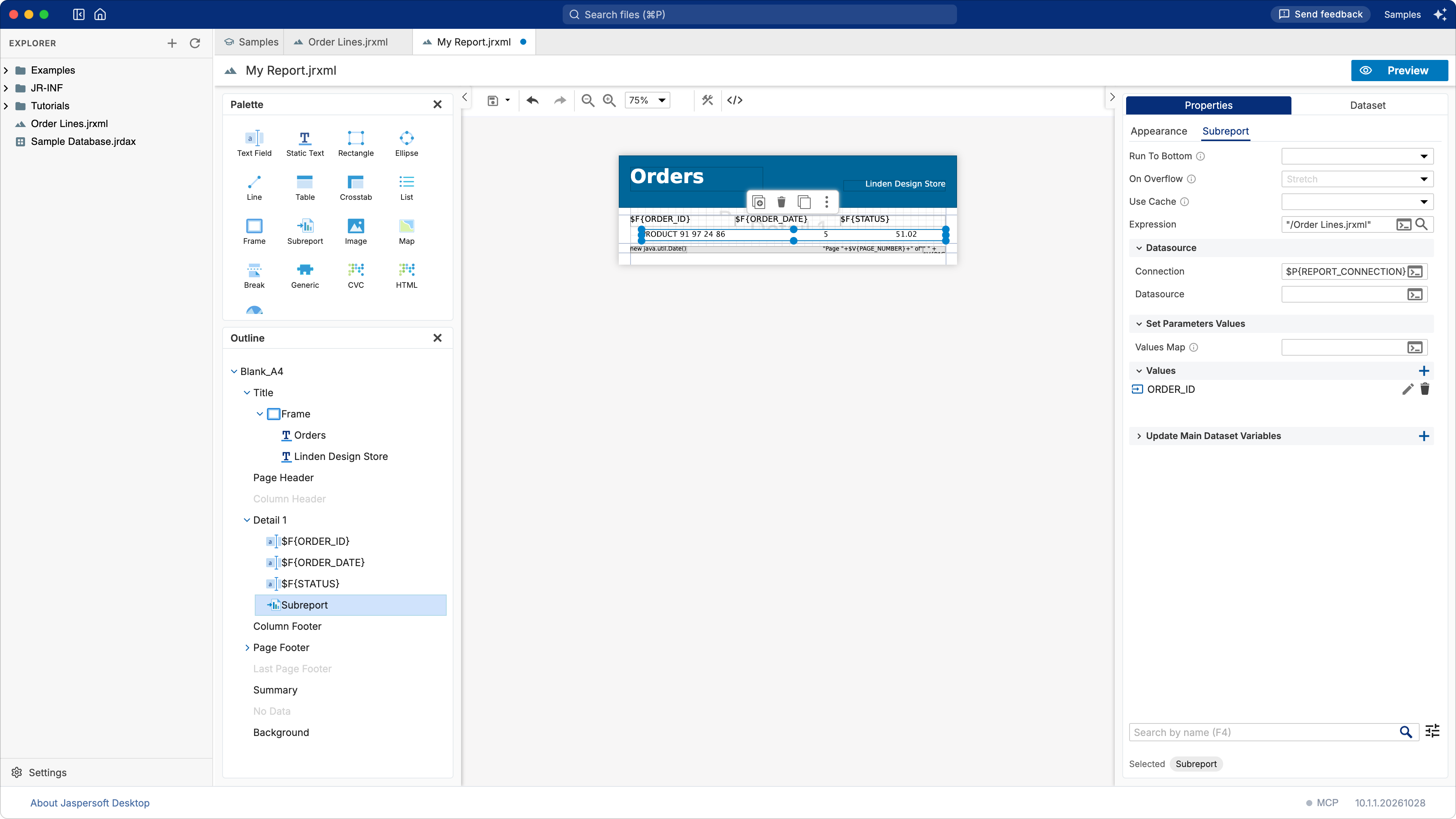
Order Lines.jrxmlfrom the explorer onto the Detail 1 band. Jaspersoft Desktop makes a Subreport element of it, its Expression already"/Order Lines.jrxml". - With the subreport selected, on the Appearance tab: Position X
20, Position Y25, Width535, Height20. It grows with the lines it prints. -
On the Subreport tab:
- under Datasource, set Connection to
$P{REPORT_CONNECTION}: the subreport runs its query on the database of the master; - under Set Parameters Values, click the + of Values, then the pencil of the new
row: Name
ORDER_ID, Expression$F{ORDER_ID}. Each time the subreport prints, it gets the order of the record being printed.
- under Datasource, set Connection to
Save the report as Orders of a Customer.jrxml, then click Preview: each order, followed by
its lines. The first, 12441 of 3 October, has 30 small ceramic vases and 160 garden trowels.
Going further
- Labels over the lines. Give the subreport a Column Header band again, with a Static Text over each column: it prints once above the lines of each order.
- The total of an order. A variable in the subreport, the Sum of
$F{AMOUNT}, in a Summary band; or brought back to the master with Update Main Dataset Variables. - Another customer. A parameter in the master in place of
'Linden Design Store SARL', as in A filter with parameters, used in the query as$P{Customer}. - In an application. The expression names the
.jrxml, which Jaspersoft Desktop compiles when it runs the report. An application that ships compiled reports names the.jasperinstead:"Order Lines.jasper"(see Getting the .jasper file).
What you learned
- A subreport is a report of its own, run by a Subreport element of the master, once each time its band prints.
- It receives values through its parameters: the master sets them in Set Parameters Values, here the order being printed.
- Connection
$P{REPORT_CONNECTION}gives it the master's database. - A subreport needs only the bands it prints, and no margins.