AWS Athena
Creating a Connection
Before connecting to AWS Athena, ensure that the IAM user, whose credentials will be used, has the following permissions granted:
Athena Permissions
athena:StartQueryExecution
athena:GetQueryExecution
athena:GetQueryResults
athena:StartQueryExecution
athena:GetWorkGroup
athena:StopQueryExecution
athena:CreatePreparedStatement
athena:UpdatePreparedStatement
athena:GetPreparedStatement
athena:DeletePreparedStatement
s3:ListBucket
s3:GetObject
s3:PutObject
s3:GetBucketLocation
s3:GetObject
s3:ListBucket
s3:PutObject
s3:ListMultipartUploadParts
s3:AbortMultipartUpload
glue:GetDatabase,
glue:GetDatabases,
glue:CreateDatabase
glue:CreateTable
glue:GetTable
glue:GetTables
S3 Permissions
s3:ListBucket
s3:GetObject
s3:PutObject
s3:GetBucketLocation
s3:GetObject
s3:ListBucket
s3:PutObject
s3:ListMultipartUploadParts
s3:AbortMultipartUpload
Glue Permissions
glue:GetDatabase,
glue:GetDatabases,
glue:CreateDatabase
glue:CreateTable
glue:GetTable
glue:GetTables
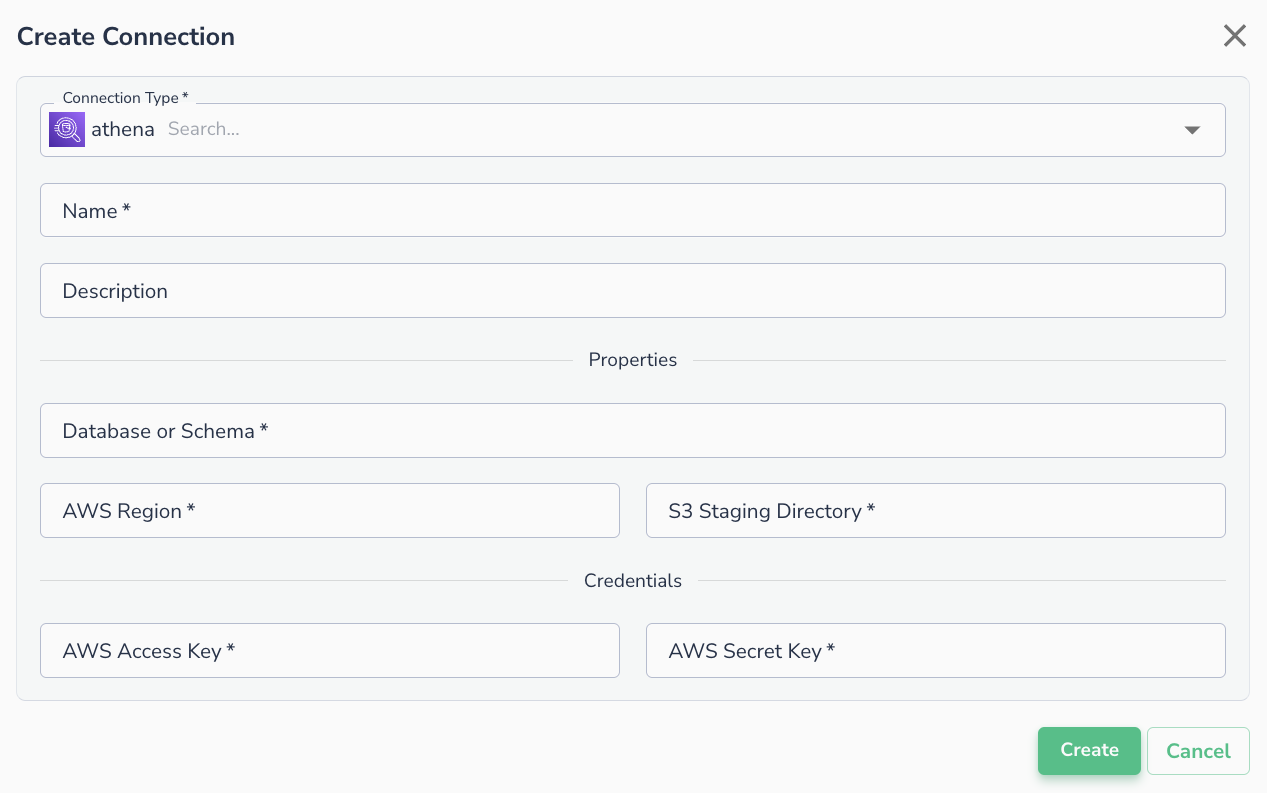
- AWS Key
- AWS Secret
- Database
- Region
- S3 Staging Directory
Connecting an Asset
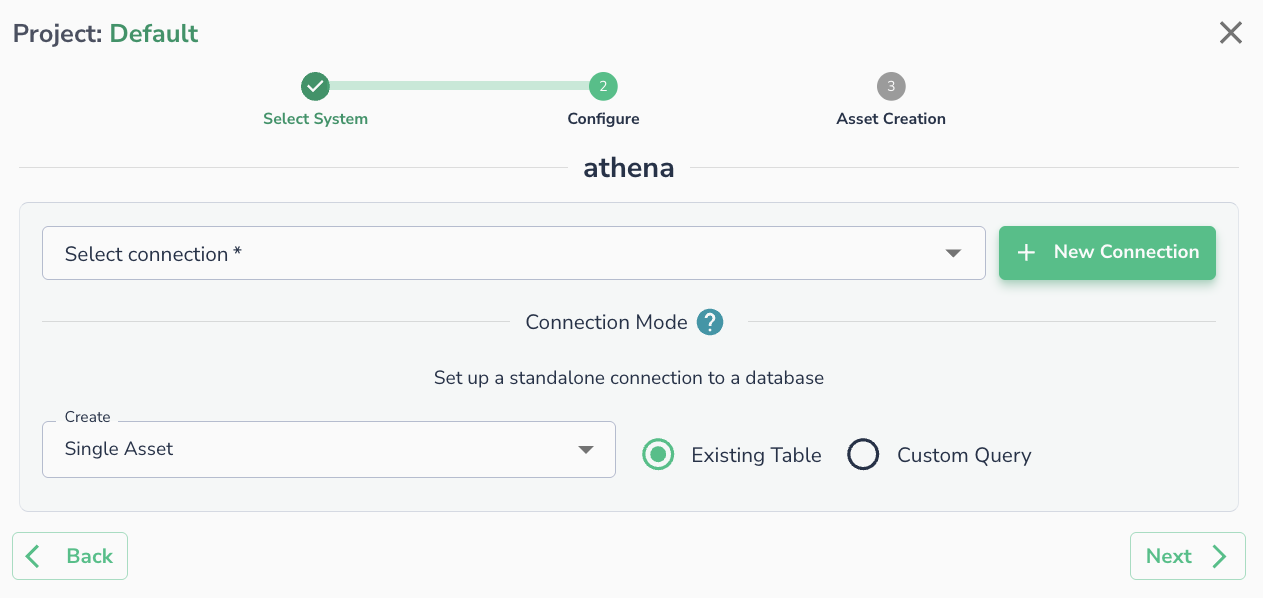
Once a connection is defined, you can start using it to create assets. To create assets, you will need to select existing table or run a custom SQL query.