Azure Blob
Actian Data Observability connects to Azure Blob Storage (Azure File) using SAS (Shared Access Signature) token authentication. Follow the steps below to set up the connection.
Creating a Connection
To create a SAS token, follow the instructions provided here:https://learn.microsoft.com/en-us/azure/ai-services/Translator/document-translation/how-to-guides/create-sas-tokens?tabs=Containers
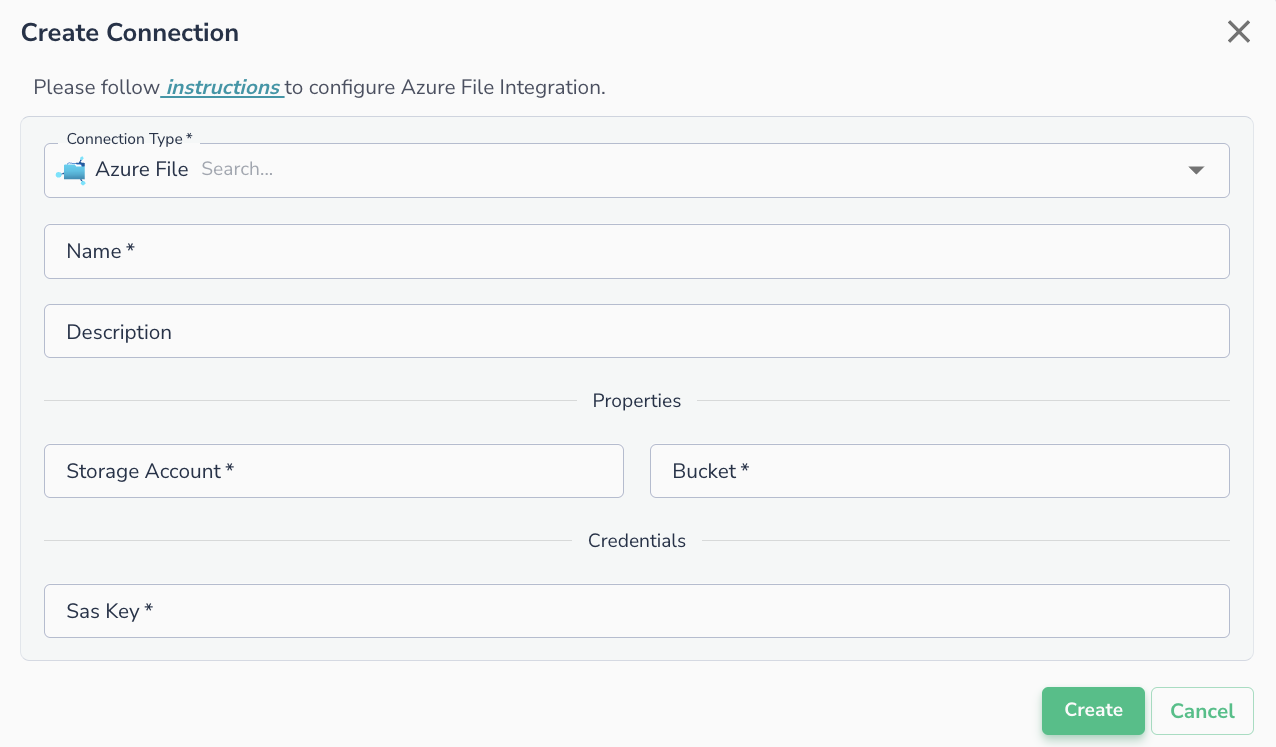
Once the SAS token is generated, navigate to the Actian Data Observability UI and enter the following details to create a new connections:
- Storage Account: Your Azure Storage account name.
- SAS Key: The SAS token generated in the previous step.
- Bucket: The name of the Azure Blob container.
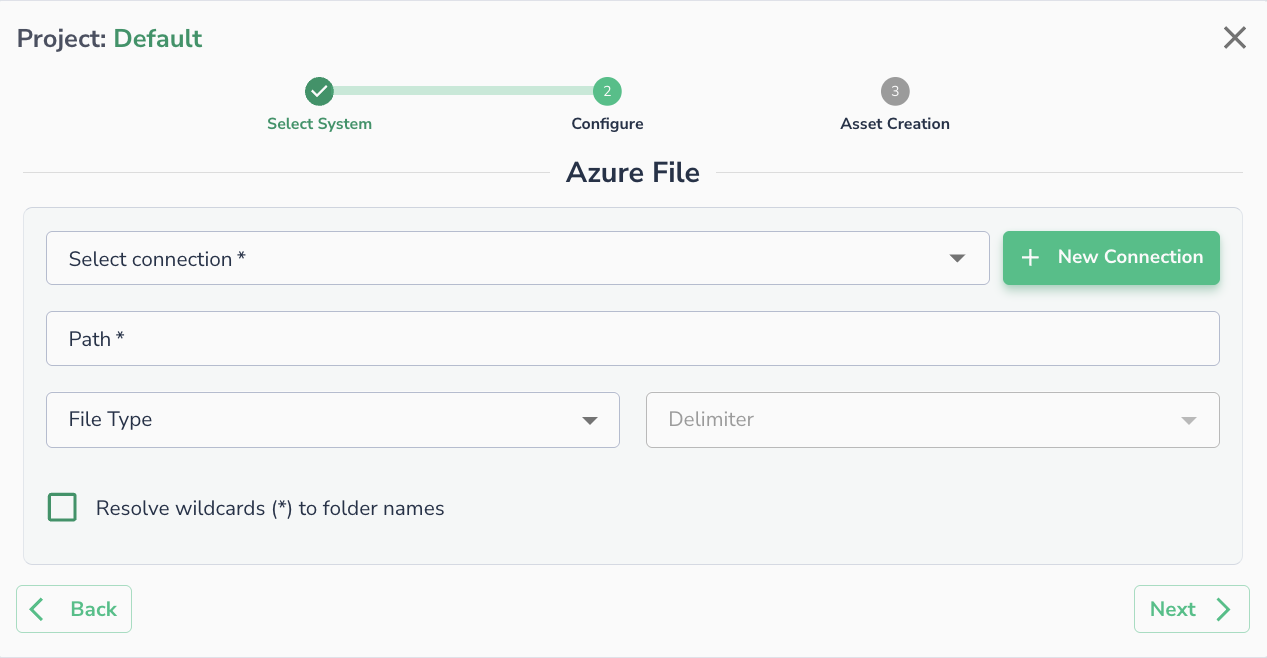
Connecting an Asset
Once a connection is defined, you can start using it to create assets. To create assets, you will need:
- Path: The path to a specific file or folder within the container.
- File Type: Please refer to Supported File Types.
- Delimiter (Optional): Specify the delimiter if the files are in CSV format.