Slack Integration
This article explains how to integrate Slack for receiving alert notifications from Actian Data Observability.
Overview
Setting up Slack notifications requires two steps:
- Create a Slack app and obtain a Bot OAuth token
- Add a Slack notification channel in Data Observability and assign it to an alert policy
Step 1: Create a Slack App
- Navigate to Slack API apps
- Sign in and click Create an App
- Set App Name to
Actian Data Observability Notifier - Select the Slack workspace where the bot should post messages, then click Create App
-
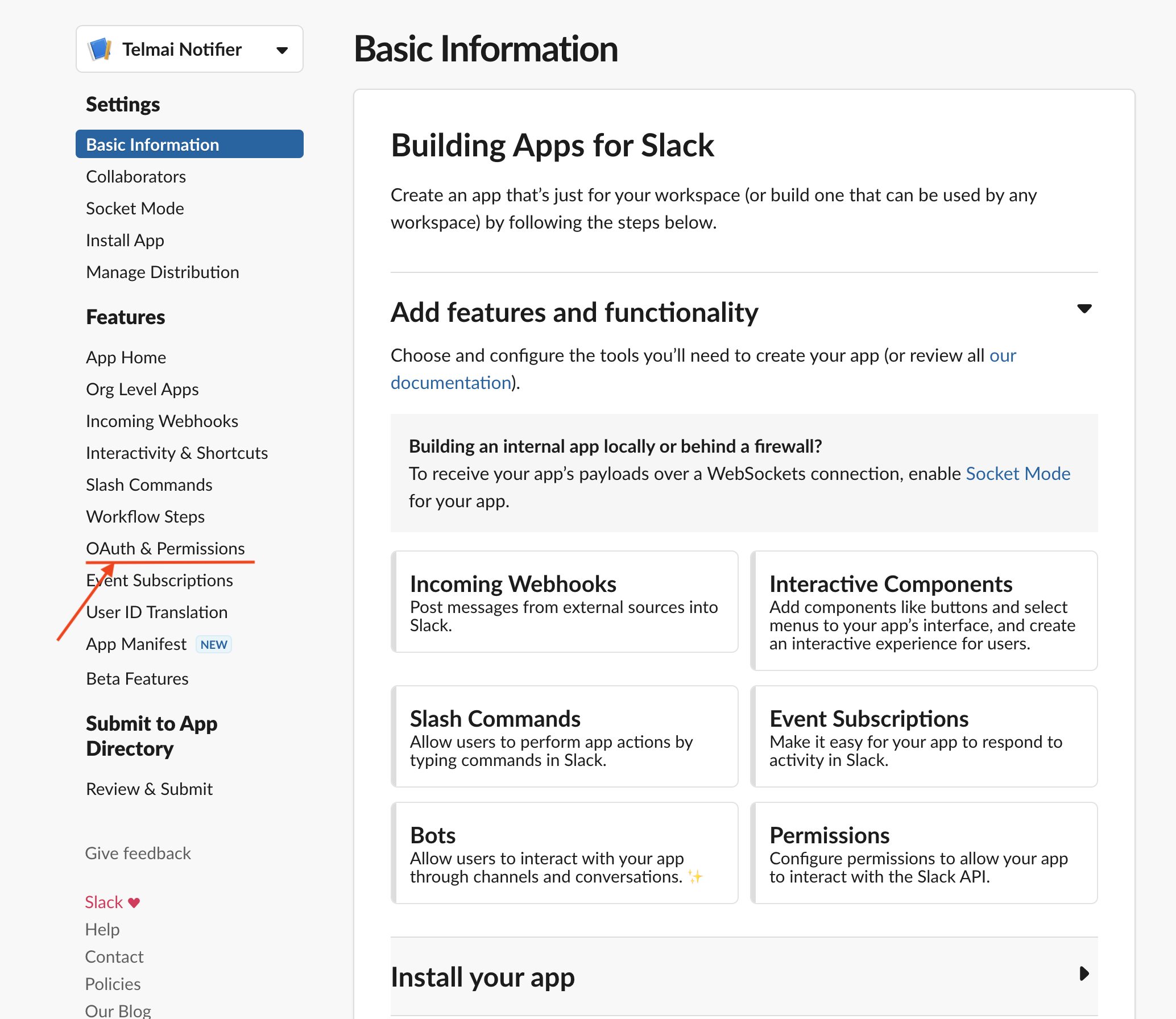
In the left navigation, select OAuth & Permissions
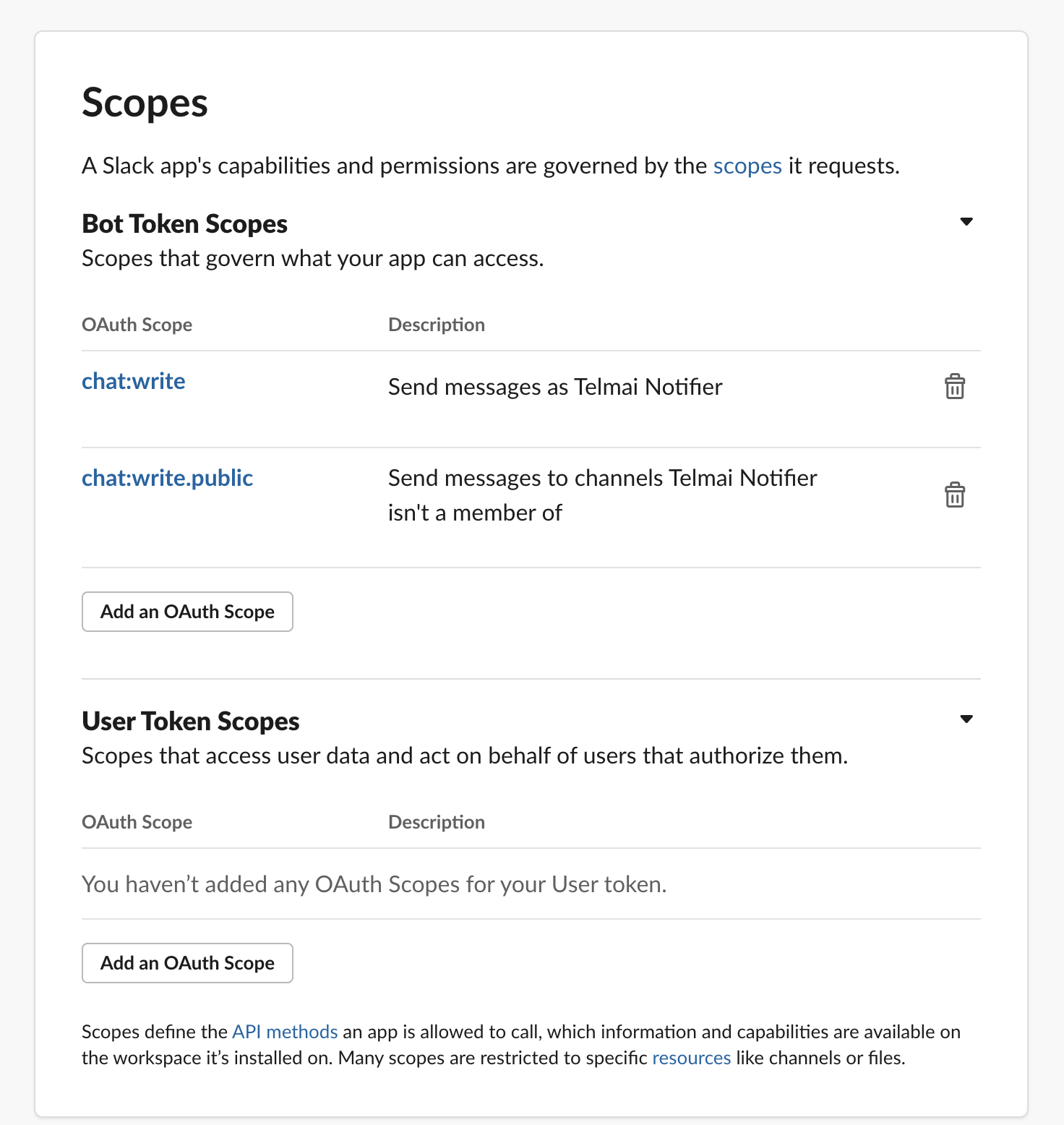
 6. Scroll to the Scopes section. Under Bot Token Scopes, click Add an OAuth Scope and add:
chat:writechat:write.public
 7. Scroll back to the top of the OAuth & Permissions page and click Install App to Workspace
8. In the confirmation dialog, click Allow
9. Navigate to Interactivity & Shortcuts in the left sidebar
10. Toggle Interactivity to On
11. Set a Request URL:
7. Scroll back to the top of the OAuth & Permissions page and click Install App to Workspace
8. In the confirmation dialog, click Allow
9. Navigate to Interactivity & Shortcuts in the left sidebar
10. Toggle Interactivity to On
11. Set a Request URL: https://data-observability.actian.com/api/backend/slack/interactions(replace host with proper one in case of private cloud deployment) 12. Copy the Bot User OAuth Access Token — you will need it in the next step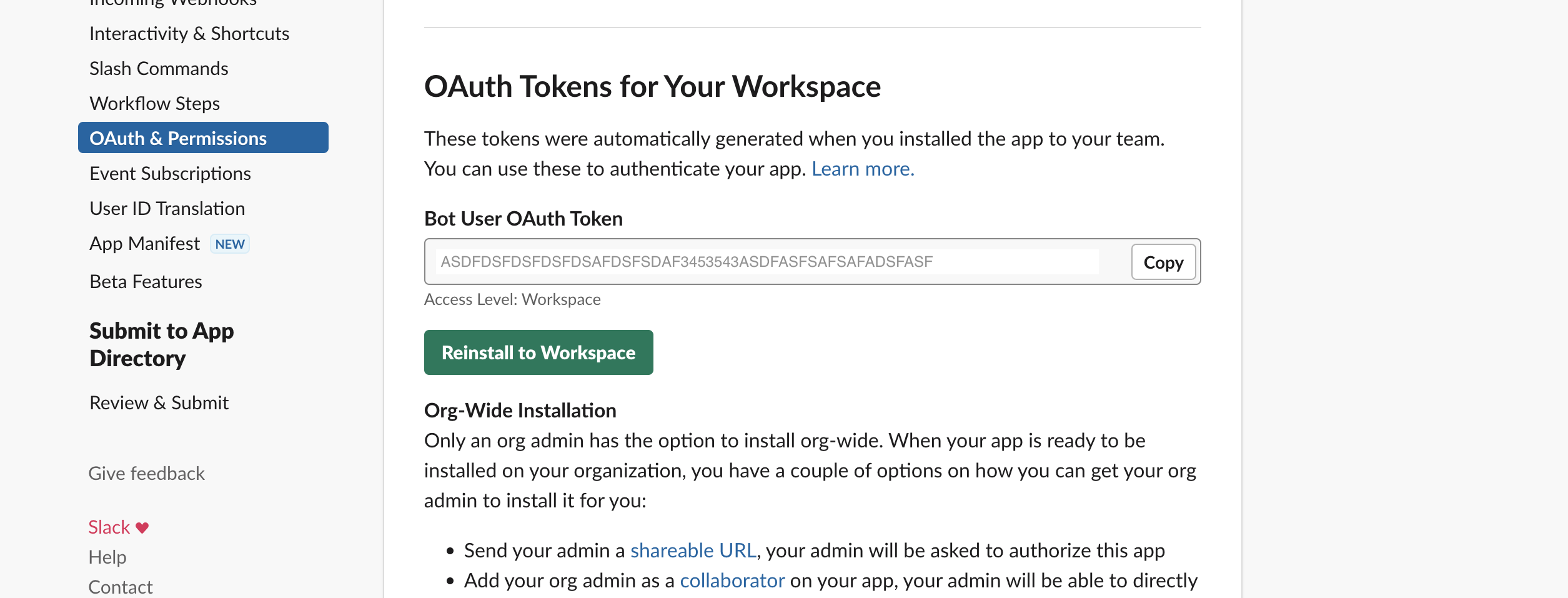
Step 2: Add a Slack Notification Channel in Data Observability
Use the token from Step 1 to create a Slack notification channel in Data Observability, then assign it to an alert policy.
See Configuring Notifications for the full walkthrough.