Google Cloud Storage
To set up a Google Cloud Storage connection, you need to specify the corresponding GCS bucket name. The Actian Data Observability service account must be granted access to the buckets requiring connections.
Prerequisites
Before setting up the connection, identify which service account you will use:
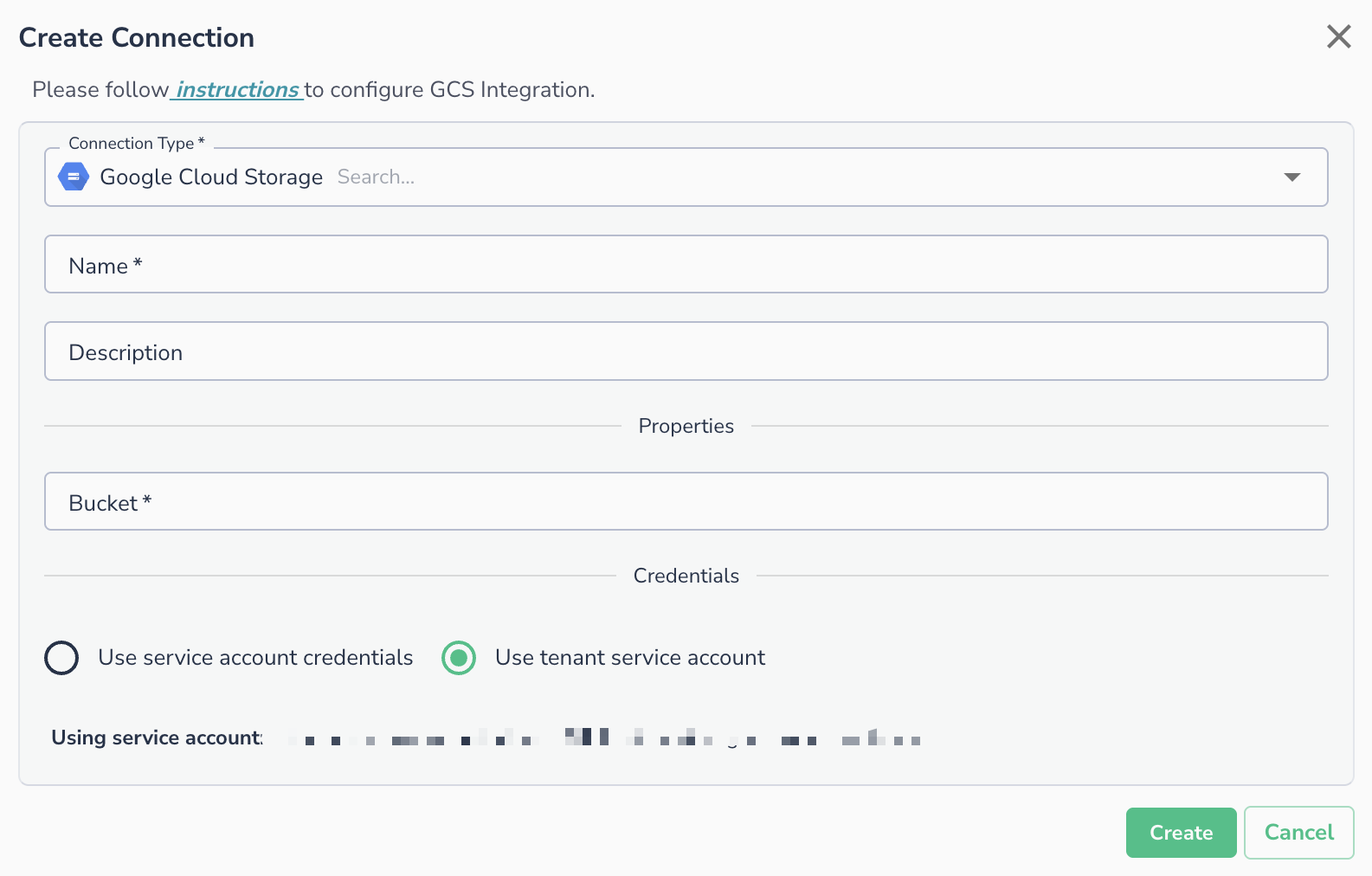
- Tenant service account: Actian Data Observability's managed (or impersonated) service account. This is only available for GCP deployments. To find your specific tenant service account, open the Create Connection dialog and select Google Cloud Storage. The service account will be displayed on that page.
- Your own service account: if you prefer to provide your own credentials.
This service account must have the right permissions to access and read the data.
Setting Up Permissions in Google Cloud Storage
- Go to Google Cloud Storage and locate your bucket:
Google Cloud Storage / <bucket> / Permissions / Members - Click Add.
- In the New Member field, enter the service account identified in the prerequisites above.
- Assign the following roles:
Storage Legacy Bucket ReaderStorage Legacy Object Reader
- Click Save to apply the changes.
Creating the Connection in Actian Data Observability
GCS connections can be used to connect multiple data assets in Actian Data Observability using the same connection parameters. To add a GCS connection:
- Navigate to the Actian Data Observability connection page and click the + Add Connection button.
- In the Create Connection dialog, select Google Cloud Storage as the Connection Type.
- Enter a Name for the connection (required) and an optional Description.
- Under Properties, enter the Bucket name (name only, not the full path).
- Under Credentials, select one of the following:
- Use service account credentials - provide your own service account key.
- Use tenant service account - uses the Actian Data Observability-managed service account.
- Click Create.
Connecting an Asset
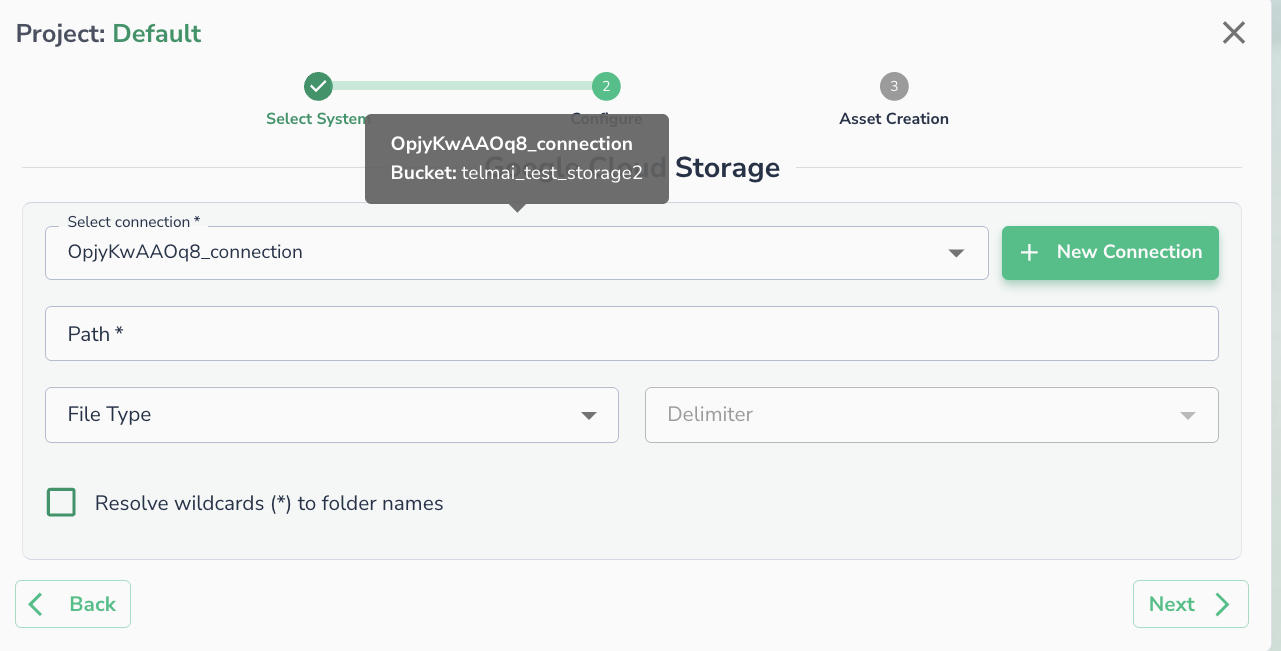
Once a connection is defined, you can start using it to create assets. To create assets, you will need:
- Path: Provide the full path of the file inside the bucket or the full path of the folder containing all files to be sent to Actian Data Observability. If specifying a folder, ensure all files have the same extension. Wildcards are accepted in this field.
- File Type: Please refer to Supported File Types.
- Delimiter [Optional] : For CSV files, specify the delimiter (comma, tab, semicolon, space).