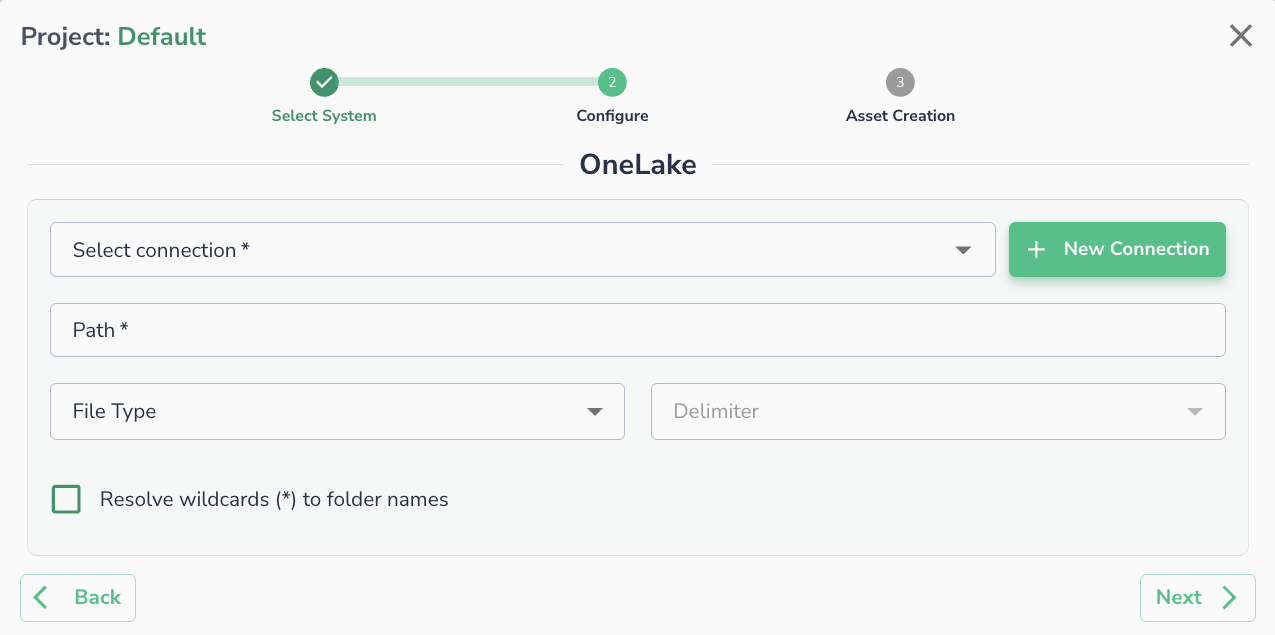
Azure OneLake
Actian Data Observability connects to Azure OneLake using Client ID and Secret. Follow the steps below to set up the connection.
Prerequisites
Before creating the connection in Actian Data Observability, register an application in Azure and generate a Client ID and Secret. Follow Microsoft's Register an application guide to complete this step.
You will need to collect the following from Azure:
- Client ID — from the registered application's Overview page
- Client Secret — generated under Certificates & secrets
- Tenant ID — your Azure Active Directory tenant ID
Creating a Connection
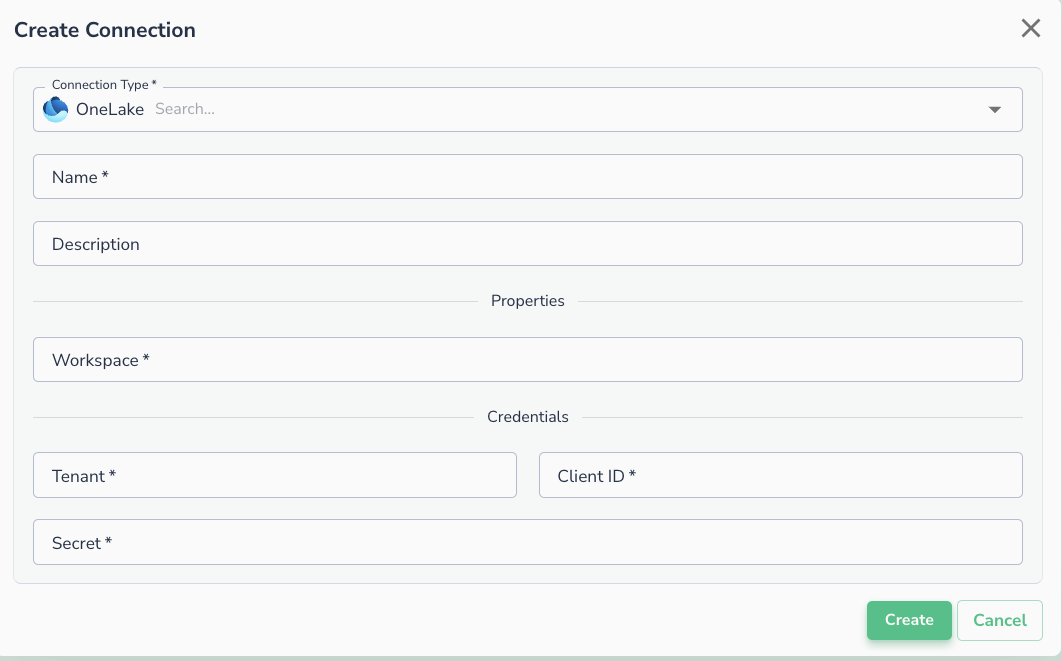
Once the client ID and secret are generated, navigate to the Actian Data Observability UI and enter the following details to create a new connection:
- Workspace: Fabric workspace id
- Tenant: Fabric tenant
- Client ID
- Client Secret
Connecting an Asset
Once a connection is defined, you can start using it to create assets. To create assets, you will need:
- Path: The path to a specific file or folder within the container.
- File Type (Optional)
- Delimiter (Optional): Specify the delimiter if the files are in CSV format.