Teams
Deploy your AI Analysts to Microsoft Teams channels so your team can ask data questions without leaving Teams. Connect your Microsoft 365 tenant, install the AI Analyst bot, then choose which Analyst answers in which channel.
Availability
- Who can do this: members with the Edit capability in the active Workspace.
- Deployment: Microsoft Teams must be configured for your deployment. Not available on air-gapped self-managed deployments.
Before you start, read who can ask questions in a channel: everyone in a channel, including guests without an AI Analyst account, can query the Analyst you deploy there.
Prerequisites
- In AI Analyst: the Edit capability in your Workspace.
- In Microsoft 365: your tenant ID (a GUID that your Microsoft 365 admin can give you, for example from the Microsoft Entra admin center overview page), and a Teams admin (or a user who is allowed to upload custom apps) to upload the AI Analyst app package.
AI Analyst doesn't ask you to sign in to Microsoft or grant Microsoft Graph permissions. Your Microsoft 365 admin may still need to allow the app under your tenant's app policies.
Step 1: Connect your Teams tenant
- In Studio, open Connections and click + (Add connection).
- Under Channels, click Microsoft Teams.
- In the Connect Microsoft Teams dialog, enter your Microsoft 365 Tenant ID. Optionally, enter a Tenant name (for example Contoso) to make the connection easier to recognize.
- Click Connect.
You see Teams tenant connected. The tenant's status is Waiting for first mention until you activate the bot in Step 4.
Step 2: Download the app package
In the Connect Microsoft Teams dialog, click Download app package to get teams-app-package.zip.
The package is built for your AI Analyst deployment, so always download it from the app. If you see Teams is not configured for this deployment, Teams isn't set up for your deployment yet. Contact your AI Analyst administrator.
Step 3: Install the bot in Teams
A Microsoft 365 admin uploads the app package to install the bot. In the app, AI Analyst suggests doing this in the Teams admin center.
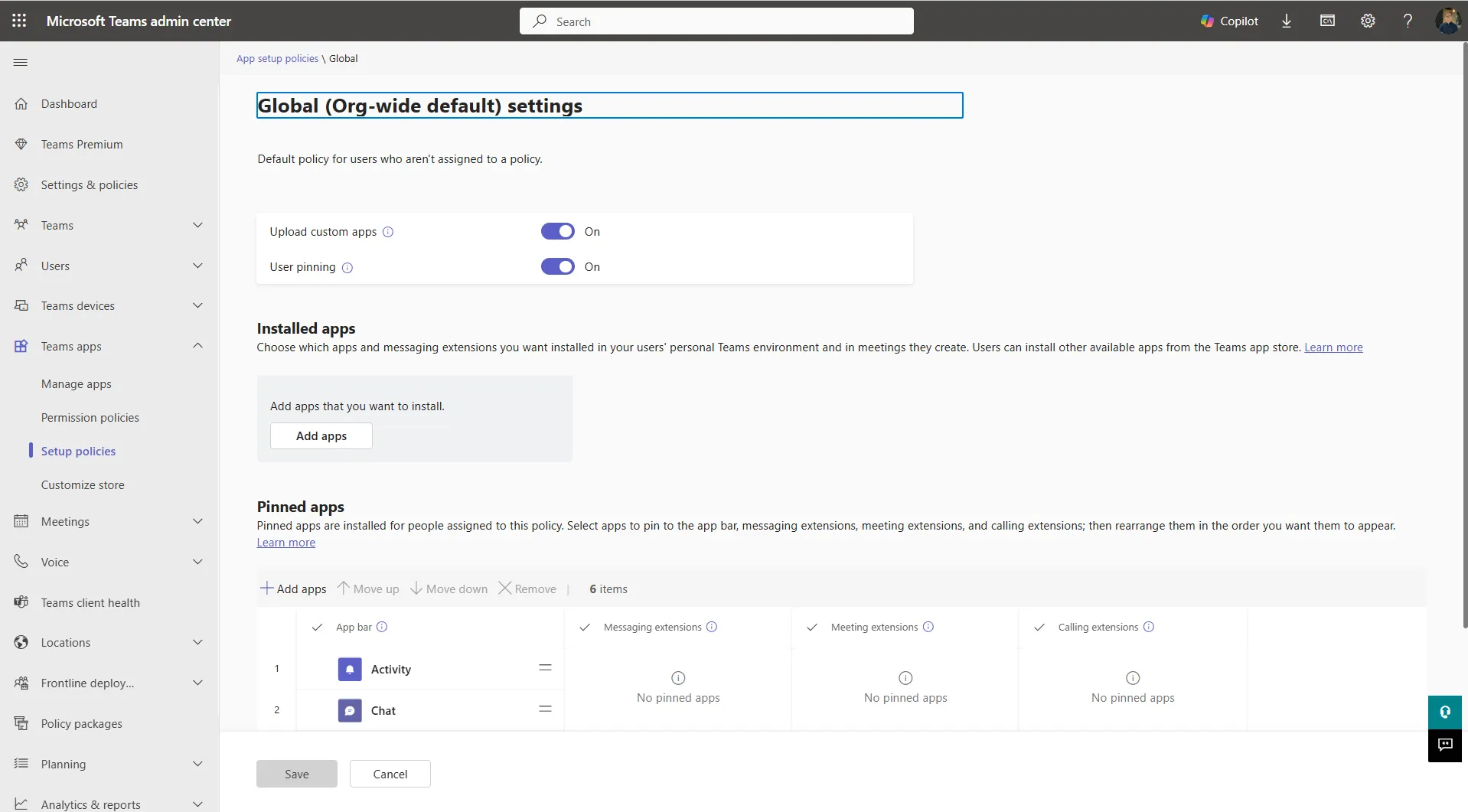
If you upload the package from the Teams app instead, your Teams policy must allow custom app uploads. To check:
- Open the Microsoft Teams admin center.
- Go to Teams apps → Setup policies and open the policy that applies to the users who will upload the package.
- Make sure Upload custom apps is On, then save the policy.
To upload from the Teams desktop app:
- Go to Apps → Manage your apps → Upload an app.
- Choose how you want to upload:
- Upload a custom app makes the bot available to you, to add to specific teams.
- Upload an app to your org's app catalog makes the bot available to everyone in your organization. This is the better choice for team-wide use.
- Select
teams-app-package.zipand click Add.
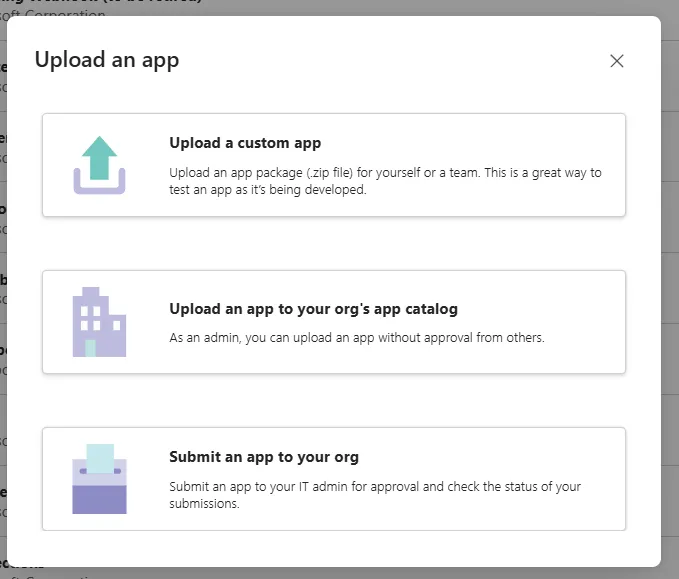
Choose how you want to upload
Then add the bot to a team that has the channel you want to use.
Warning
The bot works only in standard team channels. Personal chats and group chats are not supported.
Step 4: Activate the bot
AI Analyst can reach the bot only after it has been used once in your tenant.
- In a channel of the team where you added the bot, @mention the bot (@Actian AI Analyst) and send any message.
- Back in AI Analyst, the dialog's Activate the bot step shows Waiting for the bot's first mention… and checks the status every few seconds. Click Check again to check right away.
- When the dialog shows Bot activated, click Done. The tenant's status changes to Connected.
If you closed the dialog with Finish later, open the tenant under Connections → Channels and click Finish setup to return to this step.
Activation applies to the whole tenant, but AI Analyst learns about each team only when it receives a message from it. For each additional team you want to deploy to, @mention the bot once in one of its channels, so that the team appears in the picker.
Step 5: Deploy an AI Analyst to a channel
- Open the AI Analyst you want to use in Teams.
- In the header, click the deployment status button (it reads Not deployed or Deployed) and choose Teams.
- In the Microsoft Teams dialog, if your organization has several connected tenants, choose the one to use.
- Choose the Team, then the Channel. Use Search channels… to filter the list. Channels marked Already deployed already have an Analyst and can't be picked.
- Under Confirm access, tick I understand and want to deploy. Everyone in the channel, including guests without an AI Analyst account, gets read access to this Analyst's semantic layer and the data it can query.
- Click Deploy.
You see Analyst deployed, and the channel appears under Deployments in the same dialog.
If the tenant is still waiting for activation, the dialog says This Teams tenant is waiting for the bot's first mention. Add the bot to a team and @mention it in a channel, then finish setup. Click Finish setup to go to Connections.
Deploying to a channel also deploys a Draft Analyst
If the Analyst is still a Draft, deploying it to a channel also marks it Deployed. That makes it available in Explorer to its Explorer audience too. The default audience is Everyone unless you changed it.
The bot answers only in channels that have a deployed Analyst. Each channel has one Analyst, but different channels can use different ones.
Step 6: Ask questions in Teams
- In the channel, @mention the bot (@Actian AI Analyst) with your question.
- The answer arrives as a card in the thread, showing the Analyst's steps and the answer.
- To ask a follow-up, @mention the bot again in the same thread.
Answers can include:
- Result tables, showing up to 10 rows with a note of how many rows there are in total.
- Charts, as native Teams charts when Teams supports the chart type. Other charts are sent as images, up to 4 per answer. A chart that can't be shown either way appears as a table of its data.
- Open in Explorer, to continue the analysis in Explorer.
- Explain, when the answer ran a query: the Analyst replies with how it arrived at the answer.
To rate an answer, use Teams' built-in feedback.
If someone asks a follow-up in Explorer on a conversation that started in Teams, the question and its answer are also posted to the channel thread.
Add --plan to a message to turn on Plan Mode for the thread (--plan off turns it off). The Analyst replies with a plan card that you can Approve, Edit, Reject or Cancel.
The bot can't read attachments. It answers from the text of your message.
Manage the Teams connection
Open the tenant under Connections → Channels to see its Integration summary: Provider, Status, Workspace (the tenant name), Workspace ID (the tenant ID), Connected by and Connected on.
| Status | Meaning |
|---|---|
| Waiting for first mention | The tenant is connected, but the bot hasn't been activated yet. Click Finish setup. |
| Connected | The tenant is working. |
| Reconnection required or Disconnected | Click Reconnect to open the Connect Microsoft Teams dialog again. |
Remove a channel deployment
- Open the AI Analyst, click the deployment status button, and choose Teams.
- Under Deployments, click Remove (trash icon) next to the channel.
The channel stops routing to this Analyst. Existing conversations are kept.
Remove the Teams tenant
- Open the tenant under Connections → Channels.
- Click Remove (trash icon) and confirm in Remove integration.
The tenant is disconnected from your organization and its channel deployments are removed. Existing tasks and their history are kept. Removing the tenant doesn't uninstall the app from Teams. To do that, use the Teams admin center.
Troubleshooting
| What you see | What to do |
|---|---|
| Teams is not configured for this deployment | Teams isn't set up for your deployment. Contact your AI Analyst administrator. |
| The tenant stays at Waiting for first mention | Make sure the bot is installed in a team, then @mention it in one of that team's channels. If Teams isn't configured for your deployment, the tenant can't be activated. |
| A team is missing from the Team picker | @mention the bot once in a channel of that team, then open the deploy dialog again. |
| You can't upload the app package | Check your Teams app policies, or ask your Teams admin to upload the package. |
| The bot replies that no analyst is connected to this channel | Deploy an Analyst to that channel, as in Step 5. |
| The bot posts that your organization's trial has ended or it's pending deletion | See When your organization's trial has ended or it is pending deletion. |
Need help? Use Support in the Studio sidebar, when your deployment offers it, or contact Actian support.