Databricks
Connect a Databricks SQL warehouse to Actian AI Analyst so you can build Models on your Unity Catalog tables and let your AI Analysts query them. AI Analyst browses data as catalog → schema → table.
Availability
- Who can do this: members with the Edit capability in the active Workspace. If your organization turns on Restrict connection management, you also need the Manage organization capability.
- Plan: available unless your organization's plan excludes the Databricks connector.
- Deployment: Actian SaaS and self-managed deployments, unless the deployment's operator has turned the Databricks connector off.
Read-only access depends on the identity
Databricks has no read-only session mode that AI Analyst can switch on, so AI Analyst cannot enforce read-only access itself. Read-only protection depends on the privileges of the user or service principal you connect with. Grant only the read privileges listed in step 2. See Read-only access.
1. Choose an authentication method
AI Analyst supports two methods:
| Method in AI Analyst | Notes |
|---|---|
| Personal access token (default) | Easiest to set up. The token acts as the user who created it. |
| Service principal | Uses an OAuth client ID and secret. Better for automated access, access control and secret rotation. See the note on Azure below. |
Personal access token
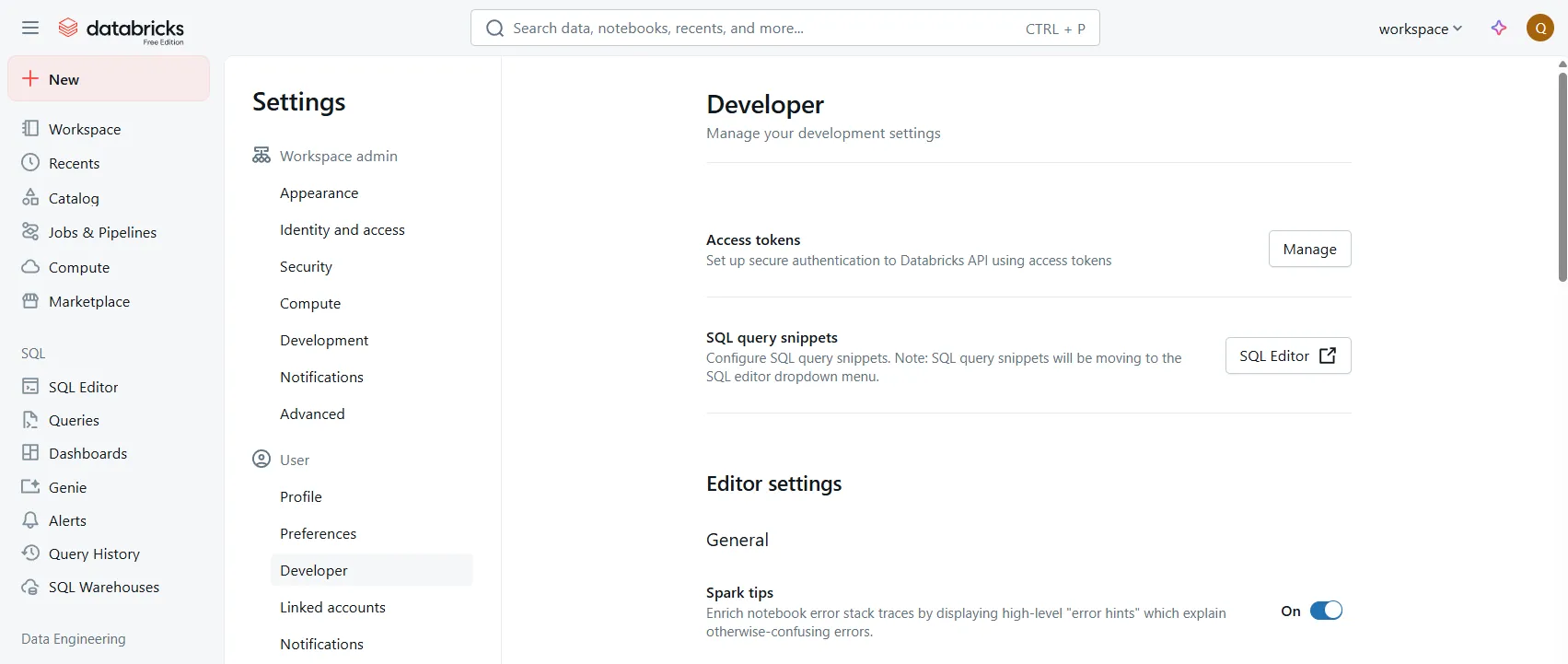
- In Databricks, click your user avatar (top right) and open Settings.
- Under User, open Developer.
- Next to Access tokens, click Manage, then Generate new token.
- Add a descriptive comment and set a reasonable lifetime.
- Copy the token value immediately. You cannot view it again.
When the token expires, generate a new one and update the connection's credentials. See Manage connections.
Service principal
AI Analyst asks only for the service principal's Client ID and Client secret and signs in with Databricks OAuth (machine-to-machine). There is no tenant ID field.
For Databricks on AWS or Google Cloud:
- In Databricks, create a service principal (or reuse one), for example under Settings → Identity and access → Service principals. Note its application (client) ID.
- Generate an OAuth secret for the service principal and copy it. You cannot view it again.
- Give the service principal the Databricks SQL access entitlement.
- Grant it data access as described in step 2, directly or through a group.
Azure Databricks
For Azure Databricks workspaces (hosts ending in .azuredatabricks.net), use a Personal access token. Service principal sign-in may not work there, because AI Analyst has no tenant ID field.
2. Grant read-only permissions
The user or service principal needs:
- SQL warehouse:
CAN USEon the target SQL warehouse (in Databricks, open SQL Warehouses, select the warehouse and open Permissions). - Unity Catalog:
USE CATALOGon each catalog you want AI Analyst to browseUSE SCHEMAon the schemas inside those catalogsSELECTon the tables or views you want AI Analyst to query
For example, for a service principal (use its application ID; for a user, use their email address):
GRANT USE CATALOG ON CATALOG main TO `<application-id>`;
GRANT USE SCHEMA ON SCHEMA main.sales TO `<application-id>`;
GRANT SELECT ON SCHEMA main.sales TO `<application-id>`;
Tip
Missing privileges show up as empty catalog, schema or table lists rather than as errors.
3. Allow network access
If your Databricks workspace uses IP access lists, allow the IP addresses that AI Analyst connects from:
- Actian SaaS: when your deployment publishes its addresses, the Setup help panel next to the connection form lists them under Which IPs to allow.
- Self-managed deployment: AI Analyst connects from your own installation's network. Allow its outbound addresses, or ask whoever operates your installation.
If no addresses are listed, or you allowed an address from an earlier version of these docs, see Network access.
4. Set up the connection in AI Analyst
From your SQL warehouse's Connection details in Databricks, copy the Server hostname and HTTP path. Then:
- In Studio, open Connections and click the plus button (Add connection).
- Under Warehouses, select Databricks.
- Under Connection details, enter a Name and, optionally, a Description. Select Private to this Workspace if only the current Workspace should use the connection. See Connections and Workspaces.
- Under Credentials, fill in:
- Host: your workspace hostname without
https://, such asyour-workspace.cloud.databricks.com. - HTTP path: the HTTP path of your SQL warehouse or cluster, such as
/sql/1.0/warehouses/abcd1234efgh5678. - Authentication: Personal access token or Service principal.
- For Personal access token, paste the token into Access token. For Service principal, enter the Client ID and Client secret.
- Host: your workspace hostname without
- Click Test connection.
- When the test succeeds, optionally select the Catalogs to browse. Leave it empty to list every catalog this connection can see.
- Click Save connection.
Select your catalogs
Some table listings that are not limited to one catalog only work when at least one catalog is selected, so select the catalogs you use.
Note
- Save connection stays unavailable until the test passes. A successful test is valid for five minutes, and changing a connection field resets it. If either happens, test again.
- The token, client ID and client secret are encrypted at rest and never shown again after you save.
Paste a connection string
Instead of typing each field, you can click Paste a connection string, paste the JDBC URL from your SQL warehouse's connection details, and click Fill the form. For example:
jdbc:databricks://<host>:443/default;httpPath=/sql/1.0/warehouses/<warehouse-id>;AuthMech=3;UID=token;PWD=<access-token>
AI Analyst fills Host and HTTP path. A PWD value fills Access token and selects Personal access token; an OAuth client ID and secret select Service principal. Nothing is sent until you test the connection.
Query limits
AI Analyst does not set its own statement time limit on Databricks. The SQL warehouse's timeout settings apply. See Query limits.
Troubleshooting
When a test fails, the form shows a short summary, such as Authentication failed or Could not reach the warehouse. Expand it to see the error that Databricks returned.
| Symptom | Likely cause | What to do |
|---|---|---|
| The test fails | Wrong token or client secret, wrong HTTP path, or an IP access list blocks AI Analyst. | Check the values, and review step 3. |
| Empty catalog list | The identity is missing USE CATALOG, or the data is in the legacy Hive metastore instead of Unity Catalog. |
Grant USE CATALOG on the catalogs. |
| Schemas or tables are missing | The identity is missing USE SCHEMA or SELECT. |
Grant the privileges in step 2. |
For connections that already exist, see Manage connections and Data source health monitoring.
Next steps
Create Models on the tables you want to analyze (see Creating models) and add them to an AI Analyst (see Models).